Camera/ja: Difference between revisions
Updating to match new version of source page |
Updating to match new version of source page |
||
| Line 33: | Line 33: | ||
; Local Photo : After taken, it captures a regular photo. This is the default mode. | ; Local Photo : After taken, it captures a regular photo. This is the default mode. | ||
; Multi Layer : After taken, it captures a photo and creates images of each enabled mask. This mode does support focus or filters and may cause frame lag. | ; Multi Layer : After taken, it captures a photo and creates images of each enabled mask. This mode does support focus or filters and may cause frame lag. | ||
: It can create up to three additional images (besides the regular photo): "Environment", " | : It can create up to three additional images (besides the regular photo): "Environment", "Users" (Combines the Local & Remote Users masks), and "UI". The "Users" & "UI" masks save with alpha transparency. | ||
; Stream : Replaces the desktop view with the camera view. In desktop mode, the "Spout Stream" toggle will appear, allowing the user to receive the camera view through supported applications. | ; Stream : Replaces the desktop view with the camera view. In desktop mode, the "Spout Stream" toggle will appear, allowing the user to receive the camera view through supported applications. | ||
: The "Spout Stream" toggle requires applications to support the [https://spout.zeal.co/ Spout] protocol to receive the camera view. | : The "Spout Stream" toggle requires applications to support the [https://spout.zeal.co/ Spout] protocol to receive the camera view. | ||
| Line 52: | Line 52: | ||
<div lang="en" dir="ltr" class="mw-content-ltr"> | <div lang="en" dir="ltr" class="mw-content-ltr"> | ||
These | These three "modes" are not accessible through the Camera Mode button, but rather other means: | ||
</div> | </div> | ||
<div lang="en" dir="ltr" class="mw-content-ltr"> | <div lang="en" dir="ltr" class="mw-content-ltr"> | ||
; | ; Launch Drone: ''See also [[Special:MyLanguage/Camera Drone|Camera Drone]] for more detailed information.'' | ||
: Brings out the Camera Drone. | : Brings out the Camera Drone. | ||
; Screenshot : Takes a photo without [[Special:MyLanguage/HUD|HUD]] elements. Captures in 1920x1080 by default, unless changed in the [https://docs.vrchat.com/docs/configuration-file config file]. | ; Screenshot : Takes a photo without [[Special:MyLanguage/HUD|HUD]] elements. Captures in 1920x1080 by default, unless changed in the [https://docs.vrchat.com/docs/configuration-file config file]. | ||
Latest revision as of 20:31, 6 April 2026


[理由: The page below is incomplete. Desciptions are missing for toggles, sections not filled out. Considering if these options should be displayed in tables instead of lists. Translations may be broken for a bit.]
カメラは、VRChatでの体験を写真に収めることができるゲーム内ツールです。
カメラの起動方法
VRChatでカメラを起動するには複数の方法があります。
- Open the Action Menu, select Tools, then select Camera.
- Open the Quick Menu and click on the Camera tab on the bottom row. The Quick Menu provides options for all camera modes.
- Double-click the Camera tab on the bottom tab of the Quick Menu. This will immediately take out or put away the camera.
Modes

The camera modes determine how the camera behaves when taking a photo. There are seven camera modes which corresponds to different features:
- Local Photo
- After taken, it captures a regular photo. This is the default mode.
- Multi Layer
- After taken, it captures a photo and creates images of each enabled mask. This mode does support focus or filters and may cause frame lag.
- It can create up to three additional images (besides the regular photo): "Environment", "Users" (Combines the Local & Remote Users masks), and "UI". The "Users" & "UI" masks save with alpha transparency.
- Stream
- Replaces the desktop view with the camera view. In desktop mode, the "Spout Stream" toggle will appear, allowing the user to receive the camera view through supported applications.
- The "Spout Stream" toggle requires applications to support the Spout protocol to receive the camera view.
- This mode is only available on PC.
- Gallery
- After taken, a UI appears allowing the user to zoom, reposition and mirror the photo within a rectangular crop. "Save & Apply" saves it to the Photo Gallery section of the Inventory. Requires VRC+.
- User Icon
- After taken, a UI appears allowing the user to zoom, reposition and mirror the photo within a circular crop. "Save & Apply" saves it to the User Icon section of the Inventory and will automatically set the user icon to it. Requires VRC+.
- Sticker
- See also Stickers for more detailed information.
- Shows a square outline, highlighting the cropping region. After taken, the "Create Sticker" UI appears, allowing the user to zoom, reposition and mirror the photo with six preset crops. "Save" saves it to the Stickers section of the Inventory. Requires VRC+.
- See also Prints for more detailed information.
- After taken, the print UI appears, allowing the user to edit the note. "Print & Save" saves it to the Prints section of the Inventory and will automatically print the print within the world. Requires VRC+.
- Emoji
- See also Emojis for more detailed information.
- Shows a square outline, highlighting the cropping region. After taken, the "Create Emoji" UI appears, allowing the user to choose animations, zoom, reposition and mirror the photo with six preset crops. "Save" saves it to the Emoji section of the Inventory. Requires VRC+.
- Animated options require the user to take a photo for every frame (4 or 16).
- Emoji (1)
- Animated (4)
- Animated (16)
These three "modes" are not accessible through the Camera Mode button, but rather other means:
- Launch Drone
- See also Camera Drone for more detailed information.
- Brings out the Camera Drone.
- Screenshot
- Takes a photo without HUD elements. Captures in 1920x1080 by default, unless changed in the config file.
- Photo Invite
- Invite/Request Invites or Invite/Request Responses can be sent with an image. After taken, a UI appears allowing the user to zoom, reposition and mirror the photo within a rectangular crop. "Save & Apply" attaches it to invite/response. Requires VRC+.
Options

The options consist of the toggles are appear around or on the camera frame. Some options can be controlled by both the UI and the Menu.
UI
The UI toggles are toggles that are on the on center, left or right sides of the camera frame.
Default
- Close
- Closes the camera.
- Orientation
- Switch between landscape and portrait orientation.
- Flip
- Flips the camera. When Anchor is set to "Default", the camera lens turns around 180°, otherwise the image is flipped horizontally.
- Zoom
- Zooms the camera in or out. The camera FOV can be zoomed from 20 to 150, with 45 being the default value.
- Exposure
- Changes the exposure (brightness) of the image. The exposure can be set from -10 to 4, with 0 being the default value.
- Reset
- Resets the zoom and exposure slides to their default values.
- Info
- Shows the status of different camera toggles. Click on a status to quickly cycle through options.
- Camera Mode
- Cycles through the Photo, Stream, and Multi Layer camera modes.
- Pins
- Cycles through pins 1, 2 and 3.
- Focus
- Cycles through Full Auto, Semi Auto, and Manual focuses.
- Filters
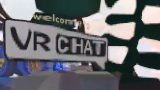
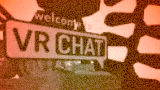
- Cycles through the Blueprint, Glitch, Speed, Hypno, Pixelate, Sketch, Sparkle, Trippy, and Olde camera filters.
Toggle
- Fly Speed
- Determines how fast the camera moves in Fly mode. Values range from 0.1 to 15, with 3 being the default.
- Slider shown only when using Desktop mode or when the Flying toggle is on.
- Turn Speed
- Determines how fast the camera rotates in Fly mode. Values range from 0.1 to 5, with 1 being the default.
- Slider shown only when using Desktop mode or when the Flying toggle is on.
- Smoothing Strength
- Determines how much smoothing is applied to camera movement. Values range from 0.1 to 10, with 5 being the default.
- Slider shown only when using the Smoothed toggle.
- Horizontal Offset
- Determines the horizontal offset from the center of the image when using Look-At-Me. Values range from -25 to 25, with 0 being the default. Using the Auto Level Roll toggle will disable this slider.
- Slider shown only when using the Look-At-Me toggle.
- Vertical Offset
- Determines the vertical offset from the center of the image when using Look-At-Me. Values range from -25 to 25, with 0 being the default.
- Slider shown only when using the Look-At-Me toggle. Using the Auto Level Pitch toggle will disable this slider.
- Focal Distance
- Determines the depth of field's focal distance.
- Slider shown only when using the Manual focus toggle.
- Aperture
- Determines the depth of field's aperture.
- Slider shown only when using the Semi Auto or Manual focus toggles.
- Green Screen
- Displays sliders to adjust the color of the green screen mask. The sliders are Hue, Saturation, and Lightness.
- Sliders shown only when using the GreenScreen toggle.
- Hue
- Saturation
- Lightness
- Duration
- Determines the duration of new dolly points when using time-based motion.
- Slider shown only when the Dolly toggle is selected.
Menu
The Menu toggles are toggles that are below the camera frame.
- Take Photo
- Takes a photo.
- Timed (5s)
- Takes a photo with a five-second delay. Remote users will see a circular indicator around the lens winding down to when the photo is taken. Photo can be cancelled before the five seconds has passed.
- Camera Mode
- Determines how the camera behaves when taking photos. See the Modes section above to view all options
- Flying
- Allows the camera to fly within the world. Movement is applied to the camera instead of the avatar. When flying normally, the camera is limited to a 15 meter? radius, with Camera Dolly, the radius is increased to 150 meters?, and with the Camera Drone, the range is unlimited.
- Toggle appears only on VR & Mobile devices.
- Spout Stream
- Allows the camera view to be received through supported applications. This requires applications to support the Spout protocol.
- The "Stream" camera mode must be selected for it to appear.
- Audio From Camera
- Audio heard will be from the camera position instead of the avatar.
- The "Stream" camera mode must be selected for it to appear.
- Anchor
- Determines where the camera is attached.
- Default
- Attached to the user.
- Local
- Follows user movement but not head movement.
- World
- Attached to the world, independent of user movement.
- Behavior
- Desc
- Smoothed
- Stabilizes video for smoother footage.
- Look-At-Me
- Camera follows where your head is facing.
- Auto Level Roll (VR)
- two colons plus definition
- Auto Level Pitch
- two colons plus definition
- Roll When Flying (VR)
- two colons plus definition
- Trigger Takes Photos (VR)
- Only works when the camera mode is not local photo
- Focus
- Controls the focus mode.
- Off
- two colons plus definition
- Full Auto
- Automatically sets the aperture and focal distance.
- Semi Auto
- Allows adjustment of aperture only. (Aperture slider appears on right)
- Manual
- Allows adjustment of both aperture and focal distance. (Focal Distance, Aperture slider appears on right)
- Show
- (shows focus visualizer)
- Pins
- Saves camera presets.
- Anchor, Behavior, Mask, and Filters can be saved to pins.
- Pin 1
- Pin 2
- Pin 3
- Mask
- Determines which layers are included in pictures.
- Local User
- Includes the user and their avatar.
- Remote User
- Includes other users.
- World
- Includes the world environment.
- GreenScreen
- Replaces the environment with a green screen.
- UI
- Includes UI elements like the radial menu and camera interface.
- Items
- Includes items placed by users in the world.
- Dolly
- See also Camera Dolly for more detailed information.
- This option is only available on PC & Android (Standalone VR).
- Add
- two colons plus definition
- Play (3s)
- two colons plus definition
- Clear Last
- two colons plus definition
- Clear All
- (are u sure)
- Advanced
- Desc
- Export
- (export path relative to world or local)
- Import
- (import path)
- Show Paths
- Desc
- Lens Visibility
- Sets how the camera is rendered within the world.
- Off
- Shows only a small light.
- Ghost
- Displays a light blue transparent camera lens.
- Solid
- Displays a solid camera lens.
- Filters
- Adds visual filters to the camera. Only one filter can be active at a time.
-
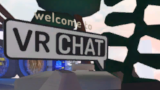 None
None -
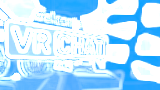 Blueprint
 -
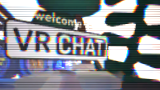 Glitch
 -
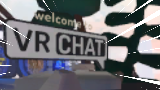 Speed
Speed -
 Hypno
Hypno -
 Pixelate
 -
 Sketch
 -
 Sparkle
 -
 Trippy
 -
 Olde
Olde


- Photo Resolution
- Changes the resolution of taken photos.
- 720p
- 1080p
- 1440p
- 2160p
- 4320p
- Config File
- Applies the resolution specified within the config file.
- Stream Resolution
- Changes the resolution of the Spout Stream output.
- 720p
- 1080p
- 1440p
- 2160p
- Config File
- Applies the resolution specified within the config file.
- Lock
- Disables camera pickup interaction. VR Only.
- Grid
- Displays a rule of thirds grid on the camera.
- Save Metadata
- Attaches metadata to photos when taken.
- Metadata attached includes: Author display name, Author ID, World display name, and, World ID. If the photo is taken in a private world, the world ID, and world display is not attached.
Behavior
Indicators
Red Beam
When a user has their camera out, a red beam will projected upwards and downwards from their camera position. In addition, it will also project a red quad indicating the what direction the camera is facing. These red beams are only visble when the Quick Menu is open.
Timed
Audio From Camera
保存した写真へのアクセス
- Windowsオペレーティングシステムは、Picturesフォルダ
C:/Users/(Owner)/Pictures/VRChatのデフォルトのファイルパスを使用してVRChat写真を保存します。
写真は月と年でソートされます。VRChatのデスクトップおよびPCVRバージョンでは、クイックメニューの「カメラ」タブを開き、「写真フォルダを開く」を選択すると、そのファイルパスにファイルエクスプローラーが直接開きます。
- Steam ユーザーは、デフォルトのファイルパス
C:/Program Files (x86)/Steam/userdata/XXXXXXXXX/760/remote/438100/screenshotsを使用して、VRChat の写真とは別に、Steam スクリーンショット' にアクセスできます。
- スタンドアロン(Questシリーズ)ユーザーは、システムダッシュボードのQuestのファイルアプリ、または同期されている場合は携帯電話やその他のデバイスのOculusアプリを介して写真にアクセスできます。
- AndroidとiOSデバイスは、ギャラリーアプリ、またはデバイスのファイルアプリからVRChat写真にアクセスできます。


