Camera/pt-br: Difference between revisions
Inexorável (talk | contribs) Proofreading... and just a note: in English, the sentence sounds ambiguous, so it was reformulated in Portuguese as: “Used to stream or record the camera’s image directly, instead of the user’s first-person view.” |
No edit summary |
||
| (51 intermediate revisions by 3 users not shown) | |||
| Line 1: | Line 1: | ||
<languages/> | <languages/> | ||
{{Noticebox/Official}} | {{Noticebox/Official}} | ||
{{Noticebox/wip|A página abaixo está incompleta. Faltam descrições para os botões de alternância e algumas seções não foram preenchidas. Estamos avaliando se essas opções deveriam ser exibidas em tabelas, em vez de listas. As traduções podem apresentar alguns erros por enquanto.}} | |||
A '''Câmera''' é uma ferramenta do jogo que permite aos usuários tirar fotos para registrar suas experiências no VRChat. | A '''Câmera''' é uma ferramenta do jogo que permite aos usuários tirar fotos para registrar suas experiências no VRChat. | ||
== | == Acessando == | ||
Existem várias maneiras de acessar a câmera no VRChat: | Existem várias maneiras de acessar a câmera no VRChat: | ||
* Abra o [[Special:MyLanguage/Action Menu|Menu de Ação]], selecione '''Ferramentas''' e selecione '''Câmera'''. | * Abra o [[Special:MyLanguage/Action Menu|Menu de Ação]], selecione '''Ferramentas''' e selecione '''Câmera'''. | ||
* Abra o [[Special:MyLanguage/Quick Menu|Menu Rápido]] e clique na | * Abra o [[Special:MyLanguage/Quick Menu|Menu Rápido]] e clique na aba Câmera na parte inferior. O Menu Rápido oferece opções para todos os modos da câmera. | ||
* Clique duas vezes no botão da câmera na parte inferior do Menu Rápido. Isso irá imediatamente retirar ou guardar a câmera. | * Clique duas vezes no botão da câmera na parte inferior do Menu Rápido. Isso irá imediatamente retirar ou guardar a câmera. | ||
== | == Modos == | ||
[[File:Camera menu.webp|thumb| | [[File:Camera menu.webp|thumb|Aba Câmera no Menu Rápido.]] | ||
Os modos da câmera determinam como ele se comporta ao tirar uma foto. Existem sete modos de câmera, que correspondem a diferentes recursos: | |||
; Foto local : Depois de tirada, a foto é capturada normalmente. Esse é o modo padrão. | |||
; Multicamada : Depois de tirada, ele tira uma foto e cria imagens de cada máscara ativada. Este modo não suporta foco nem filtros e pode causar atrasos na exibição dos quadros. | |||
: Ele pode criar até três imagens adicionais (além da foto normal): "Ambiente", "Usuários" (Combina as máscaras de Usuários Locais e Remotos) e "IU". As máscaras "Usuários" e "IU" são salvas com transparência alfa. | |||
; Transmissão : Substitui a visualização da área de trabalho pela visualização da câmera. No modo de área de trabalho, o botão de alternar a "Transmissão Spout" será exibido, permitindo que o usuário receba a visualização da câmera por meio de aplicativos compatíveis. | |||
: A opção "Transmissão Spout" exige que os aplicativos sejam compatíveis com o protocolo [https://spout.zeal.co/ Spout] para receber a imagem da câmera. | |||
: Este modo está disponível apenas no PC. | |||
; Galeria : Depois de tirada, é exibida uma interface de usuário que permite ao usuário ampliar, reposicionar e inverter a foto dentro de uma área de recorte retangular. A opção "Salvar e aplicar" salva a foto na seção Galeria de fotos do Inventário. Requer o VRC+. | |||
; [[Special:MyLanguage/Inventory#User Icons|Ícone do Usuário]] : Depois de tirada, é exibida uma interface de usuário que permite ao usuário ampliar, reposicionar e inverter a foto dentro de uma área de recorte circular. A opção "Salvar e aplicar" salva a foto na seção Ícone do Usuário do Inventário e define automaticamente essa foto como o ícone do usuário. | |||
; Adesivo : ''Veja também [[Special:MyLanguage/Stickers|Adesivos]] para obter informações mais detalhadas.'' | |||
: Exibe um contorno quadrado, destacando a área de recorte. Após a captura, a interface "Criar Adesivo" é exibida, permitindo que o usuário amplie, reposicione e inverta a foto com seis opções de recorte predefinidas. Ao clicar em "Salvar", o adesivo é salvo na seção Adesivos do Inventário. Requer o VRC+. | |||
; Impressão : ''Veja também [[Special:MyLanguage/Stickers|Impressões]] para obter informações mais detalhadas.'' | |||
: Depois de tirada, a interface de impressão é exibida, permitindo que o usuário edite a nota. "Imprimir e Salvar" salva o item na seção Impressões do Inventário e imprime automaticamente a imagem dentro do mundo. Requer o VRC+. | |||
; Emoji : ''Veja também [[Special:MyLanguage/Stickers|Emojis]] para obter informações mais detalhadas.'' | |||
: Exibe um contorno quadrado, destacando a área de recorte. Após a captura, a interface "Criar Emoji" é exibida, permitindo que o usuário escolha animações, amplie, reposicione e inverta a foto com seis opções de recorte predefinidas. Ao clicar em "Salvar", a imagem é salva na seção Emoji do Inventário. Requer o VRC+. | |||
:As opções animadas exigem que o usuário tire uma foto para cada quadro (4 ou 16). | |||
:; Emoji (1) | |||
:; Animado (4) | |||
:; Animado (16) | |||
Esses três "modos" não podem ser acessados pelo botão Modo de Câmera, mas sim por outros meios: | |||
; Lançar Drone: ''Veja também [[Special:MyLanguage/Stickers|Drone de Câmera]] para obter informações mais detalhadas.'' | |||
: Pega o Drone de Câmera. | |||
; Captura de Tela : Tira uma foto sem os elementos do [[Special:MyLanguage/HUD|HUD]]. Por padrão, captura em 1920x1080, a menos que isso seja alterado no [https://docs.vrchat.com/docs/configuration-file arquivo de configuração]. | |||
; Convite com Foto : Os convites/solicitações de convite ou convites/solicitações de resposta podem ser enviados com uma imagem. Após a foto ser tirada, uma interface do usuário é exibida, permitindo que o usuário amplie, reposicione e inverta a imagem dentro de uma área de recorte retangular. Ao clicar em "Salvar e aplicar", a imagem é anexada ao convite/resposta. Requer o VRC+. | |||
== | == Opções == | ||
[[File:Camera.png|thumb|Visão geral da câmera do VRChat.]] | [[File:Camera.png|thumb|Visão geral da câmera do VRChat.]] | ||
As opções consistem em botões de alternância que aparecem ao redor ou dentro do quadro da câmera. Algumas opção podem ser controladas tanto pela IU quanto pelo menu. | |||
=== IU === | |||
Os botões do IU são aqueles localizados no centro, à esquerda ou à direita do quadro da câmera. | |||
==== Padrão ==== | |||
; Fechar : Fecha a Câmera. | |||
; Orientação : Alterne entre as orientações paisagem e retrato. | |||
; Virar : Inverte a imagem da câmera. Quando a Âncora está configurado como "Padrão", a lente da câmera gira 180°, caso contrário, a imagem é invertida horizontalmente. | |||
; Zoom : Aumenta ou diminui o zoom da câmera. O campo de visão (FOV) da câmera pode variar de 20 a 150, sendo 45 o valor padrão. | |||
; Exposição : Altera a exposição (brilho) da imagem. A exposição pode ser ajustada de -10 a 4, sendo 0 o valor padrão. | |||
; Redefinir : Redefine os controles deslizantes de zoom e exposição para seus valores padrão. | |||
; Info : Mostra o status das diferentes configurações da câmera. Clique em um status para alternar rapidamente entre as opções. | |||
:; Modo da Câmera | |||
:: Alterna entre os modos de câmera Foto, Transmissão e Multicamadas. | |||
:; Posições | |||
:: Alterna entre as posições 1, 2 e 3. | |||
:; Foco | |||
:: Alterna entre os modos de foco automático, semiautomático e manual. | |||
:; Filtros | |||
:: Alterna entre os filtros de câmera Blueprint, Glitch, Velocidade, Hipnótico, Pixelizar, Rascunho, Brilho, Psicodélico e Antigo. | |||
==== Alterar ==== | |||
; Velocidade do Voo : Determina a velocidade com que a câmera se move no modo Voo. Os valores variam de 0,1 a 15, sendo 3 o valor padrão. | |||
: O controle deslizante é exibido apenas no modo Desktop ou quando a opção "Voando" está ativada. | |||
; Velocidade de Rotação : Determina a velocidade de rotação da câmera no modo Voo. Os valores variam de 0,1 a 5, sendo 1 o valor padrão. | |||
: O controle deslizante é exibido apenas no modo Desktop ou quando a opção "Voando" está ativada. | |||
; Força de Suavização : Determina o nível de suavização aplicado ao movimento da câmera. Os valores variam de 0,1 a 10, sendo 5 o valor padrão. | |||
: O controle deslizante é exibido apenas quando a opção Suavizado está ativada. | |||
; Deslocamento Horizontal : Determina o deslocamento horizontal em relação ao centro da imagem ao usar o recurso Olhe-Para-Mim. Os valores variam de -25 a 25, sendo 0 o valor padrão. Ao ativar a opção Inclinação de Nível Automático, este controle deslizante será desativado. | |||
: O controle deslizante é exibido apenas quando se usa o botão Olhe-Para-Mim. | |||
; Deslocamento Vertical : Determina o deslocamento vertical em relação ao centro da imagem ao usar o recurso Olhe-Para-Mim. Os valores variam de -25 a 25, sendo 0 o valor padrão. | |||
: O controle deslizante é exibido apenas quando se usa o botão Olhe-Para-Mim. Ao usar o botão Inclinação de Nível Automático, este controle deslizante será desativado. | |||
; Distância Focal : Determina a distância focal da profundidade de campo. | |||
: O controle deslizante é exibido apenas quando se usa o botão de alternância de foco manual. | |||
; Abertura : Determina a abertura da profundidade de campo. | |||
: O controle deslizante é exibido apenas ao usar os botões de alternância de foco semiautomático ou manual. | |||
; Tela Verde : Exibe controles deslizantes para ajustar a cor da máscara da tela verde. Os controles deslizantes são Matiz, Saturação e Luminosidade. | |||
: Os controles deslizantes são exibidos apenas quando se usa o botão da Tela Verde. | |||
:; Matiz | |||
:; Saturação | |||
:; Luminosidade | |||
; Duração : Determina a duração dos novos pontos de dolly ao usar movimento baseado em tempo. | |||
: O controle deslizante é exibido apenas quando a opção Dolly está selecionada. | |||
=== Menu === | |||
Os botões do Menu são aqueles que ficam abaixo do quadro da câmera. | |||
; Tirar Foto : Tira uma foto. | |||
; Temporizador (5s) : Tira uma foto com um atraso de cinco segundos. Os usuários remotos verão um indicador circular ao redor da lente, que vai diminuindo até o momento em que a foto é tirada. É possível cancelar a foto antes que os cinco segundos se esgotem. | |||
; Modo de Câmera : Determina como a câmera se comporta ao tirar fotos. Consulte a seção [[Câmera#Modes|Modos]] acima para ver todas as opções. | |||
; Voando : Permite que a câmera voe pelo mundo. O movimento é aplicado à câmera, e não ao avatar. Ao voar normalmente, a câmera fica limitada a um raio de 15 metros, com o Camera Dolly, o raio aumenta para 150 metros, e com o Camera Drone, o alcance é ilimitado. | |||
: O botão aparece apenas em dispositivos de VR e móveis. | |||
; Transmissão Spout : Permite que a imagem da câmera seja recebida por meio de aplicativos compatíveis. Para isso, é necessário que os aplicativos sejam compatíveis com o protocolo [https://spout.zeal.co/ Spout]. | |||
: É preciso selecionar o modo de câmera "Transmissão" para que ele apareça. | |||
; Áudio da Câmera : O áudio será ouvido da posição da câmera, e não do avatar. | |||
: É preciso selecionar o modo de câmera "Transmissão" para que ele apareça. | |||
; Âncora : Determina onde a câmera está acoplada. | |||
:; Padrão | |||
:: Acoplada no usuário | |||
:; Local | |||
:: Acompanha os movimentos do usuário, mas não os movimentos da cabeça. | |||
:; Mundo | |||
:: Acoplada ao mundo, independente dos movimentos do usuário. | |||
; Comportamento : Desc | |||
:; Suavizar | |||
:: Estabiliza o vídeo para obter imagens mais suaves. | |||
:; Olhe-Para-Mim | |||
:: A câmera acompanha a direção para a qual sua cabeça está voltada. | |||
:; Rotação de Nível Automático (VR) | |||
:: dois pontos mais definição | |||
:; Inclinação de Nível Automático | |||
:: dois dois pontos mais definição | |||
:; Rolar Durante o Voo (VR) | |||
:: dois dois pontos mais definição | |||
:; Gatilho Tira Fotos (VR) | |||
:: Só funciona quando o modo da câmera não é foto local | |||
; Foco : Controla o modo de foco. | |||
:; Inativo | |||
:: dois pontos mais definição | |||
:; Automático | |||
:: Define automaticamente a abertura e a distância focal. | |||
:; Semiautomático | |||
:: Permite ajustar apenas a abertura. (O controle deslizante de abertura aparece à direita) | |||
:; Manual | |||
:: Permite ajustar tanto a abertura quanto a distância focal. (A Distância Focal e o controle deslizante de Abertura aparecem à direita) | |||
:; Mostrar | |||
:: (mostra o visualizador de foco) | |||
; Posição : Salva as configurações predefinidas da câmera. | |||
: Âncora, Comportamento, Máscara, e Filtros pode ser salvos nas posições. | |||
:; Posição 1 | |||
:; Posição 2 | |||
:; Posição 3 | |||
; Máscara : Determina quais camadas são incluídas nas imagens. | |||
:; Usuário Local | |||
:: Inclui o usuário e o avatar dele. | |||
:; Usuário Remoto | |||
:: Inclui outros usuários. | |||
:; Mundo | |||
:: Inclui o cenário global. | |||
:; Tela Verde | |||
:: Substitui o cenário por uma tela verde. | |||
:; IU | |||
:: Inclui elementos da IU, como o menu radial e a interface da câmera. | |||
:; Itens | |||
:: Inclui [[Special:MyLanguage/Items|itens]] colocados por usuários no mundo. | |||
; Dolly : ''Veja também em [[Special:MyLanguage/Camera Dolly|Câmera Dolly]] para informações mais detalhadas.'' | |||
: Essa opção está disponível apenas para PC e Android (VR Indenpendente). | |||
:; Adicionar | |||
:: dois pontos mais definição | |||
:; Reproduzir (3s) | |||
:: dois pontos mais definição | |||
:; Limpar Última | |||
:: dois pontos mais definição | |||
:; Deletar Tudo | |||
:: (vc tem certeza) | |||
:; Avançada : Desc | |||
::; Exportar | |||
::: (export path relative to world or local) | |||
::; Importar | |||
::: (caminho de importação) | |||
::; Mostrar Caminhos : Desc | |||
; Visibilidade da Lente : Define como a câmera é renderizada no mundo. | |||
:; Inativo | |||
:: Mostra apenas uma luz fraca. | |||
:; Fantasma | |||
:: Exibe uma lente de câmera transparente em azul claro. | |||
:; Sólido | |||
:: Exibe uma lente de câmera sólida. | |||
== | ; Filtros : Adiciona filtros visuais à câmera. Apenas um filtro pode estar ativo por vez. | ||
<gallery mode="packed" heights="80"> | |||
File:CameraFilter None.png|Nenhum | |||
File:CameraFilter Blueprint.png|Blueprint | |||
File:CameraFilter Glitch.png|Glitch | |||
File:CameraFilter Speed.png|Velocidade | |||
File:CameraFilter Hypno.png|Hipinótico | |||
File:CameraFilter Pixelate.png|Pixalizar | |||
File:CameraFilter Sketch.png|Rascunho | |||
File:CameraFilter Sparkle.png|Brilho | |||
File:CameraFilter Trippy.png|Psicodélico | |||
File:CameraFilter Olde.png|Antigo | |||
</gallery> | |||
; Resolução da Foto : Altera a resolução das fotos tiradas. | |||
:; 720p | |||
:; 1080p | |||
:; 1440p | |||
:; 2160p | |||
:; 4320p | |||
:; Arquivo de Configurações | |||
:: Aplica a resolução especificada no arquivo de configuração. | |||
; Resolução da Transmissão : Altera a resolução da saída da Transmissão Spout. | |||
:; 720p | |||
:; 1080p | |||
:; 1440p | |||
:; 2160p | |||
:; Arquivo de Confurações | |||
:: Aplica a resolução especificada no arquivo de configuração. | |||
; Travar : Desativa a interação com a câmera. Apenas em VR. | |||
; Grade : Exibe uma grade da [[wikipedia:Rule of thirds|regra dos terços]] na câmera. | |||
; Salvar Metadados : Anexa metadados às fotos no momento em que são tiradas. | |||
: Os metadados anexados incluem: nome de exibição do Autor, ID do Autor, nome de exibição do Mundo e ID do Mundo. Se a foto for tirada em um mundo privado, o ID do mundo e o nome de exibição do mundo não serão anexados. | |||
== Comportamento == | |||
=== Indicadores === | |||
==== Feixe Vermelho ==== | |||
Quando um usuário estiver com a câmera, um feixe vermelho será projetado para cima e para baixo a partir da posição da câmera. Além disso, também será projetado um quadrado vermelho indicando a direção para a qual a câmera está voltada. Esses feixes vermelhos só ficam visíveis quando o Menu Rápido está aberto. | |||
<span id="Timed"></span> | |||
==== Cronometrado ==== | |||
<span id="Audio_From_Camera"></span> | |||
==== Áudio da Câmera ==== | |||
<span id="Accessing_saved_photos"></span> | <span id="Accessing_saved_photos"></span> | ||
| Line 108: | Line 234: | ||
* Os usuários '''Steam''' podem acessar suas '''capturas de tela do Steam''' separadas das fotos do VRChat, usando o caminho padrão do arquivo <code>''C:/Arquivos de Programas (x86)/Steam/userdata/XXXXXXXXX/760/remote/438100/screenshots''</code> | * Os usuários '''Steam''' podem acessar suas '''capturas de tela do Steam''' separadas das fotos do VRChat, usando o caminho padrão do arquivo <code>''C:/Arquivos de Programas (x86)/Steam/userdata/XXXXXXXXX/760/remote/438100/screenshots''</code> | ||
* Os usuários do ''' | * Os usuários do '''VR Independente''' podem acessar suas fotos pelo aplicativo Arquivos/Fotos no painel de controle do respectivo sistema ou pelos respectivos aplicativos no celular ou em outro dispositivo do usuário, caso estejam sincronizados. | ||
* Os '''Dispositivos móveis | * Os '''Dispositivos móveis''' podem acessar suas fotos do VRChat através do aplicativo Galeria ou do aplicativo Arquivos em seus dispositivos. | ||
<span id="See_also"></span> | <span id="See_also"></span> | ||
| Line 117: | Line 243: | ||
* [[Special:MyLanguage/Camera Dolly|Câmera Dolly]] | * [[Special:MyLanguage/Camera Dolly|Câmera Dolly]] | ||
* [[Special:MyLanguage/Camera Drone|Câmera Drone]] | * [[Special:MyLanguage/Camera Drone|Câmera Drone]] | ||
* [[Special:MyLanguage/Gallery|Galeria]] | * [[Special:MyLanguage/Photo Gallery|Galeria de Foto]] | ||
{{ | |||
== Navegação == | |||
{{Navbox/Câmera}} | |||
[[Category:User Interface{{#translation:}}]] | [[Category:User Interface{{#translation:}}]] | ||
[[Category:Features{{#translation:}}]] | [[Category:Features{{#translation:}}]] | ||
Latest revision as of 02:20, 31 August 2026


[Razão: A página abaixo está incompleta. Faltam descrições para os botões de alternância e algumas seções não foram preenchidas. Estamos avaliando se essas opções deveriam ser exibidas em tabelas, em vez de listas. As traduções podem apresentar alguns erros por enquanto.]
A Câmera é uma ferramenta do jogo que permite aos usuários tirar fotos para registrar suas experiências no VRChat.
Acessando
Existem várias maneiras de acessar a câmera no VRChat:
- Abra o Menu de Ação, selecione Ferramentas e selecione Câmera.
- Abra o Menu Rápido e clique na aba Câmera na parte inferior. O Menu Rápido oferece opções para todos os modos da câmera.
- Clique duas vezes no botão da câmera na parte inferior do Menu Rápido. Isso irá imediatamente retirar ou guardar a câmera.
Modos

Os modos da câmera determinam como ele se comporta ao tirar uma foto. Existem sete modos de câmera, que correspondem a diferentes recursos:
- Foto local
- Depois de tirada, a foto é capturada normalmente. Esse é o modo padrão.
- Multicamada
- Depois de tirada, ele tira uma foto e cria imagens de cada máscara ativada. Este modo não suporta foco nem filtros e pode causar atrasos na exibição dos quadros.
- Ele pode criar até três imagens adicionais (além da foto normal): "Ambiente", "Usuários" (Combina as máscaras de Usuários Locais e Remotos) e "IU". As máscaras "Usuários" e "IU" são salvas com transparência alfa.
- Transmissão
- Substitui a visualização da área de trabalho pela visualização da câmera. No modo de área de trabalho, o botão de alternar a "Transmissão Spout" será exibido, permitindo que o usuário receba a visualização da câmera por meio de aplicativos compatíveis.
- A opção "Transmissão Spout" exige que os aplicativos sejam compatíveis com o protocolo Spout para receber a imagem da câmera.
- Este modo está disponível apenas no PC.
- Galeria
- Depois de tirada, é exibida uma interface de usuário que permite ao usuário ampliar, reposicionar e inverter a foto dentro de uma área de recorte retangular. A opção "Salvar e aplicar" salva a foto na seção Galeria de fotos do Inventário. Requer o VRC+.
- Ícone do Usuário
- Depois de tirada, é exibida uma interface de usuário que permite ao usuário ampliar, reposicionar e inverter a foto dentro de uma área de recorte circular. A opção "Salvar e aplicar" salva a foto na seção Ícone do Usuário do Inventário e define automaticamente essa foto como o ícone do usuário.
- Adesivo
- Veja também Adesivos para obter informações mais detalhadas.
- Exibe um contorno quadrado, destacando a área de recorte. Após a captura, a interface "Criar Adesivo" é exibida, permitindo que o usuário amplie, reposicione e inverta a foto com seis opções de recorte predefinidas. Ao clicar em "Salvar", o adesivo é salvo na seção Adesivos do Inventário. Requer o VRC+.
- Impressão
- Veja também Impressões para obter informações mais detalhadas.
- Depois de tirada, a interface de impressão é exibida, permitindo que o usuário edite a nota. "Imprimir e Salvar" salva o item na seção Impressões do Inventário e imprime automaticamente a imagem dentro do mundo. Requer o VRC+.
- Emoji
- Veja também Emojis para obter informações mais detalhadas.
- Exibe um contorno quadrado, destacando a área de recorte. Após a captura, a interface "Criar Emoji" é exibida, permitindo que o usuário escolha animações, amplie, reposicione e inverta a foto com seis opções de recorte predefinidas. Ao clicar em "Salvar", a imagem é salva na seção Emoji do Inventário. Requer o VRC+.
- As opções animadas exigem que o usuário tire uma foto para cada quadro (4 ou 16).
- Emoji (1)
- Animado (4)
- Animado (16)
Esses três "modos" não podem ser acessados pelo botão Modo de Câmera, mas sim por outros meios:
- Lançar Drone
- Veja também Drone de Câmera para obter informações mais detalhadas.
- Pega o Drone de Câmera.
- Captura de Tela
- Tira uma foto sem os elementos do HUD. Por padrão, captura em 1920x1080, a menos que isso seja alterado no arquivo de configuração.
- Convite com Foto
- Os convites/solicitações de convite ou convites/solicitações de resposta podem ser enviados com uma imagem. Após a foto ser tirada, uma interface do usuário é exibida, permitindo que o usuário amplie, reposicione e inverta a imagem dentro de uma área de recorte retangular. Ao clicar em "Salvar e aplicar", a imagem é anexada ao convite/resposta. Requer o VRC+.
Opções

As opções consistem em botões de alternância que aparecem ao redor ou dentro do quadro da câmera. Algumas opção podem ser controladas tanto pela IU quanto pelo menu.
IU
Os botões do IU são aqueles localizados no centro, à esquerda ou à direita do quadro da câmera.
Padrão
- Fechar
- Fecha a Câmera.
- Orientação
- Alterne entre as orientações paisagem e retrato.
- Virar
- Inverte a imagem da câmera. Quando a Âncora está configurado como "Padrão", a lente da câmera gira 180°, caso contrário, a imagem é invertida horizontalmente.
- Zoom
- Aumenta ou diminui o zoom da câmera. O campo de visão (FOV) da câmera pode variar de 20 a 150, sendo 45 o valor padrão.
- Exposição
- Altera a exposição (brilho) da imagem. A exposição pode ser ajustada de -10 a 4, sendo 0 o valor padrão.
- Redefinir
- Redefine os controles deslizantes de zoom e exposição para seus valores padrão.
- Info
- Mostra o status das diferentes configurações da câmera. Clique em um status para alternar rapidamente entre as opções.
- Modo da Câmera
- Alterna entre os modos de câmera Foto, Transmissão e Multicamadas.
- Posições
- Alterna entre as posições 1, 2 e 3.
- Foco
- Alterna entre os modos de foco automático, semiautomático e manual.
- Filtros
- Alterna entre os filtros de câmera Blueprint, Glitch, Velocidade, Hipnótico, Pixelizar, Rascunho, Brilho, Psicodélico e Antigo.
Alterar
- Velocidade do Voo
- Determina a velocidade com que a câmera se move no modo Voo. Os valores variam de 0,1 a 15, sendo 3 o valor padrão.
- O controle deslizante é exibido apenas no modo Desktop ou quando a opção "Voando" está ativada.
- Velocidade de Rotação
- Determina a velocidade de rotação da câmera no modo Voo. Os valores variam de 0,1 a 5, sendo 1 o valor padrão.
- O controle deslizante é exibido apenas no modo Desktop ou quando a opção "Voando" está ativada.
- Força de Suavização
- Determina o nível de suavização aplicado ao movimento da câmera. Os valores variam de 0,1 a 10, sendo 5 o valor padrão.
- O controle deslizante é exibido apenas quando a opção Suavizado está ativada.
- Deslocamento Horizontal
- Determina o deslocamento horizontal em relação ao centro da imagem ao usar o recurso Olhe-Para-Mim. Os valores variam de -25 a 25, sendo 0 o valor padrão. Ao ativar a opção Inclinação de Nível Automático, este controle deslizante será desativado.
- O controle deslizante é exibido apenas quando se usa o botão Olhe-Para-Mim.
- Deslocamento Vertical
- Determina o deslocamento vertical em relação ao centro da imagem ao usar o recurso Olhe-Para-Mim. Os valores variam de -25 a 25, sendo 0 o valor padrão.
- O controle deslizante é exibido apenas quando se usa o botão Olhe-Para-Mim. Ao usar o botão Inclinação de Nível Automático, este controle deslizante será desativado.
- Distância Focal
- Determina a distância focal da profundidade de campo.
- O controle deslizante é exibido apenas quando se usa o botão de alternância de foco manual.
- Abertura
- Determina a abertura da profundidade de campo.
- O controle deslizante é exibido apenas ao usar os botões de alternância de foco semiautomático ou manual.
- Tela Verde
- Exibe controles deslizantes para ajustar a cor da máscara da tela verde. Os controles deslizantes são Matiz, Saturação e Luminosidade.
- Os controles deslizantes são exibidos apenas quando se usa o botão da Tela Verde.
- Matiz
- Saturação
- Luminosidade
- Duração
- Determina a duração dos novos pontos de dolly ao usar movimento baseado em tempo.
- O controle deslizante é exibido apenas quando a opção Dolly está selecionada.
Menu
Os botões do Menu são aqueles que ficam abaixo do quadro da câmera.
- Tirar Foto
- Tira uma foto.
- Temporizador (5s)
- Tira uma foto com um atraso de cinco segundos. Os usuários remotos verão um indicador circular ao redor da lente, que vai diminuindo até o momento em que a foto é tirada. É possível cancelar a foto antes que os cinco segundos se esgotem.
- Modo de Câmera
- Determina como a câmera se comporta ao tirar fotos. Consulte a seção Modos acima para ver todas as opções.
- Voando
- Permite que a câmera voe pelo mundo. O movimento é aplicado à câmera, e não ao avatar. Ao voar normalmente, a câmera fica limitada a um raio de 15 metros, com o Camera Dolly, o raio aumenta para 150 metros, e com o Camera Drone, o alcance é ilimitado.
- O botão aparece apenas em dispositivos de VR e móveis.
- Transmissão Spout
- Permite que a imagem da câmera seja recebida por meio de aplicativos compatíveis. Para isso, é necessário que os aplicativos sejam compatíveis com o protocolo Spout.
- É preciso selecionar o modo de câmera "Transmissão" para que ele apareça.
- Áudio da Câmera
- O áudio será ouvido da posição da câmera, e não do avatar.
- É preciso selecionar o modo de câmera "Transmissão" para que ele apareça.
- Âncora
- Determina onde a câmera está acoplada.
- Padrão
- Acoplada no usuário
- Local
- Acompanha os movimentos do usuário, mas não os movimentos da cabeça.
- Mundo
- Acoplada ao mundo, independente dos movimentos do usuário.
- Comportamento
- Desc
- Suavizar
- Estabiliza o vídeo para obter imagens mais suaves.
- Olhe-Para-Mim
- A câmera acompanha a direção para a qual sua cabeça está voltada.
- Rotação de Nível Automático (VR)
- dois pontos mais definição
- Inclinação de Nível Automático
- dois dois pontos mais definição
- Rolar Durante o Voo (VR)
- dois dois pontos mais definição
- Gatilho Tira Fotos (VR)
- Só funciona quando o modo da câmera não é foto local
- Foco
- Controla o modo de foco.
- Inativo
- dois pontos mais definição
- Automático
- Define automaticamente a abertura e a distância focal.
- Semiautomático
- Permite ajustar apenas a abertura. (O controle deslizante de abertura aparece à direita)
- Manual
- Permite ajustar tanto a abertura quanto a distância focal. (A Distância Focal e o controle deslizante de Abertura aparecem à direita)
- Mostrar
- (mostra o visualizador de foco)
- Posição
- Salva as configurações predefinidas da câmera.
- Âncora, Comportamento, Máscara, e Filtros pode ser salvos nas posições.
- Posição 1
- Posição 2
- Posição 3
- Máscara
- Determina quais camadas são incluídas nas imagens.
- Usuário Local
- Inclui o usuário e o avatar dele.
- Usuário Remoto
- Inclui outros usuários.
- Mundo
- Inclui o cenário global.
- Tela Verde
- Substitui o cenário por uma tela verde.
- IU
- Inclui elementos da IU, como o menu radial e a interface da câmera.
- Itens
- Inclui itens colocados por usuários no mundo.
- Dolly
- Veja também em Câmera Dolly para informações mais detalhadas.
- Essa opção está disponível apenas para PC e Android (VR Indenpendente).
- Adicionar
- dois pontos mais definição
- Reproduzir (3s)
- dois pontos mais definição
- Limpar Última
- dois pontos mais definição
- Deletar Tudo
- (vc tem certeza)
- Avançada
- Desc
- Exportar
- (export path relative to world or local)
- Importar
- (caminho de importação)
- Mostrar Caminhos
- Desc
- Visibilidade da Lente
- Define como a câmera é renderizada no mundo.
- Inativo
- Mostra apenas uma luz fraca.
- Fantasma
- Exibe uma lente de câmera transparente em azul claro.
- Sólido
- Exibe uma lente de câmera sólida.
- Filtros
- Adiciona filtros visuais à câmera. Apenas um filtro pode estar ativo por vez.
-
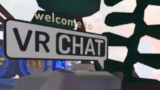 Nenhum
 -
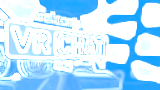 Blueprint
 -
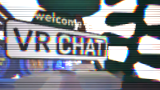 Glitch
 -
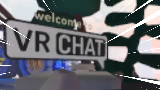 Velocidade
 -
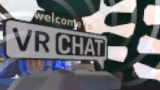 Hipinótico
 -
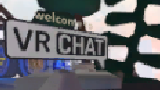 Pixalizar
 -
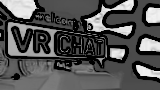 Rascunho
 -
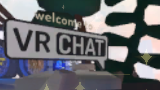 Brilho
 -
 Psicodélico
 -
 Antigo


- Resolução da Foto
- Altera a resolução das fotos tiradas.
- 720p
- 1080p
- 1440p
- 2160p
- 4320p
- Arquivo de Configurações
- Aplica a resolução especificada no arquivo de configuração.
- Resolução da Transmissão
- Altera a resolução da saída da Transmissão Spout.
- 720p
- 1080p
- 1440p
- 2160p
- Arquivo de Confurações
- Aplica a resolução especificada no arquivo de configuração.
- Travar
- Desativa a interação com a câmera. Apenas em VR.
- Grade
- Exibe uma grade da regra dos terços na câmera.
- Salvar Metadados
- Anexa metadados às fotos no momento em que são tiradas.
- Os metadados anexados incluem: nome de exibição do Autor, ID do Autor, nome de exibição do Mundo e ID do Mundo. Se a foto for tirada em um mundo privado, o ID do mundo e o nome de exibição do mundo não serão anexados.
Comportamento
Indicadores
Feixe Vermelho
Quando um usuário estiver com a câmera, um feixe vermelho será projetado para cima e para baixo a partir da posição da câmera. Além disso, também será projetado um quadrado vermelho indicando a direção para a qual a câmera está voltada. Esses feixes vermelhos só ficam visíveis quando o Menu Rápido está aberto.
Cronometrado
Áudio da Câmera
Acessando as fotos salvadas
- Sistemas operacionais Windows armazenam as fotos do VRChat usando o caminho padrão da pasta Imagens
C:/Usuário/(Dono)/Imagens/VRChat. As fotos são classificadas por mês e ano. Nas versões desktop e PCVR do VRChat, ao abrir a guia Câmera no Menu Rápido e selecionar "Abrir pasta de fotos", o Explorador de Arquivos será aberto diretamente nesse caminho.
- Os usuários Steam podem acessar suas capturas de tela do Steam separadas das fotos do VRChat, usando o caminho padrão do arquivo
C:/Arquivos de Programas (x86)/Steam/userdata/XXXXXXXXX/760/remote/438100/screenshots
- Os usuários do VR Independente podem acessar suas fotos pelo aplicativo Arquivos/Fotos no painel de controle do respectivo sistema ou pelos respectivos aplicativos no celular ou em outro dispositivo do usuário, caso estejam sincronizados.
- Os Dispositivos móveis podem acessar suas fotos do VRChat através do aplicativo Galeria ou do aplicativo Arquivos em seus dispositivos.


