ClientSim: Difference between revisions
From VRChat Wiki
Add images |
mNo edit summary |
||
| Line 3: | Line 3: | ||
== Usage == | == Usage == | ||
* Click "Play" button in | * Click "Play" button in an opened world Unity project to start the simulator. | ||
* Press "Esc" key to access the Client Simulator window with actions and settings (while in "Game" Unity view). | * Press "Esc" key to access the Client Simulator window with actions and settings (while in "Game" Unity view). | ||
* Open "VRChat SDK" Unity tab and select one of "ClientSim [...]" options to access additional settings and debug tools. | * Open "VRChat SDK" Unity tab and select one of "ClientSim [...]" options to access additional settings and debug tools such as PlayerData and PlayerObjects. | ||
== Gallery == | == Gallery == | ||
Revision as of 11:58, 18 September 2025

It is reviewed and approved by the VRCWiki Team. Learn how to contribute to this page by reading the Contribution Guide.

You can help the VRChat Wiki by improving it.
[Reason: You can contribute by expanding and proofreading this article, in accordance with the Manual of Style.]
[Reason: You can contribute by expanding and proofreading this article, in accordance with the Manual of Style.]
ClientSim (Client Simulator) is an official tool in the Worlds SDK that allows to run worlds inside the Unity editor, simulating the VRChat client behavior.
Usage
- Click "Play" button in an opened world Unity project to start the simulator.
- Press "Esc" key to access the Client Simulator window with actions and settings (while in "Game" Unity view).
- Open "VRChat SDK" Unity tab and select one of "ClientSim [...]" options to access additional settings and debug tools such as PlayerData and PlayerObjects.
Gallery
-
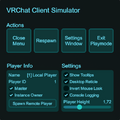 VRChat Client Simulator window
 -
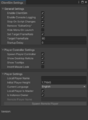 ClientSim Settings window
 -
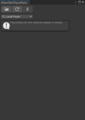 ClientSim PlayerData window
 -
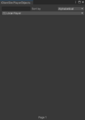 ClientSim PlayerObjects window


Official resources
- ClientSim docs on VRChat Creators
- ClientSim source code for contributing on GitHub


