Reporting: Difference between revisions
Updated report tables. |
Added reporting for emojis, stickers, prints. Light proofread. |
||
| Line 4: | Line 4: | ||
== Overview == | == Overview == | ||
Reporting is a very important process to ensure the safety and experience of all players, while blocking only locally curates the experience for yourself. The report process is anonymous, and users will be unable to tell whether or not something has been reported by you. Likewise, to protect user privacy, [[Bans|results of moderation action]] will not be disclosed to the reporter. | Reporting is a very important process to ensure the safety and experience of all players, while blocking only locally curates the experience for yourself. The report process is anonymous, and users will be unable to tell whether or not something has been reported by you. Likewise, to protect user privacy, [[Special:MyLanguage/Bans|results of moderation action]] will not be disclosed to the reporter. | ||
You can learn more about the various methods and alternatives for reporting in the [[Special:MyLanguage/Trust and Safety|Trust and Safety]] article, such as hiding avatars, muting a user, Safe Mode, and the Go Home button. In addition, you can also {{VRC link|https://feedback.vrchat.com/bug-reports|report bugs}} and {{VRC link|https://help.vrchat.com/hc/en-us/requests/new |security exploits}} to VRChat. | You can learn more about the various methods and alternatives for reporting in the [[Special:MyLanguage/Trust and Safety|Trust and Safety]] article, such as hiding avatars, muting a user, Safe Mode, and the Go Home button. In addition, you can also {{VRC link|https://feedback.vrchat.com/bug-reports|report bugs}} and {{VRC link|https://help.vrchat.com/hc/en-us/requests/new |security exploits}} to VRChat. | ||
== Effective reporting == | == Effective reporting == | ||
While reporting in-game is a simple way to flag content, VRChat's development team always recommends [https://help.vrchat.com/hc/en-us/requests/new submitting a moderation report] on the [[Resources|Help website]] at ''help.vrchat.com'', as reports are expedited, and users are able to offer more conclusive data in a moderation report. See more about [[Reporting#Reporting on the VRChat website|reporting on the VRChat website]]. | While reporting in-game is a simple way to flag content, VRChat's development team always recommends [https://help.vrchat.com/hc/en-us/requests/new submitting a moderation report] on the [[Special:MyLanguage/Resources|Help website]] at ''help.vrchat.com'', as reports are expedited, and users are able to offer more conclusive data in a moderation report. See more about [[Special:MyLanguage/Reporting#Reporting on the VRChat website|reporting on the VRChat website]]. | ||
In an effective report, users are able to: | In an effective report, users are able to: | ||
| Line 21: | Line 21: | ||
** Log files | ** Log files | ||
==Reporting a user== | ==Reporting content== | ||
=== Reporting a user === | |||
This should be selected to report objectionable language or actions of a user. A user can also be clicked on to report, mute, or block them. Any violation in regards to an avatar should be reported with the 'Reporting an Avatar' button. | This should be selected to report objectionable language or actions of a user. A user can also be clicked on to report, mute, or block them. Any violation in regards to an avatar should be reported with the 'Reporting an Avatar' button. | ||
{| class="wikitable" | {| class="wikitable" | ||
| Line 62: | Line 64: | ||
|} | |} | ||
==Reporting an avatar== | === Reporting an avatar === | ||
This option should be selected to report any content that is retained on an [[Special:MyLanguage/avatars|avatar]]. Clicking '''"View Avatar Details"''' after selecting a user, can be done to report an avatar. These options will also be presented for avatar favorites, as well as content on the Avatar Marketplace. | This option should be selected to report any content that is retained on an [[Special:MyLanguage/avatars|avatar]]. Clicking '''"View Avatar Details"''' after selecting a user, can be done to report an avatar. These options will also be presented for avatar favorites, as well as content on the Avatar Marketplace. | ||
| Line 95: | Line 97: | ||
!✔️ | !✔️ | ||
|} | |} | ||
==Reporting a group== | |||
=== Reporting a group === | |||
This option should be selected to report a [[Special:MyLanguage/Groups|Group]], or its content. Viewing a group's page will grant access to a Report button at the top-right. | This option should be selected to report a [[Special:MyLanguage/Groups|Group]], or its content. Viewing a group's page will grant access to a Report button at the top-right. | ||
{| class="wikitable" | {| class="wikitable" | ||
| Line 118: | Line 121: | ||
!✔️ | !✔️ | ||
!✔️ | !✔️ | ||
! | !✔️ | ||
|} | |} | ||
{| class="wikitable" | {| class="wikitable" | ||
| Line 137: | Line 140: | ||
|} | |} | ||
==Reporting a world== | === Reporting a world === | ||
This option should be selected to report any content that is retained within a [[Special:MyLanguage/Worlds|world]]. Viewing a world's page grants access to a Report button. If there is uncertainty if the content violates Community Guidelines, please consider flagging a 'Content Warning' when reporting the world instead. | This option should be selected to report any content that is retained within a [[Special:MyLanguage/Worlds|world]]. Viewing a world's page grants access to a Report button. If there is uncertainty if the content violates Community Guidelines, please consider flagging a 'Content Warning' when reporting the world instead. | ||
{| class="wikitable" | {| class="wikitable" | ||
| Line 176: | Line 179: | ||
!❌ | !❌ | ||
|} | |} | ||
In addition, content held on a world's storepage can also be reported for the following violations: | |||
{| class="wikitable" | {| class="wikitable" | ||
!Types | !Types | ||
| Line 192: | Line 196: | ||
|} | |} | ||
==Reporting a instance== | === Reporting a instance === | ||
This option should be selected to report any content that is retained within a [[Instances|Instance]]. Viewing a instance page grants access to a Report button. | This option should be selected to report any content that is retained within a [[Instances|Instance]]. Viewing a instance page grants access to a Report button. | ||
{| class="wikitable" | {| class="wikitable" | ||
| Line 206: | Line 210: | ||
|- | |- | ||
|Text | |Text | ||
!✔️ | |||
!✔️ | |||
!✔️ | |||
!✔️ | |||
!✔️ | |||
!✔️ | |||
!✔️ | |||
!✔️ | |||
|} | |||
=== Reporting a sticker === | |||
This option should be selected to report any content that is retained within a [[Special:MyLanguage/Stickers|sticker]]. You can also select a sticker in front of you to bring open a menu, allowing you to hide the sticker, or report it. | |||
{| class="wikitable" | |||
!Types | |||
!Sexual Content | |||
!Harassment, bullying, or threats | |||
!Hateful and discriminatory content | |||
!Violence or gore | |||
!Suicide and self-harm | |||
!Integrity and Authenticity | |||
!Child exploitation and abuse | |||
!Copyright | |||
!Something else | |||
|- | |||
|Sticker | |||
!✔️ | |||
!✔️ | |||
!✔️ | |||
!✔️ | |||
!✔️ | |||
!✔️ | |||
!✔️ | |||
!✔️ | |||
!✔️ | |||
|} | |||
=== Reporting an emoji === | |||
This option should be selected to report any content that is retained within a [[Special:MyLanguage/Emoji|emoji]]. You can also select a user in front of you to bring open a menu, allowing you to block them, or report them. | |||
{| class="wikitable" | |||
!Types | |||
!Sexual Content | |||
!Harassment, bullying, or threats | |||
!Hateful and discriminatory content | |||
!Violence or gore | |||
!Suicide and self-harm | |||
!Integrity and Authenticity | |||
!Child exploitation and abuse | |||
!Copyright | |||
!Something else | |||
|- | |||
|Emoji | |||
!✔️ | |||
!✔️ | |||
!✔️ | |||
!✔️ | |||
!✔️ | |||
!✔️ | |||
!✔️ | |||
!✔️ | |||
!✔️ | |||
|} | |||
=== Reporting a print === | |||
This option should be selected to report any content that is retained within a [[Special:MyLanguage/Prints|print]]. You can also select a print in front of you to bring open a menu, allowing you to hide the print, or report it. | |||
{| class="wikitable" | |||
!Types | |||
!Sexual Content | |||
!Harassment, bullying, or threats | |||
!Hateful and discriminatory content | |||
!Violence or gore | |||
!Suicide and self-harm | |||
!Integrity and Authenticity | |||
!Child exploitation and abuse | |||
!Copyright | |||
!Something else | |||
|- | |||
|Print | |||
!✔️ | |||
!✔️ | !✔️ | ||
!✔️ | !✔️ | ||
| Line 217: | Line 299: | ||
==Successful Reports== | ==Successful Reports== | ||
Upon successful action on a report you had submitted previously, | Upon successful action, on a report you had submitted previously, a notification in the "Other" tab will appear informing you. | ||
Reports text visually changes depending on the Type of successful report, A User reports will display User, Group reports will mention "Groups". However responses received by email are omissive not informing users if it was group/user or world that was sucessful, just that it | Reports text visually changes depending on the Type of successful report, A User reports will display User, Group reports will mention "Groups". However responses received by email are omissive not informing users if it was group/user or world that was sucessful, just that it was successful. | ||
<gallery widths="340" heights="200"> | <gallery widths="340" heights="200"> | ||
| Line 267: | Line 349: | ||
Rules and Guidelines | Rules and Guidelines | ||
* [[ | * [[Special:MyLanguage/Legal & Guidelines|Legal & Guidelines]] | ||
* [[ | * [[Special:MyLanguage/VRCWiki:Guidelines|VRCWiki:Guidelines]] | ||
* [[Special:MyLanguage/VRCWiki:Disciplinary policy|VRCWiki:Disciplinary policy]] | |||
* [[VRCWiki:Disciplinary policy]] | |||
VRChat platform articles | VRChat platform articles | ||
* [[Trust and Safety]] | * [[Special:MyLanguage/Trust and Safety|Trust and Safety]] | ||
* [[Two-Factor Authentication (2FA)]] | * [[Special:MyLanguage/Two-Factor Authentication (2FA)|Two-Factor Authentication (2FA)]] | ||
*[[Special:MyLanguage/Trust Rank|Trust Rank]] | *[[Special:MyLanguage/Trust Rank|Trust Rank]] | ||
*[[Bans]] | *[[Special:MyLanguage/Bans|Bans]] | ||
==References== | ==References== | ||
<references /> | <references /> | ||
Revision as of 01:56, 17 October 2025


 " at the top-right of the Quick Menu is used for reporting.
Reporting is a tool used to flag inappropriate behavior and content to the VRChat Trust & Safety team. Conduct is based off of VRChat's Community Guidelines, and Terms of Service. In addition, you can also report bugs and security exploits to VRChat.
Overview
Reporting is a very important process to ensure the safety and experience of all players, while blocking only locally curates the experience for yourself. The report process is anonymous, and users will be unable to tell whether or not something has been reported by you. Likewise, to protect user privacy, results of moderation action will not be disclosed to the reporter.
You can learn more about the various methods and alternatives for reporting in the Trust and Safety article, such as hiding avatars, muting a user, Safe Mode, and the Go Home button. In addition, you can also report bugs and security exploits to VRChat.
Effective reporting
While reporting in-game is a simple way to flag content, VRChat's development team always recommends submitting a moderation report on the Help website at help.vrchat.com, as reports are expedited, and users are able to offer more conclusive data in a moderation report. See more about reporting on the VRChat website.
In an effective report, users are able to:
- Browse additional helpful resources, via the Help website
- Describe the situation more effectively
- Including or specifying offending users or content
- Attach media, such as:
- Photographic evidence
- Recorded video evidence
- Log files
Reporting content
Reporting a user
This should be selected to report objectionable language or actions of a user. A user can also be clicked on to report, mute, or block them. Any violation in regards to an avatar should be reported with the 'Reporting an Avatar' button.
| Types | Sexual Content | Harassment, bullying, or threats | Hateful and discriminatory content | Violence or gore | Suicide and self-harm | Integrity and Authenticity | Child exploitation and abuse | Client Modding / Hacking | Copyright | Something else |
|---|---|---|---|---|---|---|---|---|---|---|
| Behavior | ✔️ | ✔️ | ✔️ | ✔️ | ✔️ | ✔️ | ✔️ | ✔️ | ❌ | ✔️ |
| Text Chat | ❌ | ❌ | ||||||||
| Photos/Icons | ❌ | ✔️ | ||||||||
| User Profile | ❌ | ❌ |
Reporting an avatar
This option should be selected to report any content that is retained on an avatar. Clicking "View Avatar Details" after selecting a user, can be done to report an avatar. These options will also be presented for avatar favorites, as well as content on the Avatar Marketplace.
If there is uncertainty if the content violates Community Guidelines, please consider flagging a "Content Warnings" report when reporting the avatar instead.
| Types | Sexual Content | Harassment, bullying, or threats | Hateful and discriminatory content | Violence or gore | Suicide and self-harm | Integrity and Authenticity | Child exploitation and abuse | Copyright | Content Warnings | Something else |
|---|---|---|---|---|---|---|---|---|---|---|
| Inappropriate avatar content | ✔️ | ✔️ | ✔️ | ✔️ | ✔️ | ✔️ | ✔️ | ✔️ | ❌ | ✔️ |
| Incorrect or inappropriate information on avatar page | ✔️ |
Reporting a group
This option should be selected to report a Group, or its content. Viewing a group's page will grant access to a Report button at the top-right.
| Types | Sexual Content | Harassment, bullying, or threats | Hateful and discriminatory content | Violence or gore | Suicide and self-harm | Integrity and Authenticity | Child exploitation and abuse | Copyright | Something else |
|---|---|---|---|---|---|---|---|---|---|
| Group | ✔️ | ✔️ | ✔️ | ✔️ | ✔️ | ✔️ | ✔️ | ✔️ | ✔️ |
| Types | Billing | Interruption of Service | Cancellation | Security Concern | Renewal |
|---|---|---|---|---|---|
| Group Store | ✔️ | ✔️ | ✔️ | ✔️ | ✔️ |
Reporting a world
This option should be selected to report any content that is retained within a world. Viewing a world's page grants access to a Report button. If there is uncertainty if the content violates Community Guidelines, please consider flagging a 'Content Warning' when reporting the world instead.
| Types | Sexual Content | Harassment, bullying, or threats | Hateful and discriminatory content | Violence or gore | Suicide and self-harm | Integrity and Authenticity | Child exploitation and abuse | Copyright | Content Warnings | Something else |
|---|---|---|---|---|---|---|---|---|---|---|
| Audio in World | ✔️ | ✔️ | ✔️ | ✔️ | ✔️ | ✔️ | ✔️ | ✔️ | ❌ | ✔️ |
| Image in World | ❌ | |||||||||
| Object in World | ❌ | |||||||||
| World Page | ✔️ | |||||||||
| UI/FX of World | ❌ |
In addition, content held on a world's storepage can also be reported for the following violations:
| Types | Billing | Interruption of Service | Cancellation | Security Concern | Renewal |
|---|---|---|---|---|---|
| World Store | ✔️ | ✔️ | ✔️ | ✔️ | ✔️ |
Reporting a instance
This option should be selected to report any content that is retained within a Instance. Viewing a instance page grants access to a Report button.
| Types | Sexual Content | Harassment, bullying, or threats | Hateful and discriminatory content | Violence or gore | Suicide and self-harm | Integrity and Authenticity | Child exploitation and abuse | Something else |
|---|---|---|---|---|---|---|---|---|
| Text | ✔️ | ✔️ | ✔️ | ✔️ | ✔️ | ✔️ | ✔️ | ✔️ |
Reporting a sticker
This option should be selected to report any content that is retained within a sticker. You can also select a sticker in front of you to bring open a menu, allowing you to hide the sticker, or report it.
| Types | Sexual Content | Harassment, bullying, or threats | Hateful and discriminatory content | Violence or gore | Suicide and self-harm | Integrity and Authenticity | Child exploitation and abuse | Copyright | Something else |
|---|---|---|---|---|---|---|---|---|---|
| Sticker | ✔️ | ✔️ | ✔️ | ✔️ | ✔️ | ✔️ | ✔️ | ✔️ | ✔️ |
Reporting an emoji
This option should be selected to report any content that is retained within a emoji. You can also select a user in front of you to bring open a menu, allowing you to block them, or report them.
| Types | Sexual Content | Harassment, bullying, or threats | Hateful and discriminatory content | Violence or gore | Suicide and self-harm | Integrity and Authenticity | Child exploitation and abuse | Copyright | Something else |
|---|---|---|---|---|---|---|---|---|---|
| Emoji | ✔️ | ✔️ | ✔️ | ✔️ | ✔️ | ✔️ | ✔️ | ✔️ | ✔️ |
Reporting a print
This option should be selected to report any content that is retained within a print. You can also select a print in front of you to bring open a menu, allowing you to hide the print, or report it.
| Types | Sexual Content | Harassment, bullying, or threats | Hateful and discriminatory content | Violence or gore | Suicide and self-harm | Integrity and Authenticity | Child exploitation and abuse | Copyright | Something else |
|---|---|---|---|---|---|---|---|---|---|
| ✔️ | ✔️ | ✔️ | ✔️ | ✔️ | ✔️ | ✔️ | ✔️ | ✔️ |
Successful Reports
Upon successful action, on a report you had submitted previously, a notification in the "Other" tab will appear informing you.
Reports text visually changes depending on the Type of successful report, A User reports will display User, Group reports will mention "Groups". However responses received by email are omissive not informing users if it was group/user or world that was sucessful, just that it was successful.
-
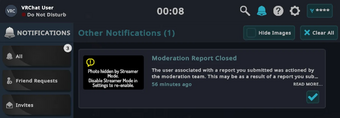 The in-game notification displaying sucessful moderation case close.
 -
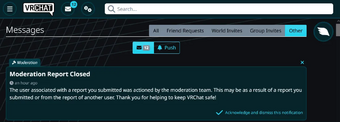 The website notification of a moderation report being complete.
 -
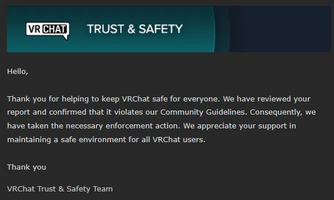 The email report may show which guidelines were broken inside of your moderation ticket response. (Wording will vary based on violation type.)


Reporting on the VRChat website
In addition to being able to report within the VRChat client, you can optionally report any content on the VRChat website. From there, you may also attach your relevant player logs, screenshots, and any short video footage within the ticket. An e-mail acknowledging your report, will be sent to the same e-mail address you submitted within the ticket. However, results of moderation action will not be disclosed to the reporter.
Reporting a security exploit
The VRChat website should be used to report security exploits for VRChat or its services. It is requested that the inclusion of "proof-of-concept, documentation, background, attack scenarios, potential mitigations, etc." are ideal, and that "video, screenshots, chat logs, hearsay, etc alone are not useful and do not constitute an exploit disclosure".
Reporting a bug
You cannot report bugs directly within the game, but you can submit bug reports pseudonymously on feedback.vrchat.com if you have a VRChat account. The platform uses a ticketing system powered by Canny.io, while VRChat employs a separate internal system to manage and track tickets.
Template for reports[2]
1. Summary
> Explain in 2-3 Sentence what this report is about.
VRChat crashed when trying to join a friend.

2. Steps to reproduce the bug:
> Write down what you did step by step so someone else can see the problem. For example:
  1. Open Main Menu
  2. Visit any Profile
  3. Double Click "Join" Button

3. What did you expect to happen?
> Explain what you thought would happen. For example:
To join my friends.

4. What actually happened?
> Explain what went wrong. For example:
VRChat crashed.

X. Additional details (if any):
> Add any other information. For example:
* Logs (`%appdata%\..\LocalLow\VRChat\VRChat\`, need to be uploaded external)
* Video (need to be uploaded external, upload on YouTube)
* Screenshots (up to 8MB, or need to be uploaded external)
* Links
See also
Rules and Guidelines
VRChat platform articles
References
- ↑ Tupper…? on YouTube.
- ↑ What a Bug Report needs - Q&A Team StormRel


