Getting Started/he: Difference between revisions
Created page with "ניתן לחפש את '''VRChat''' ב-Google Play Store, או [https://play.google.com/store/apps/details?id=com.vrchat.mobile.playstore להקיש על הקישור הזה במכשיר הנייד]." |
Created page with "=== ב-iOS === ניתן לחפש את '''VRChat''' ב-App Store של iOS / iPadOS, או [https://apps.apple.com/app/vrchat/id6448578770 להקיש על הקישור הזה במכשיר הנייד]. כדי להתקין את היישום ולשחק, נדרש iPhone או iPad עם iOS 17 ומעלה ועם 6GB לפחות של זיכרון RAM." |
||
| Line 124: | Line 124: | ||
ניתן לחפש את '''VRChat''' ב-Google Play Store, או [https://play.google.com/store/apps/details?id=com.vrchat.mobile.playstore להקיש על הקישור הזה במכשיר הנייד]. | ניתן לחפש את '''VRChat''' ב-Google Play Store, או [https://play.google.com/store/apps/details?id=com.vrchat.mobile.playstore להקיש על הקישור הזה במכשיר הנייד]. | ||
=== ב-iOS === | |||
ניתן לחפש את '''VRChat''' ב-App Store של iOS / iPadOS, או [https://apps.apple.com/app/vrchat/id6448578770 להקיש על הקישור הזה במכשיר הנייד]. | |||
כדי להתקין את היישום ולשחק, נדרש iPhone או iPad עם iOS 17 ומעלה ועם 6GB לפחות של זיכרון RAM. | |||
<div lang="en" dir="ltr" class="mw-content-ltr"> | <div lang="en" dir="ltr" class="mw-content-ltr"> | ||
Revision as of 07:13, 10 November 2026

דף זה יעזור לכם להתחיל להשתמש ב-VRChat. תוך זמן קצר תהיו מוכנים לפעולה!
בדף זה תמצאו הסבר פשוט על:
- אילו מכשירים תואמים ל-VRChat
- מאיפה מתקינים את VRChat
- למה לצפות בדקות הראשונות של השימוש ב-VRChat
- מדריכי וידאו נוספים שיעזרו לכם בחוויה הראשונה
אם אינכם מכירים מונחים או נושאים כלשהם, ניתן ללחוץ על כל אחד מהקישורים הכחולים שמובילים לדפים אחרים בוויקי של VRChat.
דרישות מערכת / המלצות
מכשירים עצמאיים
ניתן להפעיל את VRChat על משקפי ה-VR העצמאיים הבאים:
| יצרן | דגם |
|---|---|
| Meta | Quest 2; Quest 3; Quest 3S; Quest Pro |
| VIVE | Focus Vision; XR Elite |
| Pico | 4; 4 Pro; 4 Ultra |
מכשירים ניידים
ניתן להפעיל את VRChat על כל מכשיר Android 10 ומעלה או iOS 17.0 ומעלה עם 6GB לפחות של זיכרון RAM, המחובר ל-Wi-Fi או לרשתות סלולריות 4G/5G.
כל מכשיר Android או iOS עדכני ברמת ביניים ומעלה אמור לעמוד במפרט הזה.
Steam Deck
על פי הבדיקות של Valve, VRChat מסומנת כ-Verified ב-Steam Deck. היא פועלת באופן מלא ועובדת מצוין עם אמצעי הבקרה והתצוגה המובנים.
- כל הפונקציות נגישות בעת שימוש בהגדרות הבקר המוגדרות כברירת מחדל.
- VRChat מציגה את סמלי הבקר של Steam Deck.
- הטקסט בממשק המשחק קריא ב-Steam Deck.
- הגדרות הגרפיקה המוגדרות כברירת מחדל ב-VRChat פועלות היטב במכשיר.
לינוקס
VRChat אינה מספקת לקוח מקורי ללינוקס. ניתן לשחק בה בלינוקס, כולל ב-Steam Deck, באמצעות שכבת התאימות Proton של Valve. VRChat מסרה כי אין תוכניות קונקרטיות ללקוח מקורי ללינוקס.[1]
PC
דרישות המינימום[2][3] להפעלה מבוססות על דרישות המינימום של SteamVR[4].
כדי לבדוק אם המחשב שלכם תואם להפעלת VRChat, ניתן להשוות את מפרט המחשב לדרישות המינימום המפורטות להלן.
- מעבד (CPU): Intel® i5-4590 או AMD FX 8350 או שווה ערך
- זיכרון: 4GB
- כרטיס מסך (GPU): NVIDIA GeForce® GTX 970 או AMD Radeon™ R9 290 או שווה ערך
- שטח דיסק: 31.5GB של אחסון (כ-1.5GB עבור היישום[5], וגודל מטמון מינימלי של 30GB)
- חיבור לאינטרנט: נדרש (מומלצת מהירות הורדה של 25Mbps ומעלה)
- מערכת הפעלה: Windows 10, Windows 11
אלה דרישות המינימום המוחלטות להפעלת VRChat במצב שולחני ובמצב VR. אף שהיישום יפעל, ייתכן שתיתקלו בבעיות ביצועים. ב-VRChat יש הרבה תוכן שנוצר על ידי משתמשים, ולכן חלק מהאווטארים והעולמות עלולים לגרום לירידה בביצועים גדולה מזו שהייתם מצפים לה ממשחק רגיל! מומלץ להתאים את הגדרות הבטיחות לקבלת החוויה האופטימלית ביותר.
VRChat נהנית ממטמונים גדולים, כמו אלה שבסדרת המעבדים AMD X3D. לגבי כרטיס המסך, בחירה בכרטיסים עם יותר V-RAM תספק חוויה עם ביצועים טובים יותר. עם זאת, במקרים מסוימים (כולל VR) מומלץ בדרך כלל לבחור כרטיס בעל ביצועים טובים יותר באופן כללי.
PC (ענן)
GeForce NOW
VRChat זמינה דרך GeForce NOW[6]
Shadow PC
VRChat משתמשת ב-Easy Anti-Cheat (EAC), שמסופקת על ידי Epic Games. נכון ל-2026, הרצת VRChat בשירות משחקי הענן Shadow PC הושפעה מבעיית תאימות בטיפול של EAC במכונות וירטואליות. VRChat תיארה זאת כמצב מתמשך בין שלושה גורמים: VRChat, Easy Anti-Cheat ו-Shadow PC. VRChat מסרה כי מטעמי אבטחה היא לא תשבית ולא תפחית את מנגנון ההגנה מפני רמאות עבור מכונות וירטואליות, וכי הבעיה צריכה להיפתר בין הצדדים האחרים.[1]
התקנת VRChat
ב-Meta Quest
עבור Meta Quest 2, Meta Quest 3, Meta Quest 3S, Meta Quest Pro
ניתן לחפש את VRChat בחנות של Meta, או להתקין אותה מדף Meta.
ב-Pico
עבור Pico 4, Pico 4 Pro, Pico 4 Ultra
ניתן לחפש את VRChat בחנות של Pico, או להתקין אותה מדף החנות של Pico.
ב-Vive
עבור Vive XR Elite, Vive Focus Vision
בדף החנות של Viveport ניתן לחפש את VRChat או ללחוץ כאן.
ב-PC
מומלץ להתקין את HEVC Video Extensions לתמיכה טובה יותר בהפעלת וידאו.
דרך Steam
בדף החנות של Steam ניתן לחפש את VRChat או ללחוץ כאן.
דרך Viveport
בדף החנות של Viveport ניתן לחפש את VRChat או ללחוץ כאן.
דרך חנות Meta
עבור Meta Rift, Meta Rift S
ניתן לחפש את VRChat בחנות של Meta, או להתקין אותה מדף Meta.
ב-Android
ניתן לחפש את VRChat ב-Google Play Store, או להקיש על הקישור הזה במכשיר הנייד.
ב-iOS
ניתן לחפש את VRChat ב-App Store של iOS / iPadOS, או להקיש על הקישור הזה במכשיר הנייד. כדי להתקין את היישום ולשחק, נדרש iPhone או iPad עם iOS 17 ומעלה ועם 6GB לפחות של זיכרון RAM.
Account creation

When you launch VRChat, you will be presented with a log in screen. You will have options on changing languages, reading Terms of Service and the Privacy Policy, and primarily signing in with a VRChat account, or create a device account via Steam, Meta, Google, Pico, or VIVE, depending on the device being used. To log in to a VRChat account, you must first register on VRChat's website. Creating a VRChat account will grant you access to the VRChat application, a web version of your VRChat profile, friend list, browse worlds, and generate impostors. You will also be able to access VRChat's Software Development Kit, Feedback Forums, Ask Forums, enroll in the Creator Economy Program, and edit the VRChat Wiki.
Creating a device account via Steam, Meta, Google, Pico, or VIVE, will only grant instantaneous access to the VRChat application. It is also possible to merge accounts if you wish to generate a device account now, and create a VRChat account later. After merging your device account to a VRChat account, choosing to log into the device account will transfer your login to the VRChat account.
Learning how to use VRChat
When you log into VRChat, you’ll start in a private Home world! Here, you can explore at your own pace to learn the controls, adjust settings, find your first avatar, and go to your next world! The default Home world is the VRChat Home, a welcoming place to begin your session. You can choose to go back to your private Home instance at any time by opening up the Quick Menu, and choosing the Go Home tile.
When meeting another user in VRChat, you can open up your Quick Menu, and learn more information about a user. To do this in VR, point the laser in your off-hand at them. A capsule will appear, and you click the trigger button to bring open a separate menu. On desktop, you can either click the Select User tile, or hold the Shift key and hover over the capsule. Use the left mouse button to open the new menu. On mobile, simply tap on the user to bring open the menu.
In the Quick Menu there also is a tab which shows you the list of current players in the instance: the Here tab. By clicking on one of the user names in the list you can: read their biography, request to add them as a friend, change their microphone volume, mute them, hide their avatar, clone their avatar if available, or block them.
Change UI Language
If VRChat is set to a language you don't understand, you can use the following process to change it:
- The icons can be used to identify which button to click.
-
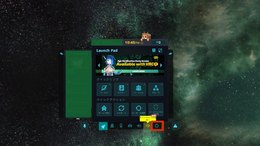 1. Open Quick Menu and Double Click on the Gear Icon.
-
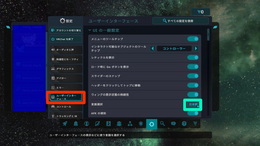 2. Select the category between the mirror and gamepad symbols to navigate to the User Interface category, and click the button highlighted by the Green Circle.
-
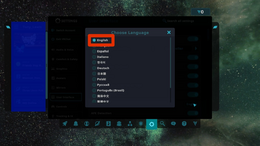 3. Select English or your preferred language.


Community resources

Our community has created many great guides on getting started in VRChat. Here are a few videos that you can check out to learn how to use VRChat, and also some additional guides and context.
Articles
- The VRChat Survival Guide, by Adam Factor - A summary of VRChat, recommended headsets, and a 'starter pack' of VRChat communities to participate in.
Videos
Thank you to PHIA and The Virtual Reality Show team for creating the videos below.
- VRCHAT BEGINNERS GUIDE [2024] - Introduction for New Players! - This guide is a great primer on how to get started in VRChat.
- Best Places to see in VRChat! Quest & PC feat. Thrillseeker- Now that you’ve learned how to use VRChat, here are some places to explore.
- How to upload a VRChat Avatar - Complete Guide! PC, Quest & VRoid - If you’re curious how to create and upload your avatar, this video is a great starting point.
- The Best VR Setup for YOU! - This guide for 2024 reviews the current VR hardware landscape and gives a good picture of what VRChat players use as they upgrade their equipment.
- Derafrog's Ultimate A to Z Guide to VRChat - Offers a comprehensive video on many parts of VRChat.
Official resources
- Getting Started on help.vrchat.com
References
- ↑ 1.0 1.1 "May 1 2026 Developer Stream Q&A Summary" באתר ask.vrchat.com. פורסם ב-5 במאי 2026. אוחזר ב-18 ביוני 2026.
- ↑ VRChat Help, System Requirements, help.vrchat.com
- ↑ Steam Store, VRChat, store.steampowered.com
- ↑ Steam Store, SteamVR, store.steampowered.com
- ↑ SteamDB, VRChat, Depot steamdb.info
- ↑ הכרזה ב-X - x.com


