Community:VRCX
From VRChat Wiki

The following was created by the community. It may contain material not directly endorsed by the VRChat team. To learn more, consider reading Contributing to the VRChat Wiki.

This application uses the VRChat API and may require your VRChat account credentials. VRChat, Inc. advises against sharing credentials with third-party applications that do not use official SSO authentication. See VRChat's Creator Guidelines for details.
VRCX is a VRChat-focused open-source third-party application for Windows, Linux, and macOS, which provides a graphical user interface (GUI) for interacting with VRChat via the VRChat API.
Features
Friends and social
- Manage friends list and organize friend lists outside of VRChat.
- Track friends' online status, world activities, and avatar changes.
- Log when friends were added, when last seen, and time spent together in worlds.
- Monitor name changes and store personal notes to remember how you met.
- View mutual friends and groups on user profiles, with an interactive graph visualization.
- Invite multiple friends to an instance at once using a searchable dialog that shows who is already present.
Worlds and instances
- Organize world and group lists outside of VRChat.
- Search for worlds by name, ID, or URL.
- Create and manage a custom local list of favorite worlds (unrestricted).
- View statistics and player details for the current instance.
Avatars
- Search for avatars using configurable external databases.
- Upload and edit images for avatars and worlds without Unity.
- Edit and update uploaded avatar or world details (name, description, tags) directly through VRCX, without Unity.
Groups
- Create group instances (Group, Group+, Group Public) with role-based access, queue, and age gate options.
- Create and browse group posts with role-based visibility.
- Browse group photo galleries.
- Manage group members, roles, and moderation actions.
- Export group moderation logs as CSV.
- Export or import favorite groups.
- Browse upcoming events in a monthly group calendar view.
Profile
- Edit status with saved presets for quick switching between status and description combinations.
- Edit bio, social links, and pronouns.
- Change profile picture via image upload.
Notifications
- Send and receive invites and friend requests directly from VRCX.
- View instance details of invitations received.
Media and photos
- Keep track of the worlds where in-game photos were taken.
Integration and utilities
- Automatically open companion apps (e.g. OSC tools, voice changers) when VRChat launches.
- Store settings, saved states, inventories, and other persistent data for supported worlds (World Persistence / PWI).
- Note: VRCX's world persistence is unrelated to VRChat's official world persistence. Requires "Allow Untrusted URLs" in VRChat settings. For developers, see World Persistence (PWI) by VRCX.
- Display detailed information about the current instance in Discord, including thumbnails, names, instance IDs, player counts, and a join button for public lobbies (Enhanced Discord Rich Presence).
- Integrates with PyPyDance, LSMedia, Popcorn Palace, Idle Home and VRDancing.
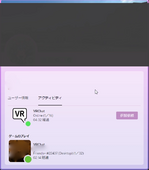
- Access a configurable VR overlay with live notifications and supported event feeds.
- Automatically re-launch VRChat and rejoin the last instance if it crashes.
- View video links and related data for videos playing in the current world.
Keyboard shortcuts
- Ctrl + Shift + I open Chromium DevTools.
- Ctrl + R restart VRCX.
- Shift + Alt + R reload custom css.
Getting started
Using outdated versions of VRCX may expose you to security vulnerabilities, including remote code execution[1]. Always update to the latest version.
- Download and install the latest installer (VRCX_Setup.exe) from here.
- Beta/nightly build available here, or in-app: Settings -> General -> Change build.
- Linux users can read a guide to run a compatible version on their operating system, here.
- For Android users, there are similar alternatives for VRCX available, such as VRCAA.
Configuration and launch parameters
Launch parameters
| --debug | Launch Chromium DevTools with VRCX. |
| --config="C:\VRCX" | Set a custom path for VRCX's config folder. Default: %appdata%\VRCX |
| --proxy-server="127.0.0.1:8080" | Set a HTTP/SOCKS proxy server for VRCX to use. |
Protocol/Launch commands
| vrcx://user/usr_id | Open VRCX user dialog. |
| vrcx://avatar/avtr_id | Open VRCX avatar dialog. |
| vrcx://group/grp_id | Open VRCX group dialog. |
| vrcx://world/wrld_id | Open VRCX world dialog. |
| vrcx://world/wrld_id:12345 | Open VRCX world dialog with instance. |
| vrcx://world/https://vrch.at/0gmbxjpj | Open VRCX world dialog with unlocked instance. |
| vrcx://import/avatar/avtr_id,avtr_id... | Open VRCX avatar favorites import dialog. |
| vrcx://import/world/wrld_id,wrld_id... | Open VRCX world favorites import dialog. |
| vrcx://import/friend/usr_id,usr_id... | Open VRCX friend favorites import dialog. |
| vrcx://addavatardb/https://website/vrcx_search.php | Open VRCX remote avatar database provider dialog. |
VRCX.json
- VRCX_DatabaseLocation set a custom path for SQLite database, e.g. C:\\VRCX.sqlite3
- NOTE when moving your VRCX.sqlite3 database be sure to move VRCX.sqlite3-shm and VRCX.sqlite3-wal as well, if they exist.
- NOTE be sure to replace every backslash in the path with 2 backslashes to insure the JSON is valid.
- VRCX_ProxyServer set a HTTP/SOCKS proxy server for VRCX to use, e.g. 127.0.0.1:8080
Gallery
-
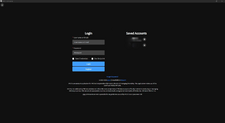 Login Screen
 -
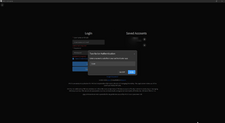 2FA Supported
 -
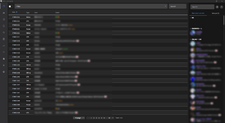 Feed Screen
 -
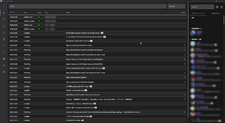 Game Log Screen
 -
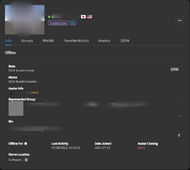 User Info (Own)
 -
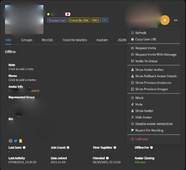 User Info (Friends)
 -
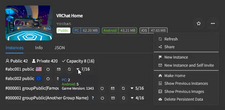 World Info (Instance Tab)
 -
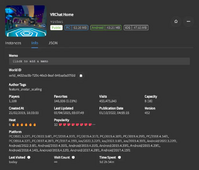 World Info (Info Tab)
 -
 Favorite (Friends)
 -
 Favorite (Worlds)
 -
 Favorite (Avatars)
 -
 Friend Log
 -
 Discord Rich Presence


See also
References
- ↑ VR Overlay RCE on GitHub; retrieved September 23, 2024


