Caméra


[Raison: La page ci-dessous est incomplète. Des descriptions manquent pour certains paramètres (toggles) et certaines sections ne sont pas encore renseignées. Une réflexion est en cours pour déterminer si ces options devraient être présentées sous forme de tableaux plutôt que de listes. Les traductions peuvent être temporairement incorrectes.]
La Caméra est un outil en jeu permettant aux utilisateurs de prendre des photos afin de capturer leurs expériences au sein de VRChat.
Comment y accéder
Il existe plusieurs manières d'accéder à la caméra dans VRChat :
- Ouvrir le menu d'action, sélectionner Outil puis Caméra.
- Ouvrir le menu rapide et cliquer sur l'onglet caméra situé en dessous. Le menu rapide fournis les paramètres pour tous les modes de caméra.
- Double-cliquer sur le bouton de la caméra en dessous du menu rapide. Cela ouvrira la caméra ou la retirera.
- Open the Action Menu, select Tools, then select Camera.
- Open the Quick Menu and click on the Camera tab on the bottom row. The Quick Menu provides options for all camera modes.
- Double-click the Camera tab on the bottom tab of the Quick Menu. This will immediately take out or put away the camera.
Modes

The camera modes determine how the camera behaves when taking a photo. There are seven camera modes which corresponds to different features:
- Local Photo
- After taken, it captures a regular photo. This is the default mode.
- Multi Layer
- After taken, it captures a photo and creates images of each enabled mask. This mode does support focus or filters and may cause frame lag.
- It can create up to three additional images (besides the regular photo): "Environment", "Player" (Combines the Local & Remote Player masks), and "UI". The "Player" & "UI" masks save with alpha transparency.
- Stream
- Replaces the desktop view with the camera view. In desktop mode, the "Spout Stream" toggle will appear, allowing the user to receive the camera view through supported applications.
- The "Spout Stream" toggle requires applications to support the Spout protocol to receive the camera view.
- This mode is only available on PC.
- Gallery
- After taken, a UI appears allowing the user to zoom, reposition and mirror the photo within a rectangular crop. "Save & Apply" saves it to the Photo Gallery section of the Inventory. Requires VRC+.
- User Icon
- After taken, a UI appears allowing the user to zoom, reposition and mirror the photo within a circular crop. "Save & Apply" saves it to the User Icon section of the Inventory and will automatically set the user icon to it. Requires VRC+.
- Sticker
- See also Stickers for more detailed information.
- Shows a square outline, highlighting the cropping region. After taken, the "Create Sticker" UI appears, allowing the user to zoom, reposition and mirror the photo with six preset crops. "Save" saves it to the Stickers section of the Inventory. Requires VRC+.
- See also Prints for more detailed information.
- After taken, the print UI appears, allowing the user to edit the note. "Print & Save" saves it to the Prints section of the Inventory and will automatically print the print within the world. Requires VRC+.
- Emoji
- See also Emojis for more detailed information.
- Shows a square outline, highlighting the cropping region. After taken, the "Create Emoji" UI appears, allowing the user to choose animations, zoom, reposition and mirror the photo with six preset crops. "Save" saves it to the Emoji section of the Inventory. Requires VRC+.
- Animated options require the user to take a photo for every frame (4 or 16).
- Emoji (1)
- Animated (4)
- Animated (16)
These two modes are not accessible through the Camera Mode button, but rather other means:
- Camera Drone
- See also Camera Drone for more detailed information.
- Brings out the Camera Drone.
- Screenshot
- Takes a photo without HUD elements. Captures in 1920x1080 by default, unless changed in the config file.
- Photo Invite
- Invite/Request Invites or Invite/Request Responses can be sent with an image. After taken, a UI appears allowing the user to zoom, reposition and mirror the photo within a rectangular crop. "Save & Apply" attaches it to invite/response. Requires VRC+.
Options

The options consist of the toggles are appear around or on the camera frame. Some options can be controlled by both the UI and the Menu.
UI
The UI toggles are toggles that are on the on center, left or right sides of the camera frame.
Default
- Close
- Closes the camera.
- Orientation
- Switch between landscape and portrait orientation.
- Flip
- Flips the camera. When Anchor is set to "Default", the camera lens turns around 180°, otherwise the image is flipped horizontally.
- Zoom
- Zooms the camera in or out. The camera FOV can be zoomed from 20 to 150, with 45 being the default value.
- Exposure
- Changes the exposure (brightness) of the image. The exposure can be set from -10 to 4, with 0 being the default value.
- Reset
- Resets the zoom and exposure slides to their default values.
- Info
- Shows the status of different camera toggles. Click on a status to quickly cycle through options.
- Camera Mode
- Cycles through the Photo, Stream, and Multi Layer camera modes.
- Pins
- Cycles through pins 1, 2 and 3.
- Focus
- Cycles through Full Auto, Semi Auto, and Manual focuses.
- Filters
- Cycles through the Blueprint, Glitch, Speed, Hypno, Pixelate, Sketch, Sparkle, Trippy, and Olde camera filters.
Toggle
- Fly Speed
- Determines how fast the camera moves in Fly mode. Values range from 0.1 to 15, with 3 being the default.
- Slider shown only when using Desktop mode or when the Flying toggle is on.
- Turn Speed
- Determines how fast the camera rotates in Fly mode. Values range from 0.1 to 5, with 1 being the default.
- Slider shown only when using Desktop mode or when the Flying toggle is on.
- Smoothing Strength
- Determines how much smoothing is applied to camera movement. Values range from 0.1 to 10, with 5 being the default.
- Slider shown only when using the Smoothed toggle.
- Horizontal Offset
- Determines the horizontal offset from the center of the image when using Look-At-Me. Values range from -25 to 25, with 0 being the default. Using the Auto Level Roll toggle will disable this slider.
- Slider shown only when using the Look-At-Me toggle.
- Vertical Offset
- Determines the vertical offset from the center of the image when using Look-At-Me. Values range from -25 to 25, with 0 being the default.
- Slider shown only when using the Look-At-Me toggle. Using the Auto Level Pitch toggle will disable this slider.
- Focal Distance
- Determines the depth of field's focal distance.
- Slider shown only when using the Manual focus toggle.
- Aperture
- Determines the depth of field's aperture.
- Slider shown only when using the Semi Auto or Manual focus toggles.
- Green Screen
- Displays sliders to adjust the color of the green screen mask. The sliders are Hue, Saturation, and Lightness.
- Sliders shown only when using the GreenScreen toggle.
- Hue
- Saturation
- Lightness
- Duration
- Determines the duration of new dolly points when using time-based motion.
- Slider shown only when the Dolly toggle is selected.
Menu
The Menu toggles are toggles that are below the camera frame.
- Take Photo
- Takes a photo.
- Timed (5s)
- Takes a photo with a five-second delay. Remote users will see a circular indicator around the lens winding down to when the photo is taken. Photo can be cancelled before the five seconds has passed.
- Camera Mode
- Determines how the camera behaves when taking photos. See the Modes section above to view all options
- Flying
- Allows the camera to fly within the world. Movement is applied to the camera instead of the avatar. When flying normally, the camera is limited to a 15 meter? radius, with Camera Dolly, the radius is increased to 150 meters?, and with the Camera Drone, the range is unlimited.
- Toggle appears only on VR & Mobile devices.
- Spout Stream
- Allows the camera view to be received through supported applications. This requires applications to support the Spout protocol.
- The "Stream" camera mode must be selected for it to appear.
- Audio From Camera
- Audio heard will be from the camera position instead of the avatar.
- The "Stream" camera mode must be selected for it to appear.
- Anchor
- Determines where the camera is attached.
- Default
- Attached to the user.
- Local
- Follows user movement but not head movement.
- World
- Attached to the world, independent of user movement.
- Comportement
- Description
- Lissé
- Stabilise la vidéo pour des images plus fluides.
- Suivi du regard
- La caméra suit la direction dans laquelle votre tête est orientée.
- Auto-nivellement du roulis (VR)
- deux-points plus définition
- Auto-nivellement du tangage
- deux-points plus définition
- Roulis en vol (VR)
- deux-points plus définition
- Déclenchement de la photo (VR)
- Ne fonctionne que lorsque le mode caméra n’est pas photo locale
- Mise au point
- Contrôle le mode de mise au point.
- Désactivé
- deux-points plus définition
- Automatique complet
- Définit automatiquement l’ouverture et la distance focale.
- Semi-automatique
- Permet uniquement le réglage de l’ouverture. (Le curseur d’ouverture apparaît à droite)
- Manuel
- Permet de régler à la fois l’ouverture et la distance focale. (Les curseurs Distance focale et Ouverture apparaissent à droite)
- Afficher
- (affiche le visualiseur de mise au point)
- Épingles
- Sauvegarde des préréglages de la caméra.
- Les options Ancrage, Comportement, Masque et Filtres peuvent être enregistrées dans les épingles.
- Épingle 1
- Épingle 2
- Épingle 3
- Masque
- Détermine quelles couches sont incluses dans les photos.
- Utilisateur local
- Inclut l’utilisateur et son avatar.
- Utilisateur distant
- Inclut les autres utilisateurs.
- Monde
- Inclut l’environnement du monde.
- Écran vert
- Remplace l’environnement par un écran vert.
- Interface utilisateur
- Inclut les éléments de l’interface comme le menu radial et l’interface de la caméra.
- Objets
- Inclut les objets placés par les utilisateurs dans le monde.
- Dolly
- Voir aussi Camera Dolly pour plus de détails.
- Cette option est uniquement disponible sur PC et Android (VR autonome).
- Ajouter
- deux-points plus définition
- Lecture (3 s)
- deux-points plus définition
- Effacer le dernier
- deux-points plus définition
- Tout effacer
- (êtes-vous sûr ?)
- Avancé
- Description
- Exporter
- (chemin d’export relatif au monde ou local)
- Importer
- (chemin d’import)
- Afficher les chemins
- Description
- Visibilité de l’objectif
- Définit la manière dont la caméra est affichée dans le monde.
- Désactivé
- N’affiche qu’une petite lumière.
- Fantôme
- Affiche un objectif de caméra transparent bleu clair.
- Plein
- Affiche un objectif de caméra solide.
- Filtres
- Ajoute des filtres visuels à la caméra. Un seul filtre peut être actif à la fois.
-
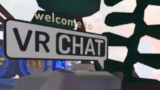 Aucun
Aucun -
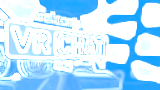 Plan technique
 -
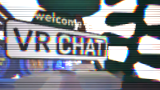 Glitch
 -
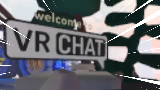 Vitesse
 -
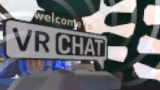 Hypno
Hypno -
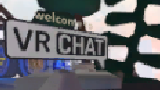 Pixelisé
 -
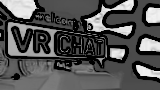 Esquisse
 -
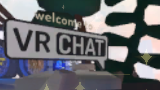 Étincelles
 -
 Psychédélique
 -
 Ancien


- Résolution des photos
- Modifie la résolution des photos prises.
- 720p
- 1080p
- 1440p
- 2160p
- 4320p
- Fichier de configuration
- Applique la résolution spécifiée dans le fichier de configuration.
- Résolution du flux
- Modifie la résolution de la sortie du flux Spout.
- 720p
- 1080p
- 1440p
- 2160p
- Fichier de configuration
- Applique la résolution spécifiée dans le fichier de configuration.
- Verrouiller
- Désactive l’interaction de prise en main de la caméra. VR uniquement.
- Grille
- Affiche une grille de règle des tiers sur la caméra.
- Enregistrer les métadonnées
- Ajoute des métadonnées aux photos lors de la prise.
- Les métadonnées incluent : le nom d’affichage de l’auteur, l’ID de l’auteur, le nom d’affichage du monde et l’ID du monde. Si la photo est prise dans un monde privé, le nom d’affichage et l’ID du monde ne sont pas inclus.
Comportement
Indicateurs
Faisceau rouge
Lorsqu’un utilisateur sort sa caméra, un faisceau rouge est projeté vers le haut et vers le bas depuis la position de celle-ci. De plus, un quadrilatère rouge est également affiché pour indiquer la direction vers laquelle la caméra est orientée. Ces faisceaux rouges ne sont visibles que lorsque le menu rapide est ouvert.
Minuté
Audio de Caméra
Accéder aux photos sauvegardées
- Sur Windows, les photos seront sauvegardées sur le chemin d'accès par défaut du fichier « Images »
C:/Utilisateurs/(Nom)/Images/VRChatet seront triées par mois et années. Sur la version PC et PCVR de VRChat, ouvrir l'onglet caméra dans le menu rapide et sélectionner « Dossier photos » ouvrira directement le dossier dans l'explorateur de fichiers.
- Les utilisateurs Steam peuvent accéder à leurs captures d'écran Steam (séparés du dossier VRChat) en utilisant le chemin d'accès par défaut
C:/Programmes (x86)/Steam/userdata/XXXXXXXXX/760/remote/438100/screenshots
- Les utilisateurs sur Quest autonome peuvent accéder à leurs photos via l'application « Fichier » depuis le tableau de bord ou via l'application « Meta Horizon ».
- Les appareils Android et iOS peuvent accéder aux photos VRChat via l'application « Galerie » ou « Fichiers ».
Voir aussi
| InventoryV · E |
|---|


