Community:VRCX
From VRChat Wiki

You can help the VRChat Wiki by improving it.
[Reason: You can contribute by expanding and proofreading this article, in accordance with the Manual of Style.]
[Reason: You can contribute by expanding and proofreading this article, in accordance with the Manual of Style.]

The following was created by the community. It may contain material not directly endorsed by the VRChat team. To learn more, consider reading Contributing to the VRChat Wiki.

A "non-neutral point of view" refers to a perspective or stance that shows bias, partiality, or favoritism toward a particular viewpoint, idea, or group.
This approach emphasizes subjective opinions, personal beliefs, or specific agendas, rather than striving for objectivity or impartiality. In contrast to a neutral point of view, it may advocate for or against certain positions, often leading to unbalanced or one-sided representations.
Consider editing this page.
This approach emphasizes subjective opinions, personal beliefs, or specific agendas, rather than striving for objectivity or impartiality. In contrast to a neutral point of view, it may advocate for or against certain positions, often leading to unbalanced or one-sided representations.
Consider editing this page.
VRCX is a VRChat-focused third-party application for Windows, which provides a graphical user interface (GUI) for VRChat's application programming interface (API).
Potential risks with VRCX
While VRCX is deemed safe, and using it is not a violation of the Terms of Service, there are a few risks involved with installing and using VRCX.
- VRCX requires logging in, using your VRChat account, password, and Two-Factor Authentication (2FA). VRChat, Inc. advises against giving your credentials to anybody, including using it to log into third-party applications that does not use VRChat's SSO authentication.
- Flooding or spamming the API may risk disconnecting you from VRChat services, and very rarely, risking an account ban.
- Using outdated versions of VRCX may make you vulnerable to Remote Command Execution (RCE) exploits[1]
Features
- Friend, World, and Avatar Management:
- Manage your friends list, and organize your world, group, and avatar lists outside of VRChat.
- Track your friends' online status, world activities, and avatar changes.
- Log when you added friends, when you last saw them, and how much time you've spent together in worlds.
- Monitor name changes and store personal notes to remember how you met.
- Auto-Launch Apps with VRChat:
- Set up VRCX to automatically open other apps, like an OSC tool or voice changer, when VRChat launches.
- World Persistence:
- Important: VRCX’s world persistence feature has nothing to do with VRChat's official development of world persistence.
- Note: To use this feature, you must enable "Allow Untrusted URLs" in your VRChat settings.
- For worlds that support it, VRCX can store settings, saved states, inventories, and other persistent data.
- For developers, visit World Persistence (PWI) by VRCX.
- Avatar, User, World, and Group Search:
- Easily search for avatars, users, worlds, and groups within the app.
- Unrestricted World Favorites List:
- Create and manage a custom local list of your favorite worlds.
- World Data Storage in Photos:
- Keep track of the worlds where your in-game photos were taken, even months later.
- Notification Monitoring and Responses:
- Send and receive invites and friend requests directly from VRCX.
- View instance details of invitations received.
- Instance Stats and Player Information:
- See statistics and player details for your current VRChat instance.
- Video Links in Worlds:
- View video links and related data for videos playing in the world you’re currently in.
- Enhanced Discord Rich Presence:
- Optionally display detailed information about your current instance in Discord, including world thumbnails, names, instance IDs, and player counts.
- Integrate with popular worlds like PyPyDance, LSMedia, Movies&Chill, and VRDancing.
- Add a join button for public lobbies, depending on privacy settings.
- VR Overlay:
- Access a configurable overlay with live notifications and supported event feeds.
- Avatar and World Image Uploads without Unity:
- Upload images for avatars and worlds without needing Unity.
- Manage and Edit Avatar/World Details:
- Edit and update uploaded avatar or world information directly through VRCX, no Unity required.
- Automatic Crash Recovery:
- Automatically restart VRChat and rejoin the last instance if the application crashes.
- Group Favorites Export/Import:
- Export or import your favorite groups
Keyboard shorcuts
- Ctrl + Shift + I open Chromium DevTools.
- Ctrl + R restart VRCX.
- Shift + Alt + R reload custom css.
Getting started
Download and install the latest installer (VRCX_Setup.exe) from here
Beta/nightly build available here or in-app Settings -> General -> Change build.
Linux User should have a look here
Configuration and launch parameters
Launch parameters
| --debug | Launch Chromium DevTools with VRCX. |
| --config="C:\VRCX" | Set a custom path for VRCX's config folder. Default: %appdata%\VRCX |
| --proxy-server="127.0.0.1:8080" | Set a HTTP/SOCKS proxy server for VRCX to use. |
Protocol/Launch commands
| vrcx://user/usr_id | Open VRCX user dialog. |
| vrcx://avatar/avtr_id | Open VRCX avatar dialog. |
| vrcx://group/grp_id | Open VRCX group dialog. |
| vrcx://world/wrld_id | Open VRCX world dialog. |
| vrcx://world/wrld_id:12345 | Open VRCX world dialog with instance. |
| vrcx://world/https://vrch.at/0gmbxjpj | Open VRCX world dialog with unlocked instance. |
| vrcx://import/avatar/avtr_id,avtr_id... | Open VRCX avatar favorites import dialog. |
| vrcx://import/world/wrld_id,wrld_id... | Open VRCX world favorites import dialog. |
| vrcx://import/friend/usr_id,usr_id... | Open VRCX friend favorites import dialog. |
| vrcx://addavatardb/https://website/vrcx_search.php | Open VRCX remote avatar database provider dialog. |
VRCX.json
- VRCX_DatabaseLocation set a custom path for SQLite database, e.g. C:\\VRCX.sqlite3
- NOTE when moving your VRCX.sqlite3 database be sure to move VRCX.sqlite3-shm and VRCX.sqlite3-wal as well, if they exist.
- NOTE be sure to replace every backslash in the path with 2 backslashes to insure the JSON is valid.
- VRCX_ProxyServer set a HTTP/SOCKS proxy server for VRCX to use, e.g. 127.0.0.1:8080
Screenshots
-
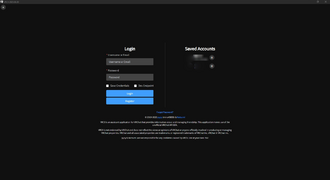 Login Screen
 -
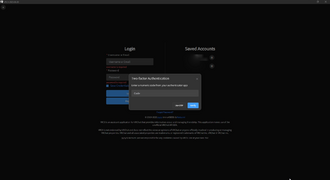 2FA Supported
 -
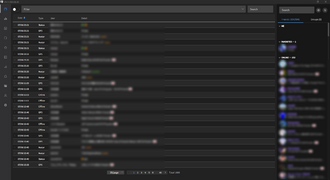 Feed Screen
 -
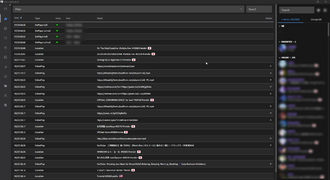 Game Log Screen
 -
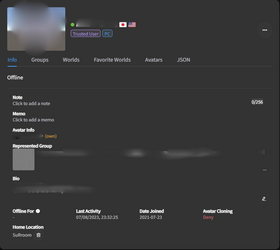 User Info (Own)
 -
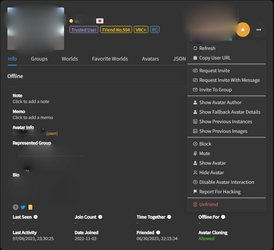 User Info (Friends)
 -
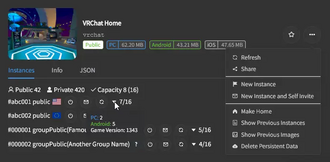 World Info (Instance Tab)
 -
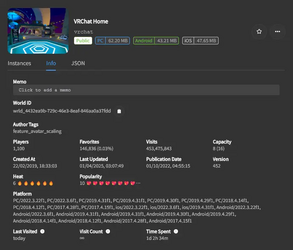 World Info (Info Tab)
 -
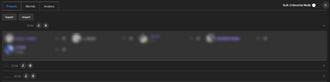 Favorite (Friends)
 -
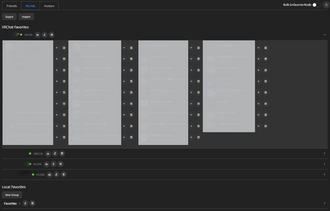 Favorite (Worlds)
 -
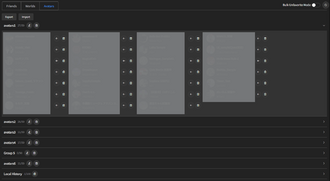 Favorite (Avatars)
 -
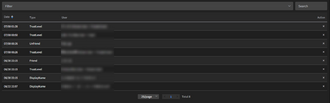 Friend Log
 -
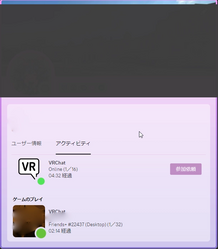 discord Rich Prensence


- ↑ VR Overlay RCE on GitHub; retrieved September 23, 2024


