Loading Screens: Difference between revisions
m Corrected link format, small proofread |
French Fox (talk | contribs) →Cosmetics: Added new loading screen |
||
| (11 intermediate revisions by 5 users not shown) | |||
| Line 1: | Line 1: | ||
{{Noticebox/Official}} | {{Noticebox/Official}} | ||
[[File:VRChat Support.png|thumb|A loading screen showing VRRat with a link to a support page.]] | |||
[[File: | '''Loading Screens''' are a series of intermittent scenes that are shown when loading into the client or [[Special:MyLanguage/Worlds|worlds]]. It displays helpful banners about VRChat, as well as display a download progress bar. | ||
'''Loading Screens''' are a series of intermittent scenes that are shown | |||
== | == Overview == | ||
By default, the loading screen scene consists of a teal void with bubble-like particles floating around, but can be changed with Cosmetics. | |||
In the center of the view point is a graphic showing various banners. Underneath, displays information about the world the user is travelling to. It includes the percentage of the world downloading progress, thumbnail and author. Below that, shows a "Return to Home" button to return to the user's [[Special:MyLanguage/Worlds#Home world|home world]]. If the user is loading their home world, and they click the "Go to default home" button, it will load into the [[Special:MyLanguage/VRChat Home|VRChat Home]] instead. | |||
The download process is skipped if the world is in the content cache via preload or previously downloading the world. | |||
<gallery> | |||
File:None.png|Entering VRChat Home with “Show Go Button On Load” disabled. No buttons displayed. | |||
File:GO!.png|Entering any world with “Show Go Button On Load” enabled. “Go!” | |||
File:Return to Home.png|Entering a non-VRChat Home that is not a custom Home. “Return to Home” | |||
File:Go to default Home.png|Entering a non-VRChat Home that is a custom Home. “Go to default Home” | |||
</gallery> | |||
After downloading, the loading screen will display the thumbnail of the world with a load indicator below it. The load indicator states progress in this order: | After downloading, the loading screen will display the thumbnail of the world with a load indicator below it. The load indicator states progress in this order: | ||
| Line 13: | Line 23: | ||
While in VR, you are able to see a mirrored version of the loading screen by looking behind. | While in VR, you are able to see a mirrored version of the loading screen by looking behind. | ||
==== | == Loading Screens == | ||
There are | ===Client=== | ||
====Banners==== | |||
There are 17 "permanent" banners that can be displayed when entering into a world. Banners are dynamic and can be added or changed without notice: | |||
{| class="wikitable sortable" | |||
!Banner | |||
!Name | |||
!Type | |||
!Notes | |||
|- | |||
|[[File:LoadingScreenBanner_Gaining_Trust.png|center|frameless|400px]] | |||
|Gaining Trust | |||
|Informational | |||
| | |||
|- | |||
|[[File:LoadingScreenBanner_Cosmic_Survival_Kit_26.png|center|frameless|400px]] | |||
|Cosmic Survival Kit 26 | |||
|Promotional | |||
|End date of June 3rd 2026. | |||
|- | |||
|[[File:LoadingScreenBanner_Avatar_Accessories_2026.png|center|frameless|400px]] | |||
|Avatar Accessories 2026 | |||
|Promotional | |||
| | |||
|- | |||
|[[File:LoadingScreenBanner_iOS_Available_Now.jpg|center|frameless|400px]] | |||
|iOS Available Now | |||
|Promotional | |||
| | |||
|- | |||
|[[File:LoadingScreenBanner_2FA.png|center|frameless|400px]] | |||
|2FA | |||
|Informational | |||
|Only shown to users that don't have [[Two-Factor Authentication (2FA)|2FA]] enabled | |||
|- | |||
|[[File:LoadingScreenBanner_Ask_-_Check_Out_Our_Forums.png|center|frameless|400px]] | |||
|Ask - Check Out Our Forums | |||
|Informational | |||
| | |||
|- | |||
|[[File:LoadingScreenBanner_Community_Guidelines_-_Hate_Speech.png|center|frameless|400px]] | |||
|Community Guidelines - Hate Speech | |||
|Informational | |||
| | |||
|- | |||
|[[File:LoadingScreenBanner_Community Guidelines_-_Provocative_Content.png|center|frameless|400px]] | |||
|Community Guidelines - Provocative Content | |||
|Informational | |||
| | |||
|- | |||
|[[File:LoadingScreenBanner_Change_Avatars.png|center|frameless|400px]] | |||
|Change Avatars | |||
|Informational | |||
| | |||
|- | |||
|[[File:LoadingScreenBanner_Join_the_VRChat_Discord.png|center|frameless|400px]] | |||
|Join the VRChat Discord | |||
|Informational | |||
| | |||
|- | |||
|[[File:LoadingScreenBanner_VRC+_More_Avatar_Slots.png|center|frameless|400px]] | |||
|VRC+ More Avatar Slots | |||
|Promotional | |||
|Only shown to users that aren't subscribed to [[VRC+]] | |||
|- | |||
|[[File:LoadingScreenBanner_VRChat_Support.png|center|frameless|400px]] | |||
|VRChat Support | |||
|Informational | |||
| | |||
|- | |||
|[[File:LoadingScreenBanner_Hide_and_Unhide_Avatars.png|center|frameless|400px]] | |||
|Hide and Unhide Avatars | |||
|Informational | |||
| | |||
|- | |||
|[[File:LoadingScreenBanner_Safety_System_-_Shield_Levels.png|center|frameless|400px]] | |||
|Safety System - Shield Levels | |||
|Informational | |||
| | |||
|- | |||
|[[File:LoadingScreenBanner_Stay_Safe_-_Mute_and_Block_Users.png|center|frameless|400px]] | |||
|Stay Safe - Mute and Block Users | |||
|Informational | |||
| | |||
|- | |||
|[[File:LoadingScreenBanner_VRC+_Age_Verification.png|center|frameless|400px]] | |||
|VRC+ Age Verification | |||
|Promotional | |||
|Only shown to users that aren't subscribed to VRC+ | |||
|- | |||
|[[File:LoadingScreenBanner_VRC+_Nameplate_Icon.png|center|frameless|400px]] | |||
|VRC+ Nameplate Icon | |||
|Promotional | |||
|Only shown to users that aren't subscribed to VRC+ | |||
|- | |||
|[[File:LoadingScreenBanner_VRC+_World_Slots.png|center|frameless|400px]] | |||
|VRC+ World Slots | |||
|Promotional | |||
|Only shown to users that aren't subscribed to VRC+ | |||
|- | |||
|[[File:LoadingScreenBanner_VRC+_Prints.png|center|frameless|400px]] | |||
|VRC+ Prints | |||
|Promotional | |||
|Only shown to users that aren't subscribed to VRC+ | |||
|- | |||
|[[File:LoadingScreenBanner_VRC+_Stickers.png|center|frameless|400px]] | |||
|VRC+ Stickers | |||
|Promotional | |||
|Only shown to users that aren't subscribed to VRC+ | |||
|} | |||
<div class="mw-collapsible"> | |||
Loading Screen with banners can be seen below: | |||
<div class="mw-collapsible-content"> | |||
<gallery> | |||
File:IOS Available Now!.png|'''IOS Available Now!''' | |||
File:VRC+ Nameplate Icon.png|'''VRC+ Nameplate Icon''' | |||
File:VRC+ Age Verification.png|'''VRC+ Age Verification''' | |||
File:VRC+ Prints.png|'''VRC+ Prints''' | |||
File:VRC+ Stickers.png|'''VRC+ Stickers''' | |||
File:VRC+ More World Slots.png|'''VRC+ More World Slots''' | |||
File:VRC+ More Avatar Slots.png|'''VRC+ More Avatar Slots''' | |||
File:VRChat Support.png|'''VRChat Support''' | |||
File:Protect your Account.png|'''Protect your Account''' | |||
File:Change Avatars.png|'''Change Avatars''' | |||
File:Safety System.png|Safety Syetem | |||
File:Gaining Trust.png|'''Gaining Trust''' | |||
File:Hide and Unhide Avatars.png|'''Hide and Unhide Avatars''' | |||
File:Stay Safe.png|'''Stay Safe''' | |||
File:Community Guidelines Disturb.png|'''Community Guidelines Disturb''' | |||
File:Community Guidelines Private.png|'''Community Guidelines Private''' | |||
File:Check out our forums!.png|'''Check out our forums!''' | |||
File:Join the VRChat Discord!.png|'''Join the VRChat Discord!''' | |||
</gallery> | |||
</div> | |||
</div> | |||
==== Community Labs ==== | |||
[[Special:MyLanguage/Community Labs|Community Labs]] worlds display a notice and warning when joining. | |||
<gallery mode="packed"> | <gallery mode="packed"> | ||
File: | File:CommunityLabsLoadingScreen.png|Community Labs | ||
</gallery> | </gallery> | ||
==== Custom ==== | |||
Select worlds can display a custom loading screen, needing permission from VRChat. This is usually associated with linking data with a third-party website. This type of loading screen requires the user to press an "Accept & Continue" button to join the world. | Select worlds can display a custom loading screen, needing permission from VRChat. This is usually associated with linking data with a third-party website. This type of loading screen requires the user to press an "Accept & Continue" button to join the world. | ||
<gallery mode="packed"> | <gallery mode="packed"> | ||
File: | File:LoadingScreenCustom_CatsUdon TRPG.png|Custom | ||
</gallery> | </gallery> | ||
== Android == | |||
There are 3 loading screens that can be displayed when joining a world from the app. | === Android === | ||
There are 3 loading screens that can be displayed when joining a world from the Android companion app. | |||
<gallery mode="packed"> | <gallery mode="packed"> | ||
File:AndroidLoadingScreen_Avatars.png|Avatars | File:AndroidLoadingScreen_Avatars.png|Avatars | ||
| Line 58: | Line 181: | ||
</gallery> | </gallery> | ||
== | == Cosmetics == | ||
Loading Screen cosmetics changes the look of the loading screen. Cosmetics can change background, music, and UI colors. | |||
{| class="wikitable" | |||
!Image | |||
!Name | |||
!Released | |||
!Available until | |||
!Requirement | |||
!Description | |||
!Music | |||
|- | |||
|[[File:LoadingScreen_Default.png|center|frameless|70x70px]] | |||
|Default | |||
|March 17, 2026 | |||
| - | |||
| - | |||
|''"The default loading screen."'' | |||
|[https://www.youtube.com/watch?v=8B1Xf58ws-4 Passing Through], by Erick McNerney<ref name=":0" />. | |||
|- | |||
|[[File:LoadingScreen_Loading_Cubes.png|frameless|70x70px]] | |||
|Loading Cubes | |||
|March 17, 2026 | |||
|March 31, 2026<ref group="note">Loading Screen has been removed from user's inventories.</ref> | |||
|Have a currently active [[VRC+]] subscription while on the Open Beta branch during the 2026.1.3 Open Beta cycle. | |||
|''"A new loading screen, featuring the Reference Cube. Lasts until the end of Open Beta."'' | |||
|"Many Cubes", by Sairenix. | |||
|- | |||
|[[File:LoadingScreen_Classic_Warp_Tunnel.png|frameless|70x70px]] | |||
|Classic Warp Tunnel | |||
|March 31, 2026 | |||
| - | |||
|Have a currently active [[VRC+]] subscription. | |||
|''"The Classic Loading Screen. Exclusive to those with an active VRC+ subscription."'' | |||
|[https://www.youtube.com/watch?v=IrzaXcOGYbM Partially Offline], by Andrea Baroni<ref>[https://andreabaroni.com/ Andrea Baroni's website] at ''andreabaroni.com''; retrieved May 26, 2025</ref>. | |||
|- | |||
|[[File:LoadingScreen_Orbital Drift.png|frameless|70x70px]] | |||
|Orbital Drift | |||
|May 8, 2026 | |||
|July 3, 2026 | |||
|Buy from the [[Shop]] | |||
|''"You've seen that planet in your dreams..."'' | |||
|N/A | |||
|- | |||
|[[File:LoadingScreen Tropical Breeze.png|frameless|70x70px]] | |||
|Tropical Breeze | |||
|June 5, 2026 | |||
|August 7, 2026 | |||
|Buy from the [[Shop]] | |||
|"''Your own little paradise."'' | |||
|N/A | |||
|} | |||
<references group="note" /> | |||
== Settings == | |||
==== "Go!" button ==== | ==== "Go!" button ==== | ||
Within the [[Main Menu]] [[Settings]] menu, under the '''User Interface''' tab, there is an option | Within the [[Main Menu]] [[Settings|settings]] menu, under the '''User Interface''' tab, there is an option called "Show Go Button On Load". Enabling this setting requires the user to click the Go button before loading into the world. Disabling the setting will remove the Go button, causing you to automatically join when the download is completed. | ||
== Trivia == | == Trivia == | ||
* The music from the loading screen is called "[https://www.youtube.com/watch?v=8B1Xf58ws-4 Passing Through]", by Erick McNerney<ref>[https://erickmcnerney.bandcamp.com/ Erick McNerney's Bandcamp website] at ''erickmcnerney.bandcamp.com''; retrieved May 26, 2025</ref>. | * The music from the loading screen is called "[https://www.youtube.com/watch?v=8B1Xf58ws-4 Passing Through]", by Erick McNerney<ref name=":0">[https://erickmcnerney.bandcamp.com/ Erick McNerney's Bandcamp website] at ''erickmcnerney.bandcamp.com''; retrieved May 26, 2025</ref>. | ||
** Erick McNerney has several official remixes of Passing Through on [https://www.youtube.com/@ErickMcNerney/videos his YouTube channel]. | ** Erick McNerney has several official remixes of Passing Through on [https://www.youtube.com/@ErickMcNerney/videos his YouTube channel]. | ||
* | * The "Classic Warp Tunnel" was originally used until September 4, 2018, before being replaced by the Default modern loading screen. | ||
** This particular loading screen is re-created in the [https://vrchat.com/home/world/wrld_bfb3e4ad-0952-48f6-82c8-23b66c340f4a/ VRChat Home - 10 Years] world. | ** This particular loading screen is re-created in the [https://vrchat.com/home/world/wrld_bfb3e4ad-0952-48f6-82c8-23b66c340f4a/ VRChat Home - 10 Years] world. | ||
** Partially Offline can also be heard in the [[VRChat Home]] music player. | ** Partially Offline can also be heard in the [[VRChat Home]] music player. | ||
| Line 76: | Line 250: | ||
== See also == | == See also == | ||
* [[Portals]] | * [[Portals]] | ||
* [[Worlds]] | * [[Worlds]] | ||
== References == | == References == | ||
<references /> | |||
== Navigation == | |||
{{Navbox/Inventory}} | |||
[[Category:User_Interface{{#translation:}}]] | [[Category:User_Interface{{#translation:}}]] | ||
Latest revision as of 10:54, 6 June 2026


Loading Screens are a series of intermittent scenes that are shown when loading into the client or worlds. It displays helpful banners about VRChat, as well as display a download progress bar.
Overview
By default, the loading screen scene consists of a teal void with bubble-like particles floating around, but can be changed with Cosmetics.
In the center of the view point is a graphic showing various banners. Underneath, displays information about the world the user is travelling to. It includes the percentage of the world downloading progress, thumbnail and author. Below that, shows a "Return to Home" button to return to the user's home world. If the user is loading their home world, and they click the "Go to default home" button, it will load into the VRChat Home instead.
The download process is skipped if the world is in the content cache via preload or previously downloading the world.
-
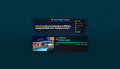 Entering VRChat Home with “Show Go Button On Load” disabled. No buttons displayed.
 -
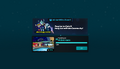 Entering any world with “Show Go Button On Load” enabled. “Go!”
 -
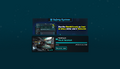 Entering a non-VRChat Home that is not a custom Home. “Return to Home”
 -
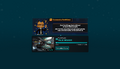 Entering a non-VRChat Home that is a custom Home. “Go to default Home”


After downloading, the loading screen will display the thumbnail of the world with a load indicator below it. The load indicator states progress in this order:
- "Initializing World...", "Connecting...", "Joining...", and "Almost Done!"{verify} if the loading takes too long.
While in VR, you are able to see a mirrored version of the loading screen by looking behind.
Loading Screens
Client
Banners
There are 17 "permanent" banners that can be displayed when entering into a world. Banners are dynamic and can be added or changed without notice:
| Banner | Name | Type | Notes |
|---|---|---|---|
 |
Gaining Trust | Informational | |
 |
Cosmic Survival Kit 26 | Promotional | End date of June 3rd 2026. |
 |
Avatar Accessories 2026 | Promotional | |
 |
iOS Available Now | Promotional | |
 |
2FA | Informational | Only shown to users that don't have 2FA enabled |
 |
Ask - Check Out Our Forums | Informational | |
 |
Community Guidelines - Hate Speech | Informational | |
 |
Community Guidelines - Provocative Content | Informational | |
 |
Change Avatars | Informational | |
 |
Join the VRChat Discord | Informational | |
 |
VRC+ More Avatar Slots | Promotional | Only shown to users that aren't subscribed to VRC+ |
 |
VRChat Support | Informational | |
 |
Hide and Unhide Avatars | Informational | |
 |
Safety System - Shield Levels | Informational | |
 |
Stay Safe - Mute and Block Users | Informational | |
 |
VRC+ Age Verification | Promotional | Only shown to users that aren't subscribed to VRC+ |
 |
VRC+ Nameplate Icon | Promotional | Only shown to users that aren't subscribed to VRC+ |
 |
VRC+ World Slots | Promotional | Only shown to users that aren't subscribed to VRC+ |
 |
VRC+ Prints | Promotional | Only shown to users that aren't subscribed to VRC+ |
 |
VRC+ Stickers | Promotional | Only shown to users that aren't subscribed to VRC+ |
Loading Screen with banners can be seen below:
-
 IOS Available Now!
 -
 VRC+ Nameplate Icon
 -
 VRC+ Age Verification
 -
 VRC+ Prints
 -
 VRC+ Stickers
 -
 VRC+ More World Slots
 -
 VRC+ More Avatar Slots
 -
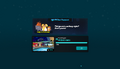 VRChat Support
 -
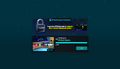 Protect your Account
 -
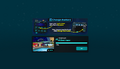 Change Avatars
 -
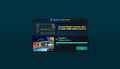 Safety Syetem
 -
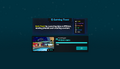 Gaining Trust
 -
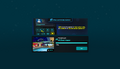 Hide and Unhide Avatars
 -
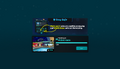 Stay Safe
 -
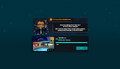 Community Guidelines Disturb
 -
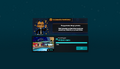 Community Guidelines Private
 -
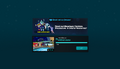 Check out our forums!
 -
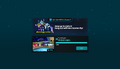 Join the VRChat Discord!


Community Labs
Community Labs worlds display a notice and warning when joining.
-
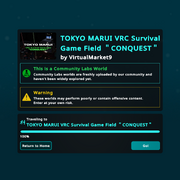 Community Labs

Custom
Select worlds can display a custom loading screen, needing permission from VRChat. This is usually associated with linking data with a third-party website. This type of loading screen requires the user to press an "Accept & Continue" button to join the world.
-
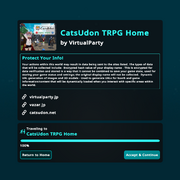 Custom

Android
There are 3 loading screens that can be displayed when joining a world from the Android companion app.
-
 Avatars
 -
 Shield Level
 -
 Friends


Cosmetics
Loading Screen cosmetics changes the look of the loading screen. Cosmetics can change background, music, and UI colors.
| Image | Name | Released | Available until | Requirement | Description | Music |
|---|---|---|---|---|---|---|
 |
Default | March 17, 2026 | - | - | "The default loading screen." | Passing Through, by Erick McNerney[1]. |

|
Loading Cubes | March 17, 2026 | March 31, 2026[note 1] | Have a currently active VRC+ subscription while on the Open Beta branch during the 2026.1.3 Open Beta cycle. | "A new loading screen, featuring the Reference Cube. Lasts until the end of Open Beta." | "Many Cubes", by Sairenix. |

|
Classic Warp Tunnel | March 31, 2026 | - | Have a currently active VRC+ subscription. | "The Classic Loading Screen. Exclusive to those with an active VRC+ subscription." | Partially Offline, by Andrea Baroni[2]. |

|
Orbital Drift | May 8, 2026 | July 3, 2026 | Buy from the Shop | "You've seen that planet in your dreams..." | N/A |

|
Tropical Breeze | June 5, 2026 | August 7, 2026 | Buy from the Shop | "Your own little paradise." | N/A |
- ↑ Loading Screen has been removed from user's inventories.
Settings
"Go!" button
Within the Main Menu settings menu, under the User Interface tab, there is an option called "Show Go Button On Load". Enabling this setting requires the user to click the Go button before loading into the world. Disabling the setting will remove the Go button, causing you to automatically join when the download is completed.
Trivia
- The music from the loading screen is called "Passing Through", by Erick McNerney[1].
- Erick McNerney has several official remixes of Passing Through on his YouTube channel.
- The "Classic Warp Tunnel" was originally used until September 4, 2018, before being replaced by the Default modern loading screen.
- This particular loading screen is re-created in the VRChat Home - 10 Years world.
- Partially Offline can also be heard in the VRChat Home music player.
- It might be speculated that the loading screen is a world called The In-Between.
See also
References
- ↑ 1.0 1.1 Erick McNerney's Bandcamp website at erickmcnerney.bandcamp.com; retrieved May 26, 2025
- ↑ Andrea Baroni's website at andreabaroni.com; retrieved May 26, 2025
| InventoryV · E |
|---|


