Inventory: Difference between revisions
m Remove leading "The" |
→Bundles & Packs: moved content to separate page |
||
| (59 intermediate revisions by 8 users not shown) | |||
| Line 1: | Line 1: | ||
{{Noticebox/Official}} | {{Noticebox/Official}} | ||
{{Infobox/Feature | |||
|name=Inventory | |||
|image=Icon Inventory.png | |||
|platforms= PC, Android, iOS | |||
|vrchatplus= Required for some content types. | |||
|branch_live_date = June 24, 2025 | |||
|branch_live_version = 2025.2.3 Build 1664 | |||
|branch_live_releasenote = [https://docs.vrchat.com/docs/vrchat-202523 2025.2.3] | |||
|branch_openbeta_date = June 11, 2025 | |||
|branch_openbeta_version = 2025.2.3 Build 1660 | |||
|branch_openbeta_releasenote = [https://docs.vrchat.com/docs/vrchat-202523-openbeta 2025.2.3 Open Beta] | |||
}} | |||
'''Inventory''', initially known as the '''Gallery''' before being renamed in June 2025, is a feature that allows users to manage their [[emojis]], [[stickers]], [[items]], and more. The inventory currently includes ten types of content. Some inventory tabs require an active [[VRC+]] subscription to manage items. | |||
'''Gallery''' is | == Content type == | ||
=== Photo Gallery === | |||
The '''Photo Gallery''' is where custom photos are located. Photos can serve multiple purposes, such as an additional profile picture option on a user's profile. They can also be used when sending invites to other users. Photos can also be used to change the banner for a [[Groups|group]], and add to the group's gallery. The Photo Gallery is available exclusively to active VRC+ subscribers. Users have a limit of 64 photos that can be saved. | |||
== | === Prints === | ||
[[File: | ''See also [[Prints|Prints]] for more detailed information.''[[File:Gallery_Prints.webp|thumb|A print of 2 ghosts surrounding a user.]] | ||
'''Prints''' are photos users can take within VRChat and spawn as an object in-world for other users to share and save. Prints carry metadata of: who took the photo, where, and when a photo was taken. They can also have custom messages written on them. Prints have the same appearance as real-world [[Wikipedia:Instant_film|instant films]]. All prints will always upload in 1080p resolution. Users can "collect" other user's prints by saving them to their inventory. | |||
Non-VRC+ users can save up to 20 prints, while users with an active VRC+ subscription can save up to 64 prints and are able to drop them. | |||
=== User Icons === | |||
[[File:VRChat_Plus_Icons.webp|thumb|right|Icons can be displayed on a user's nameplate if they have access to their icon inventory.]]'''User Icons''' are custom images used as a user's icon on their in-game [[Nameplates|nameplate]]. User Icons is available exclusively to active VRC+ subscribers. Users have a limit of 64 icons that can be saved. When [[Streamer Mode]] is enabled, all other user's icons will be hidden. | |||
=== Emoji === | |||
''See also [[Emojis]] for more detailed information.''[[File:Wow.webp|thumb|100px|The "Wow" emoji.]] | |||
[[File:Wow.webp|thumb| | '''Emoji''' in the inventory are custom, user-uploadable emoji. Users with an active VRC+ subscription can upload up to 18 custom emojis, including the option to create animated emojis using sprite sheets. When creating an emoji, you can choose one of several animations. | ||
''' | |||
==== Animated emoji ==== | |||
'''Animated emoji''' are emoji that contain a moving picture, similar to that of a GIF. This is possible by uploading your emoji as a sprite sheet. In addition, you can have your animated emoji use one of the above animations listed below. | |||
==== Animations ==== | |||
===Animations=== | |||
When uploading an emoji, you have to select an animation that fits the emoji. | When uploading an emoji, you have to select an animation that fits the emoji. | ||
Fifteen of the animation names are tied to a pre-existing default emoji animations. For example, any emoji using the "Mistletoe" animation will share the same type of animation as the Mistletoe in the Winter page of the Default Emoji pack. However, there are twelve unique animations also added to the emoji creator. | Fifteen of the animation names are tied to a pre-existing default emoji animations. For example, any emoji using the "Mistletoe" animation will share the same type of animation as the Mistletoe in the Winter page of the Default Emoji pack. However, there are twelve unique animations also added to the emoji creator. | ||
The types of animations to choose from are as follows:< | The types of animations to choose from are as follows: | ||
<div class="clearfix"><gallery mode="packed" style="clear:both;" caption="'''List of emoji animation types'''"> | |||
File:Aura - emoji animation type.gif|alt=Multiple instances of the emoji rise from the round.|Aura | |||
File:Bats - emoji animation type.gif|alt=Multiple larger instances of the emoji rise from the round.|Bats | |||
File:Bees - emoji animation type.gif|alt=Multiple instances of the emoji vibrate, spread out, and decrease in size, mimicking the movement of bees.|Bees | |||
File:Bounce - emoji animation type.gif|alt=One large instance of the emoji pulsates.|Bounce | |||
File:Cloud - emoji animation type.gif|alt=Multiple instances of the emoji slowly float upward in a "cloud".|Cloud | |||
File:Confetti - emoji animation type.gif|alt=Multiple instances of the emoji are propelled forward and fall, mimicking confetti.|Confetti | |||
File:Crying - emoji animation type.gif|alt=Propels the emoji forward with a slight rotational vibration, accompanied by tear particles.|Crying | |||
File:Dislike - emoji animation type.gif|alt=Propels multiple instances of the emoji forward with an initial pulsation and then descent.|Dislike | |||
File:Fire - emoji animation type.gif|alt=Propels multiple instances of the emoji forward with rotation and pulsation in random directions before they ascend.|Fire | |||
File:Idea - emoji animation type.gif|alt=One large instance of the emoji vibrates rotationally, then rises.|Idea | |||
File:Lasers - emoji animation type.gif|alt=Multiple instances of the emoji are propelled in random directions linearly, mimicking lasers being fired from the user's position.|Lasers | |||
File:Like - emoji animation type.gif|alt=Propels multiple instances of the emoji forward with an initial pulsation and then ascent.|Like | |||
File:Magnet - emoji animation type.gif|alt=Multiple instances of the emoji orbit a center.|Magnet | |||
File:Mistletoe - emoji animation type.gif|alt=One large instance of the emoji rises and remains in the air, while smaller instances of the emoji rise and disappear around it, mimicking particles.|Mistletoe | |||
File:Money - emoji animation type.gif|alt=Propels multiple instances of the emoji forward, causing them to rotate and fall, mimicking the throwing of money.|Money | |||
File:Orbit - emoji animation type.gif|alt=One large instance of the emoji orbits a center horizontally.|Orbit | |||
File:Pizza - emoji animation type.gif|alt=Multiple instances of the emoji pulsate, rotate, and rise slowly.|Pizza | |||
File:Rain - emoji animation type.gif|alt=Multiple small instances of the emoji fall from above, mimicking rain.|Rain | |||
File:Rotate - emoji animation type.gif|Rotate | |||
File:Shake - emoji animation type.gif|alt=One large instance of the emoji slightly vibrates rotationally, then rises.|Shake | |||
File:Emoji Animation SnowFall.gif|alt=Multiple small instances of the emoji rise then fall from above, mimicking snow.|Snow | |||
File:Snowball - emoji animation type.gif|alt=One large instance of the emoji - with a trail of smaller instances of the emoji - is propelled forward as a projectile, then falls and explodes into multiple small instances of the emoji, mimicking the throwing of a snowball.|Snowball | |||
File:Spin - emoji animation type.gif|alt=One large instance of the emoji rotates horizontally.|Spin | |||
File:Splash - emoji animation type.gif|alt=Launches multiple small instances of the emoji forward, which then rotate to face downward and fall, mimicking water droplets.|Splash | |||
File:Stop - emoji animation type.gif|alt=One large instance of the emoji slightly vibrates rotationally, then remains still.|Stop | |||
File:ZZZ - emoji animation type.gif|alt=Multiple small instances of the emoji rise as well as rotate slightly.|ZZZ | |||
</gallery> | |||
</div> | |||
=== Stickers === | |||
''See also [[Stickers]] for more detailed information.''[[File:2-VaultCat.webp|thumb|100px|The "Vault Cat" sticker.]]'''Stickers''' in the inventory are images that users can upload and place in an [[Instances|instance]]. Stickers can be placed on almost any surface in a world for all users in the instance to see. Only one sticker may be placed by each user at a time, and stickers will automatically disappear when the user leaves the instance. Users with an active VRC+ subscription can upload up to 18 custom stickers. | |||
=== Items === | |||
''See also [[Special:MyLanguage/Items|Items]] for more detailed information.'' | |||
[[File:THE_REFERENCE_CUBE_item_original.png|thumb|100px|A image of "THE REFERENCE CUBE" item.]] | |||
'''Items''' are objects that users can spawn within a world. Items can take the place of toys, tools, gadgets, etc. World creators can disable items in their world if they wish. | |||
=== Cosmetics === | |||
''See also [[Special:MyLanguage/Cosmetics|Cosmetics]] for more detailed information.'' | |||
'''Cosmetics''' include Drone and Portal skins, Warp Effects, Loading Screens, and UI decorations like themes and backgrounds. Each cosmetic category has a "Random" option that equips a randomly selected cosmetic from the user's collection. | |||
{| class="wikitable" | {| class="wikitable" | ||
!Cosmetic<br>Example | |||
!Cosmetic | |||
!Description | |||
|- | |- | ||
| | |[[File:Drone Trace Drone.png|frameless|70x70px]] | ||
| | |[[Camera Drone|Drones]] | ||
| | |Drone cosmetics include drone skins, each one is unique and can be customized via it's palette. Drone Palette customization is a VRC+ feature, which allows the user to change the Primary, Secondary, and Trail of the Drone. | ||
|- | |- | ||
| | |[[File:Portal B3-7A Portal.png|frameless|70x70px]] | ||
| | |[[Portals]] | ||
| | |Portal cosmetics include portal skins, each having it's own custom model. Portal skins have unique opening & closing animations, as well as sounds. | ||
|- | |- | ||
| | |[[File:LoadingScreen Loading Cubes.png|frameless|70x70px]] | ||
| | |[[Loading Screens]] | ||
| | |Loading Screen cosmetics changes the skybox, environment, and/or music of the loading screen when loading into a world. | ||
|- | |- | ||
| | |[[File:Warp_Effect_Reference_Cube_Warp.png|frameless|70x70px]] | ||
| | |[[Warp Effects]] | ||
| | |Warp Effects are custom animations that play on your [[Avatars|avatar]] when you join or leave an instance. | ||
|- | |- | ||
| | |[[File:UITheme Default.png|frameless|70x70px]] | ||
| | |UI Themes | ||
| | |UI Themes are the color theme for the [[Main Menu]] & [[Quick Menu]]. VRC+ users will have access to 4 default background designs by default, and a limit of 20 custom UI themes. | ||
|- | |- | ||
| | |[[File:UI - Filigree.png|frameless|70x70px]] | ||
| | |Backgrounds | ||
| | |Backgrounds are backdrops for the Main Menu & Quick Menu. The backgrounds are parallax allows them to shift depending on the angle they're viewed at. Every user will have access to 5 background designs. | ||
|} | |} | ||
=== | <div class="center"><span style="font-size:120%">'''UI Themes'''</span></div> | ||
<gallery mode="packed" heights="80"> | |||
''' | File:UITheme Default.png|Default | ||
File:UITheme Carbon.png|Carbon | |||
File:UITheme Nebula.png|Nebula | |||
File:UITheme Embers.png|Embers | |||
File:UITheme Grass.png|Grass | |||
</gallery> | |||
<div class="center"><span style="font-size:120%">'''Backgrounds'''</span></div> | |||
<gallery mode="packed" heights="80"> | |||
File:UI - Default.png|Default | |||
File:UIBackground Gradient.png|Gradient | |||
File:UI - Grid.png|Grid | |||
File:UI - Grid - No Depth.png|Grid no-depth | |||
File:UI - Basic Lines.png|Basic Lines | |||
</gallery> | |||
[[Special:MyLanguage/VRC+|VRC+]] subscribers will have access to 33 extra background designs to choose from. | |||
<gallery mode="packed" heights="70"> | |||
File:UI - Filigree.png|Filigree | |||
File:UI - Bit Mountain.png|Bit Mountain | |||
File:UI - Approach.png|Approach | |||
File:UI - Planet Fall.png|Planet Fall | |||
File:UI - Jungle.png|Jungle | |||
File:UI - Light Streams.png|Light Streams | |||
File:UI - Koi.png|Koi | |||
File:UI - Moonlight.png|Moonlight | |||
File:UI - Machine.png|Machine | |||
File:UI - Topology.png|Topology | |||
File:Ui - Circuit.png|Circuit | |||
File:UI - Kawaii Cupcakes.png|Kawaii Cupcakes | |||
File:UI - Bokeh.png|Bokeh | |||
File:UI - Hologram.png|Hologram | |||
File:UI - Flow.png|Flow | |||
File:UI - Jelly.png|Jelly | |||
File:UI - Cheese.png|Cheese | |||
File:UI - Alchemy.png|Alchemy | |||
File:UI - Sunset Mountain.png|Sunset Mountain | |||
File:UI - Magic Rocks.png|Magic Rocks | |||
File:UI - City Stillness.png|City Stillness | |||
File:UI - Music.png|Music | |||
File:UI - Wolf Running.png|Wolf Running | |||
File:UI - Dragon Smoke.png|Dragon Smoke | |||
File:UI - Night Rain.png|Night Rain | |||
File:UI - Butterfly ZERO.png|Butterfly ZERO | |||
File:UI - I am Speed.png|I am Speed | |||
File:UI - Ronin.png|Ronin | |||
File:UI - Abduction.png|Abduction | |||
File:UI - Cat Dream.png|Cat Dream | |||
File:UI - Virtual Waves.png|Virtual Waves | |||
File:UI - Bolt and Snail.png|Bolt and Snail | |||
File:UI - Escape.png|Escape | |||
</gallery> | |||
== Bundles & Packs == | |||
''See also [[Special:MyLanguage/Bundles & Packs|Bundles & Packs]] for more detailed information.'' | |||
Bundles & Packs are how content gets delivered to users. They appear in the Bundles & Packs tab, and once claimed, users will get rewarded with one or multiple of the content types. If users have multiple bundles or packs in their inventory, they can choose which one they want to open by clicking the arrow on either side of the menu. | |||
Bundles & Packs can have an expiry date, in which users must claim before a certain date. | |||
==Sharing== | |||
[[File:Gallery_Photo&SharingExample.webp|200px|thumb|A photo inside a sharing pedestal.]] | |||
VRC+ users can share photos, prints, emoji, stickers, and UI themes with other VRC+ within the same instance. Pressing the share button on the respective content type allows the user to drop a [[Sharing|sharing]] pedestal. | |||
==Exclusives== | |||
[[Special:MyLanguage/VRC+#Exclusives|VRC+ Exclusives]] is content that is only available for VRC+ supporters. Unlike Bundles, Exclusives are not claimable and automatically appear in user's inventories. Content that is "VRC+ Exclusive" is labeled with VRC+ logo in the top left corner. | |||
== Collections == | |||
Emojis, stickers and items can belong to collections, which can be used to filter the Inventory. | |||
List of known collections: | |||
* Pride Month 2025 | |||
* Summer 2025 | |||
==Uploading== | |||
User icons, photos, emoji, stickers, or prints can be taken and uploaded within the client via the [[Camera|camera's]] "Camera Mode" options. They can also be uploaded on the VRChat website via their respective pages. | |||
* {{VRC_link|https://vrchat.com/home/inventory/photos|Photos}} | |||
* {{VRC_link|https://vrchat.com/home/user/me?settings{{=}}true|User Icons}} | |||
* {{VRC_link|https://vrchat.com/home/inventory/emojis/custom|Emoji}} | |||
* {{VRC_link|https://vrchat.com/home/inventory/stickers/custom|Stickers}} | |||
== | ===Upload requirements=== | ||
[[File: | [[File:DancingBirdSprite.png|200px|thumb|right|An example of a sprite sheet for a 10-frame animated emoji.]] | ||
When uploading files to be used as user icons, photos, emoji, stickers, or prints, on the VRChat website, they must meet the following criteria: | |||
*Must be less than 10MB | |||
*Larger than 64x64 pixels | |||
*Icons and Photos must be smaller than 2048x2048 pixels | |||
*Emojis and Stickers must be smaller than 1024x1024 pixels | |||
When uploading Animated Emoji, images should be 1024x1024 with square frames in a uniform grid, ordered left to right, then top to bottom. You can preset animation values in advance using the file name, like so'':'' | |||
'' | |||
*''ExampleEmoji_14frames_10fps.png'' | |||
The "Enable Sprite Sheet Mode" option must be checked for images to animate. | |||
== | ==See also== | ||
*[[Camera]] | |||
*[[Camera Dolly]] | |||
*[[VRC+]] | |||
==Navigation== | |||
{{Navbox/Inventory}}{{Economy-navbox}} | |||
[[Category:Features{{#translation:}}]] | [[Category:Features{{#translation:}}]] | ||
Latest revision as of 04:54, 8 July 2026

Inventory, initially known as the Gallery before being renamed in June 2025, is a feature that allows users to manage their emojis, stickers, items, and more. The inventory currently includes ten types of content. Some inventory tabs require an active VRC+ subscription to manage items.
Content type
Photo Gallery
The Photo Gallery is where custom photos are located. Photos can serve multiple purposes, such as an additional profile picture option on a user's profile. They can also be used when sending invites to other users. Photos can also be used to change the banner for a group, and add to the group's gallery. The Photo Gallery is available exclusively to active VRC+ subscribers. Users have a limit of 64 photos that can be saved.
Prints
See also Prints for more detailed information.

Prints are photos users can take within VRChat and spawn as an object in-world for other users to share and save. Prints carry metadata of: who took the photo, where, and when a photo was taken. They can also have custom messages written on them. Prints have the same appearance as real-world instant films. All prints will always upload in 1080p resolution. Users can "collect" other user's prints by saving them to their inventory.
Non-VRC+ users can save up to 20 prints, while users with an active VRC+ subscription can save up to 64 prints and are able to drop them.
User Icons

User Icons are custom images used as a user's icon on their in-game nameplate. User Icons is available exclusively to active VRC+ subscribers. Users have a limit of 64 icons that can be saved. When Streamer Mode is enabled, all other user's icons will be hidden.
Emoji
See also Emojis for more detailed information.

Emoji in the inventory are custom, user-uploadable emoji. Users with an active VRC+ subscription can upload up to 18 custom emojis, including the option to create animated emojis using sprite sheets. When creating an emoji, you can choose one of several animations.
Animated emoji
Animated emoji are emoji that contain a moving picture, similar to that of a GIF. This is possible by uploading your emoji as a sprite sheet. In addition, you can have your animated emoji use one of the above animations listed below.
Animations
When uploading an emoji, you have to select an animation that fits the emoji.
Fifteen of the animation names are tied to a pre-existing default emoji animations. For example, any emoji using the "Mistletoe" animation will share the same type of animation as the Mistletoe in the Winter page of the Default Emoji pack. However, there are twelve unique animations also added to the emoji creator.
The types of animations to choose from are as follows:
- List of emoji animation types
-
 Aura
Aura -
 Bats
Bats -
 Bees
Bees -
 Bounce
 -
 Cloud
Cloud -
 Confetti
 -
 Crying
 -
 Dislike
 -
 Fire
Fire -
 Idea
Idea -
 Lasers
 -
 Like
Like -
 Magnet
 -
 Mistletoe
 -
 Money
Money -
 Orbit
Orbit -
 Pizza
Pizza -
 Rain
Rain -
 Rotate
 -
 Shake
Shake -
 Snow
Snow -
 Snowball
 -
 Spin
Spin -
 Splash
 -
 Stop
Stop -
 ZZZ
ZZZ


Stickers
See also Stickers for more detailed information.

Stickers in the inventory are images that users can upload and place in an instance. Stickers can be placed on almost any surface in a world for all users in the instance to see. Only one sticker may be placed by each user at a time, and stickers will automatically disappear when the user leaves the instance. Users with an active VRC+ subscription can upload up to 18 custom stickers.
Items
See also Items for more detailed information.

Items are objects that users can spawn within a world. Items can take the place of toys, tools, gadgets, etc. World creators can disable items in their world if they wish.
Cosmetics
See also Cosmetics for more detailed information.
Cosmetics include Drone and Portal skins, Warp Effects, Loading Screens, and UI decorations like themes and backgrounds. Each cosmetic category has a "Random" option that equips a randomly selected cosmetic from the user's collection.
| Cosmetic Example |
Cosmetic | Description |
|---|---|---|

|
Drones | Drone cosmetics include drone skins, each one is unique and can be customized via it's palette. Drone Palette customization is a VRC+ feature, which allows the user to change the Primary, Secondary, and Trail of the Drone. |

|
Portals | Portal cosmetics include portal skins, each having it's own custom model. Portal skins have unique opening & closing animations, as well as sounds. |

|
Loading Screens | Loading Screen cosmetics changes the skybox, environment, and/or music of the loading screen when loading into a world. |

|
Warp Effects | Warp Effects are custom animations that play on your avatar when you join or leave an instance. |

|
UI Themes | UI Themes are the color theme for the Main Menu & Quick Menu. VRC+ users will have access to 4 default background designs by default, and a limit of 20 custom UI themes. |

|
Backgrounds | Backgrounds are backdrops for the Main Menu & Quick Menu. The backgrounds are parallax allows them to shift depending on the angle they're viewed at. Every user will have access to 5 background designs. |
-
 Default
 -
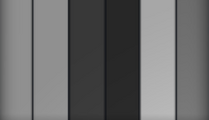 Carbon
 -
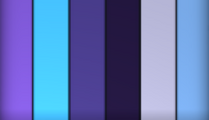 Nebula
 -
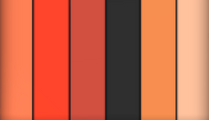 Embers
 -
 Grass
Grass


-
 Default
 -
 Gradient
 -
 Grid
Grid -
 Grid no-depth
 -
 Basic Lines


VRC+ subscribers will have access to 33 extra background designs to choose from.
-
 Filigree
 -
 Bit Mountain
 -
 Approach
 -
 Planet Fall
 -
 Jungle
 -
 Light Streams
 -
 Koi
Koi -
 Moonlight
 -
 Machine
 -
 Topology
 -
 Circuit
 -
 Kawaii Cupcakes
 -
 Bokeh
Bokeh -
 Hologram
 -
 Flow
Flow -
 Jelly
Jelly -
 Cheese
 -
 Alchemy
 -
 Sunset Mountain
 -
 Magic Rocks
 -
 City Stillness
 -
 Music
Music -
 Wolf Running
 -
 Dragon Smoke
 -
 Night Rain
 -
 Butterfly ZERO
 -
 I am Speed
 -
 Ronin
Ronin -
 Abduction
 -
 Cat Dream
 -
 Virtual Waves
 -
 Bolt and Snail
 -
 Escape


Bundles & Packs
See also Bundles & Packs for more detailed information.
Bundles & Packs are how content gets delivered to users. They appear in the Bundles & Packs tab, and once claimed, users will get rewarded with one or multiple of the content types. If users have multiple bundles or packs in their inventory, they can choose which one they want to open by clicking the arrow on either side of the menu.
Bundles & Packs can have an expiry date, in which users must claim before a certain date.
Sharing

VRC+ users can share photos, prints, emoji, stickers, and UI themes with other VRC+ within the same instance. Pressing the share button on the respective content type allows the user to drop a sharing pedestal.
Exclusives
VRC+ Exclusives is content that is only available for VRC+ supporters. Unlike Bundles, Exclusives are not claimable and automatically appear in user's inventories. Content that is "VRC+ Exclusive" is labeled with VRC+ logo in the top left corner.
Collections
Emojis, stickers and items can belong to collections, which can be used to filter the Inventory.
List of known collections:
- Pride Month 2025
- Summer 2025
Uploading
User icons, photos, emoji, stickers, or prints can be taken and uploaded within the client via the camera's "Camera Mode" options. They can also be uploaded on the VRChat website via their respective pages.
Upload requirements

When uploading files to be used as user icons, photos, emoji, stickers, or prints, on the VRChat website, they must meet the following criteria:
- Must be less than 10MB
- Larger than 64x64 pixels
- Icons and Photos must be smaller than 2048x2048 pixels
- Emojis and Stickers must be smaller than 1024x1024 pixels
When uploading Animated Emoji, images should be 1024x1024 with square frames in a uniform grid, ordered left to right, then top to bottom. You can preset animation values in advance using the file name, like so:
- ExampleEmoji_14frames_10fps.png
The "Enable Sprite Sheet Mode" option must be checked for images to animate.
See also
| InventoryV · E |
|---|