Getting Started/zh-hant: Difference between revisions
Updating to match new version of source page |
Updating to match new version of source page |
||
| (47 intermediate revisions by 2 users not shown) | |||
| Line 8: | Line 8: | ||
在這裡你可以簡單地知道: | 在這裡你可以簡單地知道: | ||
* 有哪些[[Special:MyLanguage/Platforms| | * 有哪些[[Special:MyLanguage/Platforms|裝置]]可以遊玩 VRChat? | ||
* 哪裡可以下載並安裝 VRChat | * 哪裡可以下載並安裝 VRChat | ||
* 初次體驗 VRChat 時的注意事項 | * 初次體驗 VRChat 時的注意事項 | ||
* 其他可以幫助你的新手教學影片 | * 其他可以幫助你的新手教學影片 | ||
若你對於當中任一個 [[Special:MyLanguage/Community:Terminology| | 若你對於當中任一個[[Special:MyLanguage/Community:Terminology|術語]]或主題有不了解的地方,請隨時點擊藍色突出顯示的超連結,這些連結可以導向在 VRChat Wiki 中的其他頁面。 | ||
<span id="System_requirements_/_recommendations"></span> | <span id="System_requirements_/_recommendations"></span> | ||
<div class="mw-translate-fuzzy"> | |||
==系統要求 / 推薦配置== | ==系統要求 / 推薦配置== | ||
</div> | |||
<span id="Standalone_devices"></span> | <span id="Standalone_devices"></span> | ||
===一體機 | <div class="mw-translate-fuzzy"> | ||
===一體機裝置=== | |||
</div> | |||
VRChat 能夠在下方列出的一體機 | <div class="mw-translate-fuzzy"> | ||
VRChat 能夠在下方列出的一體機裝置上遊玩: | |||
</div> | |||
<span id="Mobile_devices"></span> | <span id="Mobile_devices"></span> | ||
<div class="mw-translate-fuzzy"> | |||
===行動裝置=== | ===行動裝置=== | ||
</div> | |||
VRChat 可以在任何 Android 10+ 或 iOS 17.0+ 的裝置上進行遊戲,而這些裝置的系統記憶體至少要有 6GB,並可連接至 Wi-Fi 或透過 4G/5G 行動網路。 | VRChat 可以在任何 Android 10+ 或 iOS 17.0+ 的裝置上進行遊戲,而這些裝置的系統記憶體至少要有 6GB,並可連接至 Wi-Fi 或透過 4G/5G 行動網路。 | ||
| Line 40: | Line 38: | ||
近期任何中階或更高階 Android 或 iOS 裝置,應該都會符合這些規格。 | 近期任何中階或更高階 Android 或 iOS 裝置,應該都會符合這些規格。 | ||
<span id="Steam_Deck"></span> | |||
<div class="mw-translate-fuzzy"> | |||
===Steam Deck=== | ===Steam Deck=== | ||
</div> | |||
經過 Valve 的測試後,VRChat 已在 Steam Deck 上通過驗證。它完全可以遊玩,並且與其內建的控制器,以及顯示器配合使用的效果很好。 | 經過 Valve 的測試後,VRChat 已在 Steam Deck 上通過驗證。它完全可以遊玩,並且與其內建的控制器,以及顯示器配合使用的效果很好。 | ||
* 使用預設控制器設定時,可以使用所有功能。 | * 使用預設控制器設定時,可以使用所有功能。 | ||
* VRChat 會顯示 Steam Deck 的控制器圖示。 | * VRChat 會顯示 Steam Deck 的控制器圖示。 | ||
* 遊戲介面文字在 Steam Deck 上清晰可見。 | * 遊戲介面文字在 Steam Deck 上清晰可見。 | ||
* VRChat 的預設圖形配置,在此 | * VRChat 的預設圖形配置,在此裝置上表現良好。 | ||
<div lang="en" dir="ltr" class="mw-content-ltr"> | |||
=== Linux === | |||
</div> | |||
<div lang="en" dir="ltr" class="mw-content-ltr"> | |||
VRChat does not provide a native Linux client. It can be played on Linux, including the Steam Deck, through Valve's Proton compatibility layer. VRChat has stated that there are no concrete plans for a native Linux client.<ref name="devqa1may2026">[https://ask.vrchat.com/t/may-1-2026-developer-stream-q-a-summary/48386 "May 1 2026 Developer Stream Q&A Summary"] on ''[[ask.vrchat.com]]''. Posted May 5, 2026. Retrieved June 18, 2026.</ref> | |||
</div> | |||
<span id="PC"></span> | <span id="PC"></span> | ||
===電腦 | <div class="mw-translate-fuzzy"> | ||
===電腦裝置=== | |||
</div> | |||
<div class="mw-translate-fuzzy"> | |||
VRChat 的最低配置要求<ref>VRChat Help, 系統要求, https://help.vrchat.com/hc/en-us/articles/1500002378722-System-Requirements</ref><ref>Steam Store, VRChat, https://store.steampowered.com/app/438100/VRChat/</ref>即 SteamVR 的最低配置要求<ref>Steam Store, SteamVR, https://store.steampowered.com/app/250820/SteamVR/</ref>。 | VRChat 的最低配置要求<ref>VRChat Help, 系統要求, https://help.vrchat.com/hc/en-us/articles/1500002378722-System-Requirements</ref><ref>Steam Store, VRChat, https://store.steampowered.com/app/438100/VRChat/</ref>即 SteamVR 的最低配置要求<ref>Steam Store, SteamVR, https://store.steampowered.com/app/250820/SteamVR/</ref>。 | ||
</div> | |||
如果你想確認 | 如果你想確認你的電腦是否能運行 VRChat,可以將你的電腦規格與下方列出的最低需求進行比較。 | ||
<div class="mw-translate-fuzzy"> | |||
* '''處理器:''' Intel® i5-4590 或 AMD FX 8350 或 equivalent | * '''處理器:''' Intel® i5-4590 或 AMD FX 8350 或 equivalent | ||
* '''記憶體:''' 4GB | * '''記憶體:''' 4GB | ||
* '''顯示卡:''' NVIDIA GeForce® GTX 970 或 AMD Radeon™ R9 290 或 equivalent | * '''顯示卡:''' NVIDIA GeForce® GTX 970 或 AMD Radeon™ R9 290 或 equivalent | ||
* '''磁碟空間:''' | * '''磁碟空間:''' 31.5GB 儲存空間(遊戲本體佔用約 1.5GB<ref>SteamDB, VRChat, Depot https://steamdb.info/depot/438101/</ref>,最低則有 30GB 用於快取) | ||
* '''網路連線:''' 必須(推薦下載速度大於 25Mbps) | * '''網路連線:''' 必須(推薦下載速度大於 25Mbps) | ||
* '''作業系統:''' Windows 10、Windows 11 | * '''作業系統:''' Windows 10、Windows 11 | ||
</div> | |||
這是在 PC 模式下與 VR 模式下遊玩 VRChat 的「<u>最低基礎</u>」配置要求。雖然這已經可以打開遊戲本體並遊玩,但可能還會遇到其他效能問題。這是因為 VRChat 中有大量社群所創造的内容,有些[[Special:MyLanguage/avatars|角色(Avatars)]]及[[Special:MyLanguage/worlds|世界(Worlds)]],可能導致你在遊玩時的效能下降!這個時候會建議你調整[[Special:MyLanguage/Safety|安全設定(Safety)]],以獲取更好的體驗。 | |||
VRChat 可從 AMD X3D CPU 系列的大型快取記憶體中獲益。至於顯示卡,則建議選擇擁有更多 VRAM 的顯示卡,以帶來更好的效能體驗。然而在某些情況下(包括 VR),還是會建議選擇效能更高的顯示卡。 | |||
<div class="mw-translate-fuzzy"> | |||
===遠端遊玩=== | |||
====GeForce NOW==== | |||
</div> | |||
VRChat | <div class="mw-translate-fuzzy"> | ||
VRChat 現已支援透過 [https://www.nvidia.com/en-us/geforce-now/ GeForce NOW] 遊玩。<ref>發布在 X 上的公告 - https://x.com/VRChat/status/1854237896707899862</ref> | |||
</div> | |||
<div lang="en" dir="ltr" class="mw-content-ltr"> | |||
==== Shadow PC ==== | |||
</div> | |||
<div lang="en" dir="ltr" class="mw-content-ltr"> | |||
VRChat uses Easy Anti-Cheat (EAC), which is provided by Epic Games. As of 2026, running VRChat on the Shadow PC cloud-gaming service has been affected by a compatibility issue with EAC's handling of virtual machines. VRChat has described this as an ongoing three-way situation between VRChat, Easy Anti-Cheat, and Shadow PC. VRChat has stated that, for security reasons, it will not disable or reduce its anti-cheat for virtual machines, and that the issue must be resolved between the other parties.<ref name="devqa1may2026" /> | |||
</div> | |||
<span id="Installing_VRChat"></span> | <span id="Installing_VRChat"></span> | ||
<div class="mw-translate-fuzzy"> | |||
==安裝 VRChat== | ==安裝 VRChat== | ||
</div> | |||
<div class="mw-translate-fuzzy"> | |||
===Meta Quest=== | ===Meta Quest=== | ||
''適用於 Meta Quest 2、Meta Quest 3(S)、Meta Quest 3S、Meta Quest Pro'' | ''適用於 Meta Quest 2、Meta Quest 3(S)、Meta Quest 3S、Meta Quest Pro'' | ||
</div> | |||
在 Meta 商店中搜尋 '''VRChat''',或者從[https://www.meta.com/experiences/1856672347794301 這裡]進行安裝。 | 在 Meta 商店中搜尋 '''VRChat''',或者從[https://www.meta.com/experiences/1856672347794301 這裡]進行安裝。 | ||
<div class="mw-translate-fuzzy"> | |||
===Pico=== | ===Pico=== | ||
''適用於 Pico 4、Pico 4 Pro、Pico 4 Ultra'' | ''適用於 Pico 4、Pico 4 Pro、Pico 4 Ultra'' | ||
</div> | |||
在 Pico 商店中搜尋 '''VRChat''',或者從[https://store-global.picoxr.com/global/detail/1/7288745304105664518 這裡]進行安裝。 | 在 Pico 商店中搜尋 '''VRChat''',或者從[https://store-global.picoxr.com/global/detail/1/7288745304105664518 這裡]進行安裝。 | ||
<div class="mw-translate-fuzzy"> | |||
===Vive=== | ===Vive=== | ||
''適用於 Vive XR Elite、Vive Focus Vision'' | ''適用於 Vive XR Elite、Vive Focus Vision'' | ||
</div> | |||
在 Viveport 商店中搜尋 '''VRChat''',或者從[https://www.viveport.com/apps/4b5187b8-004c-473c-9219-258c3ea8e255 這裡]進行安裝。 | 在 Viveport 商店中搜尋 '''VRChat''',或者從[https://www.viveport.com/apps/4b5187b8-004c-473c-9219-258c3ea8e255 這裡]進行安裝。 | ||
< | <div class="mw-translate-fuzzy"> | ||
===電腦 | ===電腦=== | ||
建議安裝[https://apps.microsoft.com/detail/9nmzlz57r3t7 「HEVC Video Extensions」],以獲得更好的影片播放支援。 | |||
</div> | |||
<span id="Via_Steam"></span> | <span id="Via_Steam"></span> | ||
| Line 94: | Line 136: | ||
<span id="Via_Viveport"></span> | <span id="Via_Viveport"></span> | ||
<div class="mw-translate-fuzzy"> | |||
====透過 Viveport==== | ====透過 Viveport==== | ||
</div> | |||
在 Viveport 商店中搜尋 '''VRChat''',或者從[https://www.viveport.com/apps/4b5187b8-004c-473c-9219-258c3ea8e255 這裡]進行安裝。 | 在 Viveport 商店中搜尋 '''VRChat''',或者從[https://www.viveport.com/apps/4b5187b8-004c-473c-9219-258c3ea8e255 這裡]進行安裝。 | ||
<div class="mw-translate-fuzzy"> | |||
====透過 Meta Store==== | ====透過 Meta Store==== | ||
''適用於 Meta Rift、Meta Rift S'' | ''適用於 Meta Rift、Meta Rift S'' | ||
</div> | |||
在 Meta 商店中搜尋 '''VRChat''',或者從[https://www.meta.com/experiences/1856672347794301 這裡]進行安裝。 | 在 Meta 商店中搜尋 '''VRChat''',或者從[https://www.meta.com/experiences/1856672347794301 這裡]進行安裝。 | ||
<span id="On_Android"></span> | <span id="On_Android"></span> | ||
<div class="mw-translate-fuzzy"> | |||
===Android 裝置=== | ===Android 裝置=== | ||
</div> | |||
在 Google Play 商店中搜尋 '''VRChat''',或者在你的行動裝置上從[https://play.google.com/store/apps/details?id=com.vrchat.mobile.playstore 這裡]進行安裝。 | 在 Google Play 商店中搜尋 '''VRChat''',或者在你的行動裝置上從[https://play.google.com/store/apps/details?id=com.vrchat.mobile.playstore 這裡]進行安裝。 | ||
===iOS 裝置 | <div class="mw-translate-fuzzy"> | ||
===iOS 裝置=== | |||
你可以在 iOS/iPadOS 的 App Store 搜尋「'''VRChat'''」,或直接在你的行動裝置上[https://apps.apple.com/app/vrchat/id6448578770 點擊此連結]。 | |||
至於要安裝並遊玩的話,你需要一台執行 iOS 17 或以上版本、且至少擁有 6GB 記憶體的 iPhone 或 iPad。 | |||
</div> | |||
<span id="Account_creation"></span> | <span id="Account_creation"></span> | ||
<div class="mw-translate-fuzzy"> | |||
==建立帳號== | ==建立帳號== | ||
</div> | |||
[[File:LoginPage.webp|thumb|上圖為 VRChat 內的登入頁面]] | |||
[[File:LoginPage.webp|thumb| | {{Thumb|{{YouTube|gXTe3GhWebY|title=Sign-In Issues | Account Management|thumb=File:YTThumb_gXTe3GhWebY_SignIn.webp}}}} | ||
在開啟 VRChat 後,首先你會看到登入頁面,而在這裡你可以更改語言、閱讀[[Special:MyLanguage/Terms of Service|服務條款]]與[[Special:MyLanguage/Privacy Policy|隱私政策]],以及透過 VRChat 帳號登入,或根據你所使用的設備,透過 Steam、Meta、Google、Pico 或 VIVE 平台建立帳號,以此作為登入方式。如果你想要登入 VRChat 帳號,那麼你會需要先在 VRChat 的網站上進行[https://vrchat.com/home/register 註冊]。<br /><br />在建立完 VRChat 帳號後,便可以透過此帳號來存取 VRChat 應用程式、網頁版 VRChat 個人資料、好友列表、瀏覽世界以及生成[[Special:MyLanguage/Impostors|投影替身(Impostors)]]。除此之外,你還可以存取 [[Special:MyLanguage/VRChat_SDK|VRChat SDK]]、[https://feedback.vrchat.com 回饋論壇]、[https://ask.vrchat.com 問題論壇],、報名參與[[Special:MyLanguage/Creator Economy|創作者贊助]]計畫,以及取得編輯 VRChat Wiki 的基礎權限。 | |||
如果你是透過 Steam、Meta、Google、Pico 或 VIVE 建立平台帳號,那麼這些帳號只能夠用作登入 VRChat 應用程式,而不能像 VRChat 帳號存取所有內容。而若你想要先建立一個平台帳號、再另外建立一個 VRChat 帳號,之後你也能夠[[Special:MyLanguage/Account Merging|合併帳號]]。在合併後,選擇透過平台帳號登入,將會導向登入到其所合併的 VRChat 帳號。 | |||
< | <span id="Learning_how_to_use_VRChat"></span> | ||
== | <div class="mw-translate-fuzzy"> | ||
==學習如何操作 VRChat== | |||
</div> | </div> | ||
當你成功登入 VRChat 後,你首先將進入一個私人的起始世界!在這裡你可以按照自己的節奏逐一摸索,從學習如何[[Special:MyLanguage/controls|控制]]、調整[[Special:MyLanguage/settings|設定]],到挑選你的第一個角色模型,最後前往下一個世界!系統預設的起始世界是「[[Special:MyLanguage/VRChat Home|VRChat Home]]」,一個讓你展開旅程的好去處。當你在其他地方時,可以透過打開快速選單,點擊「'''回起始世界'''」('''Go Home''')的按鈕,以回到這個地方。 | |||
當你在 VRChat 遇到另一名用戶時,可以透過打開你的[[Special:MyLanguage/Quick Menu|快速選單(Quick Menu)]],以進一步瞭解關於他的資訊。在 VR 模式下,將控制器發出的雷射指向該用戶,此時該用戶會出現膠囊狀的選取框,扣下扳機便可打開針對該用戶的選單;在 PC 模式下,你可以透過點擊「'''選取用戶'''」('''Select User''')按鈕,或者按住 Shift 鍵,並將游標懸停於該用戶上,同樣會顯示出膠囊狀的選取框,接著點擊左鍵便可開啟選單;在行動裝置上,你只要點擊該用戶便可開啟選單。 | |||
在快速選單當中還有一個「'''房間資訊'''」('''Here''')的標籤頁,可以顯示目前待在這個房間的所有用戶。透過點擊在列表中的用戶名稱,你可以查看他們的個人簡介、對他們發送好友邀請、調整他們的麥克風音量、靜音他們、隱藏他們的角色、[[Special:MyLanguage/Avatars#Cloning|複製]]他們的角色(如果可以的話),或者是封鎖他們。 | |||
<div | <div class="mw-translate-fuzzy"> | ||
== | ==更改介面語言== | ||
如果 VRChat 顯示著你不懂的語言,那麼你可以透過下方的步驟來切換語言。 | |||
* | *可以查看圖片來瞭解要點擊哪個按鈕。 | ||
<gallery widths="260" heights="150"> | <gallery widths="260" heights="150"> | ||
File:How to change UI Language1.webp|1. | File:How to change UI Language1.webp|1. 打開快速選單,然後在「'''設定'''」圖示上「'''點擊兩下'''」。 | ||
File:How_to_change_UI_Language2.webp|2. | File:How_to_change_UI_Language2.webp|2. 選擇位在「'''鏡子與控制器圖示之間'''」的選項,以進入「'''使用者介面(UI)'''」類別,接著點擊圖片中以「'''青綠色框住'''」的按鈕. | ||
File:How_to_change_UI_Language3.webp|3. | File:How_to_change_UI_Language3.webp|3. 選擇「'''繁體中文'''」或者是「'''你偏好使用的語言'''」。 | ||
</gallery> | </gallery>另外,你也可以直接在「登入頁面」中,點擊右下角按鈕,設定你想使用的語言。 | ||
</div> | </div> | ||
< | <span id="Community_resources"></span> | ||
== | <div class="mw-translate-fuzzy"> | ||
==社群資源== | |||
</div> | </div> | ||
{{Noticebox/Community}} | {{Noticebox/Community}} | ||
< | 我們的廣大社群建立了許多關於如何開始遊玩 VRChat 的優秀指南!以下是幾部教學影片,除了讓你了解如何操作之外,還有一些額外的指南與相關資訊可供參考。 | ||
</ | <span id="Articles"></span> | ||
===文獻=== | |||
* [https://spritesanddice.com/features/vrchat-survival-pack/ VRChat 生存指南],作者:Adam Factor - 提供 VRChat 概要、推薦的頭戴式裝置,以及適合新手參與的 VRChat 社群「入門包」。 | |||
<div | <div class="mw-translate-fuzzy"> | ||
===影片=== | |||
感謝 PHIA 和 [[Community:The Virtual Reality Show|The Virtual Reality Show]] 團隊製作了以下影片。 | |||
</div> | </div> | ||
< | *[https://www.youtube.com/watch?v=Bm8quWg_wig <nowiki>VRCHAT BEGINNERS GUIDE [2024] - Introduction for New Players!</nowiki>] - 這部影片是關於如何遊玩 VRChat 的優秀指南。 | ||
*[https://www.youtube.com/watch?v=4UBmmpt5iJ8 Best Places to see in VRChat! Quest & PC feat. Thrillseeker]- | |||
*[https://www.youtube.com/watch?v=4UBmmpt5iJ8 Best Places to see in VRChat! Quest & PC feat. Thrillseeker] - 現在你已經知道怎麼遊玩 VRChat 了,這些是可以讓你探索的世界。 | |||
*[https://www.youtube.com/watch?v=vWr4diTDqJM How to upload a VRChat Avatar - Complete Guide! PC, Quest & VRoid] - 如果你想知道要怎麼建立和上傳你的角色模型,這部影片會是個很好的起點。 | |||
*[https://www.youtube.com/watch?v=vWr4diTDqJM How to upload a VRChat Avatar - Complete Guide! PC, Quest & VRoid] - | |||
*[https://www.youtube.com/watch?v=DomfNq0vNCk The Best VR Setup for YOU!] - 這部影片講解了截至 2024 年 VR 設備的狀況,替想升級設備的用戶做了詳盡的說明與推薦。 | |||
*[https://www.youtube.com/watch?v=DomfNq0vNCk The Best VR Setup for YOU!] - | |||
*[https://www.youtube.com/watch?v=QSyS4HSaFPA Derafrog's Ultimate A to Z Guide to VRChat] - 這部是介紹 VRChat 各個面向的豐富影片。 | |||
*[https://www.youtube.com/watch?v=QSyS4HSaFPA Derafrog's Ultimate A to Z Guide to VRChat] - | |||
< | <span id="Official_resources"></span> | ||
== | <div class="mw-translate-fuzzy"> | ||
==官方資源== | |||
</div> | </div> | ||
*{{VRC link|https://vrch.at/getting-started | Getting Started}},位於 ''[[hello.vrchat.com]]''。 | |||
*{{VRC link|https://vrch.at/getting-started | Getting Started}} | |||
<div | <div class="mw-translate-fuzzy"> | ||
== | ==參考資料== | ||
{{Reflist}} | {{Reflist}} | ||
</div> | </div> | ||
| Line 203: | Line 239: | ||
{{Start-navbox}} | {{Start-navbox}} | ||
[[Category:Needs | [[Category:Needs images{{#translation:}}]] | ||
Latest revision as of 23:14, 19 July 2026

此頁面將以簡單的方式教導你如何加入 VRChat 這個大家庭!
在這裡你可以簡單地知道:
- 有哪些裝置可以遊玩 VRChat?
- 哪裡可以下載並安裝 VRChat
- 初次體驗 VRChat 時的注意事項
- 其他可以幫助你的新手教學影片
若你對於當中任一個術語或主題有不了解的地方,請隨時點擊藍色突出顯示的超連結,這些連結可以導向在 VRChat Wiki 中的其他頁面。
系統要求 / 推薦配置
一體機裝置
VRChat 能夠在下方列出的一體機裝置上遊玩:
行動裝置
VRChat 可以在任何 Android 10+ 或 iOS 17.0+ 的裝置上進行遊戲,而這些裝置的系統記憶體至少要有 6GB,並可連接至 Wi-Fi 或透過 4G/5G 行動網路。
近期任何中階或更高階 Android 或 iOS 裝置,應該都會符合這些規格。
Steam Deck
經過 Valve 的測試後,VRChat 已在 Steam Deck 上通過驗證。它完全可以遊玩,並且與其內建的控制器,以及顯示器配合使用的效果很好。
- 使用預設控制器設定時,可以使用所有功能。
- VRChat 會顯示 Steam Deck 的控制器圖示。
- 遊戲介面文字在 Steam Deck 上清晰可見。
- VRChat 的預設圖形配置,在此裝置上表現良好。
Linux
VRChat does not provide a native Linux client. It can be played on Linux, including the Steam Deck, through Valve's Proton compatibility layer. VRChat has stated that there are no concrete plans for a native Linux client.[1]
電腦裝置
如果你想確認你的電腦是否能運行 VRChat,可以將你的電腦規格與下方列出的最低需求進行比較。
- 處理器: Intel® i5-4590 或 AMD FX 8350 或 equivalent
- 記憶體: 4GB
- 顯示卡: NVIDIA GeForce® GTX 970 或 AMD Radeon™ R9 290 或 equivalent
- 磁碟空間: 31.5GB 儲存空間(遊戲本體佔用約 1.5GB[5],最低則有 30GB 用於快取)
- 網路連線: 必須(推薦下載速度大於 25Mbps)
- 作業系統: Windows 10、Windows 11
這是在 PC 模式下與 VR 模式下遊玩 VRChat 的「最低基礎」配置要求。雖然這已經可以打開遊戲本體並遊玩,但可能還會遇到其他效能問題。這是因為 VRChat 中有大量社群所創造的内容,有些角色(Avatars)及世界(Worlds),可能導致你在遊玩時的效能下降!這個時候會建議你調整安全設定(Safety),以獲取更好的體驗。
VRChat 可從 AMD X3D CPU 系列的大型快取記憶體中獲益。至於顯示卡,則建議選擇擁有更多 VRAM 的顯示卡,以帶來更好的效能體驗。然而在某些情況下(包括 VR),還是會建議選擇效能更高的顯示卡。
遠端遊玩
GeForce NOW
VRChat 現已支援透過 GeForce NOW 遊玩。[6]
Shadow PC
VRChat uses Easy Anti-Cheat (EAC), which is provided by Epic Games. As of 2026, running VRChat on the Shadow PC cloud-gaming service has been affected by a compatibility issue with EAC's handling of virtual machines. VRChat has described this as an ongoing three-way situation between VRChat, Easy Anti-Cheat, and Shadow PC. VRChat has stated that, for security reasons, it will not disable or reduce its anti-cheat for virtual machines, and that the issue must be resolved between the other parties.[1]
安裝 VRChat
Meta Quest
適用於 Meta Quest 2、Meta Quest 3(S)、Meta Quest 3S、Meta Quest Pro
在 Meta 商店中搜尋 VRChat,或者從這裡進行安裝。
Pico
適用於 Pico 4、Pico 4 Pro、Pico 4 Ultra
在 Pico 商店中搜尋 VRChat,或者從這裡進行安裝。
Vive
適用於 Vive XR Elite、Vive Focus Vision
在 Viveport 商店中搜尋 VRChat,或者從這裡進行安裝。
電腦
建議安裝「HEVC Video Extensions」,以獲得更好的影片播放支援。
透過 Steam
在 Steam 商店中搜尋 VRChat,或者從這裡進行安裝。
透過 Viveport
在 Viveport 商店中搜尋 VRChat,或者從這裡進行安裝。
透過 Meta Store
適用於 Meta Rift、Meta Rift S
在 Meta 商店中搜尋 VRChat,或者從這裡進行安裝。
Android 裝置
在 Google Play 商店中搜尋 VRChat,或者在你的行動裝置上從這裡進行安裝。
iOS 裝置
你可以在 iOS/iPadOS 的 App Store 搜尋「VRChat」,或直接在你的行動裝置上點擊此連結。 至於要安裝並遊玩的話,你需要一台執行 iOS 17 或以上版本、且至少擁有 6GB 記憶體的 iPhone 或 iPad。
建立帳號

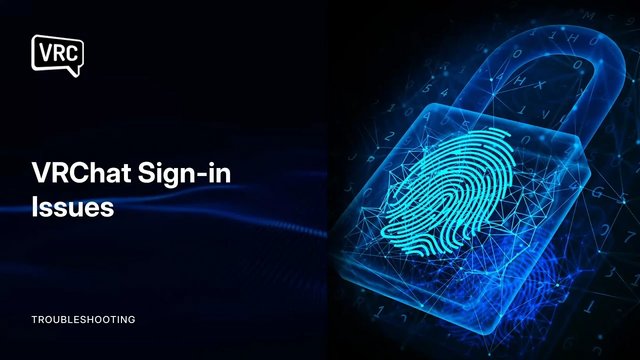
在開啟 VRChat 後,首先你會看到登入頁面,而在這裡你可以更改語言、閱讀服務條款與隱私政策,以及透過 VRChat 帳號登入,或根據你所使用的設備,透過 Steam、Meta、Google、Pico 或 VIVE 平台建立帳號,以此作為登入方式。如果你想要登入 VRChat 帳號,那麼你會需要先在 VRChat 的網站上進行註冊。
在建立完 VRChat 帳號後,便可以透過此帳號來存取 VRChat 應用程式、網頁版 VRChat 個人資料、好友列表、瀏覽世界以及生成投影替身(Impostors)。除此之外,你還可以存取 VRChat SDK、回饋論壇、問題論壇,、報名參與創作者贊助計畫,以及取得編輯 VRChat Wiki 的基礎權限。
如果你是透過 Steam、Meta、Google、Pico 或 VIVE 建立平台帳號,那麼這些帳號只能夠用作登入 VRChat 應用程式,而不能像 VRChat 帳號存取所有內容。而若你想要先建立一個平台帳號、再另外建立一個 VRChat 帳號,之後你也能夠合併帳號。在合併後,選擇透過平台帳號登入,將會導向登入到其所合併的 VRChat 帳號。
學習如何操作 VRChat
當你成功登入 VRChat 後,你首先將進入一個私人的起始世界!在這裡你可以按照自己的節奏逐一摸索,從學習如何控制、調整設定,到挑選你的第一個角色模型,最後前往下一個世界!系統預設的起始世界是「VRChat Home」,一個讓你展開旅程的好去處。當你在其他地方時,可以透過打開快速選單,點擊「回起始世界」(Go Home)的按鈕,以回到這個地方。
當你在 VRChat 遇到另一名用戶時,可以透過打開你的快速選單(Quick Menu),以進一步瞭解關於他的資訊。在 VR 模式下,將控制器發出的雷射指向該用戶,此時該用戶會出現膠囊狀的選取框,扣下扳機便可打開針對該用戶的選單;在 PC 模式下,你可以透過點擊「選取用戶」(Select User)按鈕,或者按住 Shift 鍵,並將游標懸停於該用戶上,同樣會顯示出膠囊狀的選取框,接著點擊左鍵便可開啟選單;在行動裝置上,你只要點擊該用戶便可開啟選單。
在快速選單當中還有一個「房間資訊」(Here)的標籤頁,可以顯示目前待在這個房間的所有用戶。透過點擊在列表中的用戶名稱,你可以查看他們的個人簡介、對他們發送好友邀請、調整他們的麥克風音量、靜音他們、隱藏他們的角色、複製他們的角色(如果可以的話),或者是封鎖他們。
更改介面語言
如果 VRChat 顯示著你不懂的語言,那麼你可以透過下方的步驟來切換語言。
- 可以查看圖片來瞭解要點擊哪個按鈕。
-
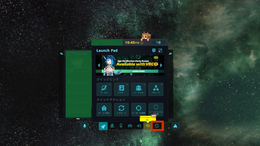 1. 打開快速選單,然後在「設定」圖示上「點擊兩下」。
 -
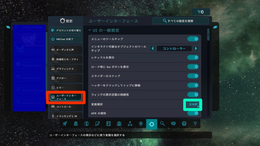 2. 選擇位在「鏡子與控制器圖示之間」的選項,以進入「使用者介面(UI)」類別,接著點擊圖片中以「青綠色框住」的按鈕.
 -
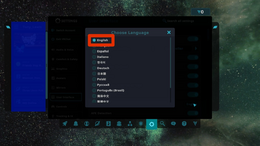 3. 選擇「繁體中文」或者是「你偏好使用的語言」。


社群資源

我們的廣大社群建立了許多關於如何開始遊玩 VRChat 的優秀指南!以下是幾部教學影片,除了讓你了解如何操作之外,還有一些額外的指南與相關資訊可供參考。
文獻
- VRChat 生存指南,作者:Adam Factor - 提供 VRChat 概要、推薦的頭戴式裝置,以及適合新手參與的 VRChat 社群「入門包」。
影片
感謝 PHIA 和 The Virtual Reality Show 團隊製作了以下影片。
- VRCHAT BEGINNERS GUIDE [2024] - Introduction for New Players! - 這部影片是關於如何遊玩 VRChat 的優秀指南。
- Best Places to see in VRChat! Quest & PC feat. Thrillseeker - 現在你已經知道怎麼遊玩 VRChat 了,這些是可以讓你探索的世界。
- How to upload a VRChat Avatar - Complete Guide! PC, Quest & VRoid - 如果你想知道要怎麼建立和上傳你的角色模型,這部影片會是個很好的起點。
- The Best VR Setup for YOU! - 這部影片講解了截至 2024 年 VR 設備的狀況,替想升級設備的用戶做了詳盡的說明與推薦。
- Derafrog's Ultimate A to Z Guide to VRChat - 這部是介紹 VRChat 各個面向的豐富影片。
官方資源
參考資料
- ↑ 1.0 1.1 "May 1 2026 Developer Stream Q&A Summary" on ask.vrchat.com. Posted May 5, 2026. Retrieved June 18, 2026.
- ↑ VRChat Help, 系統要求, https://help.vrchat.com/hc/en-us/articles/1500002378722-System-Requirements
- ↑ Steam Store, VRChat, https://store.steampowered.com/app/438100/VRChat/
- ↑ Steam Store, SteamVR, https://store.steampowered.com/app/250820/SteamVR/
- ↑ SteamDB, VRChat, Depot https://steamdb.info/depot/438101/
- ↑ 發布在 X 上的公告 - https://x.com/VRChat/status/1854237896707899862


