Prints: Difference between revisions
Fix redirect Tag: Redirect target changed |
m →Gallery: Sort by image size |
||
| (One intermediate revision by one other user not shown) | |||
| Line 1: | Line 1: | ||
# | {{Noticebox/Official}} | ||
{{Infobox/Feature | |||
|name=Prints | |||
|image=Icon Prints.png | |||
|platforms= PC, Android, iOS | |||
|vrchatplus= Required for creating and spawning prints. Increased collection limit. | |||
|branch_live_date = December 5, 2024 | |||
|branch_live_version = 2024.4.2 Build 1552 | |||
|branch_live_releasenote = https://docs.vrchat.com/docs/vrchat-202442 | |||
|branch_openbeta_date = Nov 14 2024 | |||
|branch_openbeta_version = 2024.4.2 Build 1546 | |||
|branch_openbeta_releasenote = https://docs.vrchat.com/docs/vrchat-202442-open-beta | |||
}} | |||
'''Prints''' are a social feature, that allows users to "print" out photos within [[Worlds|worlds]]. When printed, they spawn as an object in-world for other users to share and save. Prints' appearance is designed to mimic real-world instant films. [[VRC+]] is required to create and spawn prints, while non-VRC+ users can collect them. | |||
==Overview== | |||
[[File:Gallery_Prints.webp|thumb|A print of 2 ghosts surrounding a user.]] | |||
A print's appearance is designed to mimic real-world instant films, with a white background and margins around the photo located in the center. Under the photo, shows a note, which is a custom message that is attached to the print. In the bottom left corner shows who the print is captured by, and in the bottom right corner shows the date the print was taken and the world the print was taken in. | |||
Prints save in 1080p, and have margins of 64px left/right, 69px top, and 218px bottom. | |||
==Creating== | |||
[[File:Camera PrintCamera.png|200px|thumb|The Print camera.]] | |||
Prints can be created by using the "Print" [[Camera|camera]] mode, then taking a photo or converting a [[Inventory#Photos|photo]] into a print from the Photo Gallery share modal. | |||
When taken, the user has the option to either retake the photo, adding/editing a note, or printing & saving. When the user presses "Print & Save", the print will be spawned in the world and saved to the inventory. | |||
The print will attach metadata to it when taken, it includes the name of the user who took the photo, the world it was taken in, and the date it was taken on. | |||
===Editing=== | |||
The note of a print can be edited after it has been created. Either by pressing "Edit Note" on a self-made print in world, or through the share button on the print's inventory page. | |||
==Spawning== | |||
VRC+ users can spawn prints through the Prints tab of the Inventory page on the [[Main Menu]]. When spawning, the print "prints" from the camera, after printing it is able to be picked up. | |||
There is a limit of 9 prints a user can spawn, attempting to spawn another one will remove the oldest print from the world. Spawning the same print will remove the print and respawn it. | |||
==Collecting== | |||
Prints can be collected by any user by pressing "Save to Prints Gallery" on the back of any print. When saved, it will added to your prints inventory. Non-VRC+ users can only collect up to 20, while VRC+ users can collect 64. | |||
==Behavior== | |||
===Print buttons=== | |||
[[File:Print PrintBack.png|thumb|The back of a print.]] | |||
The back of a print has 7 buttons that can be seen: | |||
* '''Edit Note''': Allows the user to edit the note of a self-made print | |||
* '''Save to Prints Gallery''': Allows the print to be saved to the user's inventory | |||
* '''Download''': Downloads the print to the user's local files | |||
* '''Hide''': Hides the print, shows the [[Sharing|sharing]] UI with a "show" and "remove" button | |||
* '''Remove''': Removes the print from the world (Only shown if printed by the local user or by a user that has certain instance permissions) | |||
* '''Report''': Allows the user to report prints | |||
* '''World details''': Brings up the world page of the world the print was taken in (Only shown if the world is public) | |||
When the user is 3 meters away from a print, the back buttons will be hidden. | |||
===Selecting=== | |||
A print can be selected with the laser pointer, when selected the print will appear in the [[Quick Menu]]. The same buttons that are available at the back of a print, will be shown, along with a "View User" button, which leads to the profile of the user who spawned the print. | |||
===Throwing=== | |||
Prints can be picked up and throw when spawned in the world. When lightly thrown, the print will slowly ease into a stop. When thrown with force and spin, the print will fly like a frisbee, emitting a yellow trail from itself. | |||
==Gallery== | |||
<gallery> | |||
File:Camera PrintCamera.png|The Print camera. | |||
File:Gallery Prints.webp|A print of 2 ghosts surrounding a user. | |||
File:Print PrintBack.png|The back of a print. | |||
File:Print PrintBackVRC+.png|The back of a VRC+ user's print. | |||
</gallery> | |||
==Navigation== | |||
{{Navbox/Inventory}} | |||
Latest revision as of 19:30, 12 May 2026

Prints are a social feature, that allows users to "print" out photos within worlds. When printed, they spawn as an object in-world for other users to share and save. Prints' appearance is designed to mimic real-world instant films. VRC+ is required to create and spawn prints, while non-VRC+ users can collect them.
Overview

A print's appearance is designed to mimic real-world instant films, with a white background and margins around the photo located in the center. Under the photo, shows a note, which is a custom message that is attached to the print. In the bottom left corner shows who the print is captured by, and in the bottom right corner shows the date the print was taken and the world the print was taken in.
Prints save in 1080p, and have margins of 64px left/right, 69px top, and 218px bottom.
Creating

Prints can be created by using the "Print" camera mode, then taking a photo or converting a photo into a print from the Photo Gallery share modal.
When taken, the user has the option to either retake the photo, adding/editing a note, or printing & saving. When the user presses "Print & Save", the print will be spawned in the world and saved to the inventory.
The print will attach metadata to it when taken, it includes the name of the user who took the photo, the world it was taken in, and the date it was taken on.
Editing
The note of a print can be edited after it has been created. Either by pressing "Edit Note" on a self-made print in world, or through the share button on the print's inventory page.
Spawning
VRC+ users can spawn prints through the Prints tab of the Inventory page on the Main Menu. When spawning, the print "prints" from the camera, after printing it is able to be picked up.
There is a limit of 9 prints a user can spawn, attempting to spawn another one will remove the oldest print from the world. Spawning the same print will remove the print and respawn it.
Collecting
Prints can be collected by any user by pressing "Save to Prints Gallery" on the back of any print. When saved, it will added to your prints inventory. Non-VRC+ users can only collect up to 20, while VRC+ users can collect 64.
Behavior
Print buttons

The back of a print has 7 buttons that can be seen:
- Edit Note: Allows the user to edit the note of a self-made print
- Save to Prints Gallery: Allows the print to be saved to the user's inventory
- Download: Downloads the print to the user's local files
- Hide: Hides the print, shows the sharing UI with a "show" and "remove" button
- Remove: Removes the print from the world (Only shown if printed by the local user or by a user that has certain instance permissions)
- Report: Allows the user to report prints
- World details: Brings up the world page of the world the print was taken in (Only shown if the world is public)
When the user is 3 meters away from a print, the back buttons will be hidden.
Selecting
A print can be selected with the laser pointer, when selected the print will appear in the Quick Menu. The same buttons that are available at the back of a print, will be shown, along with a "View User" button, which leads to the profile of the user who spawned the print.
Throwing
Prints can be picked up and throw when spawned in the world. When lightly thrown, the print will slowly ease into a stop. When thrown with force and spin, the print will fly like a frisbee, emitting a yellow trail from itself.
Gallery
-
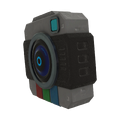 The Print camera.
 -
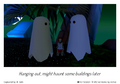 A print of 2 ghosts surrounding a user.
 -
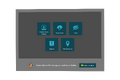 The back of a print.
 -
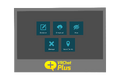 The back of a VRC+ user's print.

| InventoryV · E |
|---|


