Emojis: Difference between revisions
French Fox (talk | contribs) →Rabbid Emoji Pack: New end date |
French Fox (talk | contribs) →Shop emoji: Added new emoji |
||
| (3 intermediate revisions by 3 users not shown) | |||
| Line 187: | Line 187: | ||
==== Valentine's Emoji Bundle ==== | ==== Valentine's Emoji Bundle ==== | ||
This group of emoji is a part of the "[[List of Shop listings# | This group of emoji is a part of the "[[List of Shop listings#Valentines|Valentine's Emoji Bundle]]" shop listing, available for {{Credits|500}} or {{Credits|450}} with VRC+ from February 5, 2026 to February 28, 2026. | ||
<gallery mode="nolines" heights="128"> | <gallery mode="nolines" heights="128"> | ||
File:Emoji_Affection!!!.png|Affection!!! (Effects, Premium) | File:Emoji_Affection!!!.png|Affection!!! (Effects, Premium) | ||
| Line 194: | Line 194: | ||
==== Lunar New Year Emoji Bundle ==== | ==== Lunar New Year Emoji Bundle ==== | ||
This group of emoji is a part of the "[[List of Shop listings# | This group of emoji is a part of the "[[List of Shop listings#Lunar_New_Year|Lunar New Year Emoji Bundle]]" shop listing, available for {{Credits|500}} or {{Credits|450}} with VRC+ from February 17, 2026 to April 1, 2026. | ||
<gallery mode="nolines" heights="128"> | <gallery mode="nolines" heights="128"> | ||
File:Emoji Sky Lantern.png|Sky Lantern (Effects, Premium) | File:Emoji Sky Lantern.png|Sky Lantern (Effects, Premium) | ||
| Line 201: | Line 201: | ||
==== Rabbid Emoji Pack ==== | ==== Rabbid Emoji Pack ==== | ||
This group of emoji is a part of the "[[List of Shop listings# | This group of emoji is a part of the "[[List of Shop listings#Rabbids_x_VRChat|Rabbid Emoji Pack]]" shop listing, available for {{Credits|500}} or {{Credits|450}} with VRC+ from March 5, 2026 to April 14, 2026. | ||
<gallery mode="nolines" heights="128"> | <gallery mode="nolines" heights="128"> | ||
File:Emoji Laughing Rabbid.png|Laughing Rabbid | File:Emoji Laughing Rabbid.png|Laughing Rabbid | ||
| Line 211: | Line 211: | ||
File:Emoji Thumbs Up!.png|Thumbs Up! | File:Emoji Thumbs Up!.png|Thumbs Up! | ||
File:Emoji BWAAAH.png|BWAAAH | File:Emoji BWAAAH.png|BWAAAH | ||
</gallery> | |||
==== Sakura Emoji Bundle ==== | |||
This group of emoji is a part of the "[[List of Shop listings#Hanami_Festival|Sakura Emoji Bundle]]" shop listing, available for {{Credits|500}} or {{Credits|450}} with VRC+ from April 3, 2026 to June 1, 2026. | |||
<gallery mode="nolines" heights="128"> | |||
File:Emoji Glowing Sakura.png|Glowing Sakura (Premium) | |||
File:Emoji Sakura Breeze.png|Sakura Breeze (Premium) | |||
</gallery> | |||
====Tanabata Emoji Pack==== | |||
This group of emoji is a part of the "[[List of Shop listings#Celebrate Tanabata!|Tanabata Emoji Pack]]" shop listing, available for {{Credits|500}} or {{Credits|450}} with VRC+ from July 3, 2026 to September 4, 2026. | |||
<gallery mode="nolines" heights="128"> | |||
File:Emoji Magpie Bridge.png|Magpie Bridge(Premium) | |||
File:Emoji Vega and Altair.png|Vega and Altair (Premium) | |||
</gallery> | </gallery> | ||
| Line 277: | Line 291: | ||
== Community resources == | == Community resources == | ||
{{Noticebox/Community}} | {{Noticebox/Community}} | ||
Several community-developed tools can convert GIFs or videos to sprite sheets for animated emojis. See [[Community:Emoji Creation Tools|Emoji creation tools]] for a comparison. | |||
== Navigation == | == Navigation == | ||
{{Navbox/Inventory}} | {{Navbox/Inventory}} | ||
Latest revision as of 14:07, 5 July 2026

Emojis are icons that can be summoned in front of a user to express themselves.
While VRChat provides a set of default Emojis, users can purchase emojis within the Shop or users with a VRC+ subscription can upload images to use as Custom Emojis. Emojis can be spawned via the Action Menu or the Emoji Wing and managed on the Inventory page.
Default emojis
Default emojis are a set of 66 Emojis split into 4 pages of general emojis, accessibility emojis, summer emojis, fall emojis, and winter emojis.
General
-
 Angry
Angry -
 Beer
Beer -
 Blush
Blush -
 Brokenheart
 -
 Cloud
Cloud -
 Crying
 -
 Dislike
 -
 Exclaim
 -
 Fire
Fire -
 Frown
Frown -
 Gift
Gift -
 Go
Go -
 Handwave
 -
 Inlove
 -
 Kiss
Kiss -
 Laugh
Laugh -
 Lifering
 -
 Like
Like -
 Love
Love -
 Money
Money -
 Music
Music -
 Pizza
Pizza -
 Question
 -
 Smile
Smile -
 Stoic
Stoic -
 Stop
Stop -
 Sunglasses
 -
 Thinking
 -
 Tomato
 -
 Tongue
 -
 Wow
Wow -
 ZZZZ
ZZZZ


Accessibility
-
 Arrow
Arrow -
 Blind
Blind -
 Deafened
 -
 Hourglass
 -
 Keyboard
 -
 Keyboard Tap
 -
 Muted
Muted -
 Portal
 -
 Shush
Shush


Summer
-
 Beachball
 -
 Coconut Drink
 -
 Hangten
 -
 Icecream
 -
 Neonshades
 -
 Pineapple
 -
 Splash
 -
 Sunlotion


Fall
-
 Bat
Bat -
 BOO
BOO -
 Candy
Candy -
 CandyCorn
 -
 Ghost
Ghost -
 Jackolantern
 -
 Skull
Skull -
 Web
Web


Winter
-
 Candycane
 -
 Champagneclink
 -
 Coal
Coal -
 ConfettiPopper
 -
 Gifts
Gifts -
 Gingerbreadman
 -
 Mistletoe
 -
 Snowball
 -
 Snowflake


Premium emoji and effects
Premium Emoji
Premium Emoji are bigger, and more animated type of emoji.
This type of emoji are labelled with "Premium" icon in the top right corner of the preview image on the inventory page and while viewing details of the emoji, there is a "Premium" label beside the preview button. Premium Emoji is affected by the "Animated Emoji" safety setting.
-
 Premium Icon
 -
 Premium Label


Emoji Effects
Emoji effects are effects that are visible on the emoji, these are applied to Exclusive, or Shop stickers to distinguish itself from Custom Stickers. This type of emoji can be filtered on the inventory page.
Known emoji effects include "Holographic".
- Holographic: applies a sheen, with a unique texture overlaying the emoji.
Exclusive emojis
These emojis are given out during Events, VRC+ drops or purchased within the Shop.
Bundles & Drops
Starter Bundle
This group of emojis is a part of the Starter Bundle, available for every user upon login. The drop date started on June 9, 2025 and ended on December 8, 2025.
-
 Maths (Effects)
 -
 Brick (Effects)
 -
 Sparkles (Effects)
 -
 Bees (Effects)


Pride Welcome Bundle
This emoji is a part of the Pride Welcome Bundle, it was available for every user upon login during the Pride Month 2025 campaign. The drop start and end date are unknown.
-
 Rainbow (Effects)

The First Gift
This premium emoji is a part of the The First Gift , it could be obtained by gifting VRC+ or gifting any shop item to another user during the Holiday Event 2025 campaign. The event lasted from December 8, 2025 to January 1, 2026.
-
 Tree-in-a-Box (Premium)

Shop emoji
Spookality Emoji
This group of emoji is a part of the "Spookality Emoji" shop listing, available for  350 or 315 with VRC+ from October 14, 2025 to November 6, 2025.
-
 Laughing Face (Effects)
 -
 Lightning Zap (Effects)
 -
 Funk-O-Lantern (Effects)


Grimoire Emoji Pack
This group of emoji is a part of the "Emoji Grimoire Pack" shop listing, available for 400 or 360 with VRC+ from November 6, 2025 to December 8, 2025.
-
 Fireball (Effects, Premium)
 -
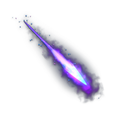 Magic Missile (Effects, Premium)


Vketchan Emoji Pack
This group of emoji is a part of the "Vketchan Emoji Pack" shop listing, available for 400 or 360 with VRC+ from December 5, 2025 to December 21, 2025.
-
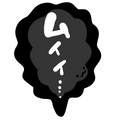 Muy Muyiii
 -
 Muy Yabai
 -
 Muy Exclamation
 -
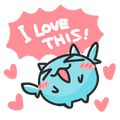 Muy Love
 -
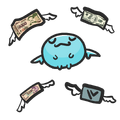 Flying Cash
 -
 VketChan 01 Thanks
 -
 VketChan 01 Nyan Praise
 -
 VketChan 01 Goodjob
 -
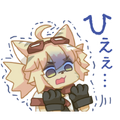 Vket-Nyan Tremble
 -
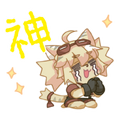 Vket-Nyan Worship
 -
 VketChan 01 Cake
 -
 VketChan 01 Pressure
 -
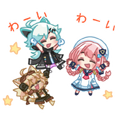 VketChans Cheer


Winter Emoji Pack
This group of emoji is a part of the "Winter Emoji Pack" shop listing, available for 500 or 450 with VRC+ from December 8, 2025 to February 5, 2026.
-
 Icy Vortex (Effects, Premium)
 -
 Snowball (Effects, Premium)


Celebration Emoji Pack
This group of emoji is a part of the "Celebration Emoji Pack" shop listing, available for 500 or 450 with VRC+ from December 29, 2025 to February 5, 2026.
-
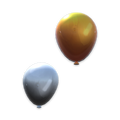 BALLOONS!!! (Effects, Premium)
 -
 Countdown! (Effects, Premium)


Valentine's Emoji Bundle
This group of emoji is a part of the "Valentine's Emoji Bundle" shop listing, available for 500 or 450 with VRC+ from February 5, 2026 to February 28, 2026.
-
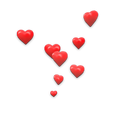 Affection!!! (Effects, Premium)
 -
 Cupid's Rose (Effects, Premium)


Lunar New Year Emoji Bundle
This group of emoji is a part of the "Lunar New Year Emoji Bundle" shop listing, available for 500 or 450 with VRC+ from February 17, 2026 to April 1, 2026.
-
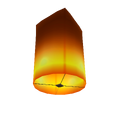 Sky Lantern (Effects, Premium)
 -
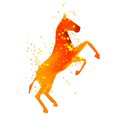 Zodiac Horse (Effects, Premium)


Rabbid Emoji Pack
This group of emoji is a part of the "Rabbid Emoji Pack" shop listing, available for 500 or 450 with VRC+ from March 5, 2026 to April 14, 2026.
-
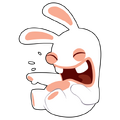 Laughing Rabbid
 -
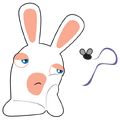 Bored Rabbid
 -
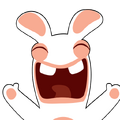 Joyful Rabbid
 -
 Full-Speed Rabbid
 -
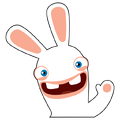 Hello!
 -
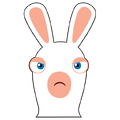 Angy Rabbid
 -
 Thumbs Up!
 -
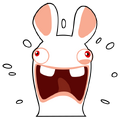 BWAAAH


Sakura Emoji Bundle
This group of emoji is a part of the "Sakura Emoji Bundle" shop listing, available for 500 or 450 with VRC+ from April 3, 2026 to June 1, 2026.
-
 Glowing Sakura (Premium)
 -
 Sakura Breeze (Premium)


Tanabata Emoji Pack
This group of emoji is a part of the "Tanabata Emoji Pack" shop listing, available for 500 or 450 with VRC+ from July 3, 2026 to September 4, 2026.
-
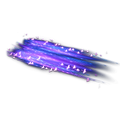 Magpie Bridge(Premium)
 -
 Vega and Altair (Premium)


Custom emoji
Custom Emoji is a feature through which users may upload up to 18 images and use them as emojis. Images, either taken within the client, from the user's gallery or uploaded from their machine, may be used to create emojis. After either taking or choosing an image, the user will be prompted to customize its appearance by editing various aspects of it, such as: the zoom, the rotation, and the panning.
Once done, a menu will appear, requiring the selection of an animation that the emoji will use when spawned in the world; after saving, the emoji can be accessed via the Action Menu, under "Emojis & Stickers", or in the Emoji Wing of the Quick Menu.
- List of emoji animation types
-
 Aura
Aura -
 Bats
Bats -
 Bees
Bees -
 Bounce
 -
 Cloud
Cloud -
 Confetti
 -
 Crying
 -
 Dislike
 -
 Fire
Fire -
 Idea
Idea -
 Lasers
 -
 Like
Like -
 Magnet
 -
 Mistletoe
 -
 Money
Money -
 Orbit
Orbit -
 Pizza
Pizza -
 Rain
Rain -
 Rotate
 -
 Shake
Shake -
 Snow
Snow -
 Snowball
 -
 Spin
Spin -
 Splash
 -
 Stop
Stop -
 ZZZ
ZZZ


Custom animated emojis
Custom animated emojis can be created either through VRChat's Camera or by uploading a sprite sheet in the emoji section of a user's inventory on the VRChat Website.
Sprite sheets should be 1024px x 1024px with square frames in a uniform grid, ordered left to right, then top to bottom. Images must be laid out in one of the following arrangements:
- 2x2 (512x512 pixels per frame) for up to 4 frames
- 4x4 (256x256 pixels per frame) for up to 16 frames
- 8x8 (128x128 pixels per frame) for up to 64 frames
Once uploaded, the user can select the number of frames and the FPS. The number of frames selected will determine how the image is sliced: for 4 or fewer frames they are assumed to be 512x512, for 16 or fewer frames they are assumed to be 256x256, etc. If the sprite sheet has an irregular number of frames (e.g. 17) the sprite sheet must still be formatted with one of the above arrangements, and any additional unused frames (in this case, 64 - 17 = 47 of them) will not be shown.
Default values for the number of frames and FPS can be set in the filename for easier sharing, for example "VRRatEmoji_14frames_20fps.png" (where the number of frames must be a number between 1 and 64).
Accessing emojis
There are multiple ways to access emojis depending on the use case.
Placing emojis
Users can use emojis either by:
- Opening the Action Menu, then navigating through
Emojis & Stickers>Emojis>"Default Emoji"or"Custom Emojis", then select a emoji. - Using the wings on either the Main Menu or Quick Menu, select
Emojis, then select a emoji.
Managing emojis
Users can manage emojis either by:
- Opening the Quick Menu, select the VRC+ tab, and then select the
Emojibutton. - Opening the Main Menu, select the
Inventorytab, and then select theEmojibutton.
Community resources

Several community-developed tools can convert GIFs or videos to sprite sheets for animated emojis. See Emoji creation tools for a comparison.
| InventoryV · E |
|---|


