社交

「社交」(Social),在 VRChat 中提供了豐富功能讓用戶使用,例如好友、邀請、備註等!
個人檔案

個人檔案(Introduced),是在身分更新(Identity Update)中被推出的功能,其用以展示用戶相關資訊的個人化空間。個人檔案中顯示的資訊包括狀態、信用等級(Trust Rank)、人稱代名詞、自我介紹、目前所在房間(Instances)、使用的語言、社群連結、擁有的徽章,以及加入的群組。
在用戶的個人檔案中,你可以執行多種操作,例如傳送好友邀請或邀請對方加入房間等。
狀態
狀態可在快速選單 (Quick Menu)、主選單(Main Menu)或VRChat 官方網站中設定。此功能用於控制好友加入自己所在房間的權限、決定好友是否能查看目前所在的房間、通知是否靜音,以及目前的活動狀態如何向其他人顯示。
狀態由顏色以及一段可自訂的簡短訊息(最多 32 個字元)組成,其共有四種不同的狀態:
| 狀態 | 詳細說明 |
|---|---|
| 加入我 Join Me | 好友可以查看你所在的房間,並可比照與「線上」狀態一樣的規則自由加入。如果此房間為私人且不可見,那好友所發出的所有加入申請都會被自動接受。 |
| 線上 Online | 好友可以查看你所在的房間,並且無需邀請即可直接加入你的房間。
不過,如果此房間為私人且不可見,那你的好友可能無法查看或加入此房間,除非他們收到邀請。 在下列情況中,你所在的房間可被好友查看並直接加入,而無需提出邀請請求:
|
| 詢問我 Ask Me | 好友無法查看你所在的房間。無論房間的隱私設定為何,好友都必須向你提出加入申請,並在你接受後才能加入該房間。 |
| 請勿打擾 Do Not Disturb | 好友無法查看你所在的房間。他們仍然可以提出加入申請,但你不會收到任何通知。此外,如果好友也處於此狀態,你也無法在遊戲內向他們發送邀請或提出加入申請。
|
人稱代名詞
人稱代名詞(Pronouns),可顯示於個人檔案之中,用來告知其他人應如何稱呼自己。設定後,代名詞將顯示在你的個人檔案,並同時顯示於你的名牌下方。
-
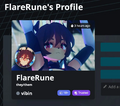 顯示在官方網站中的自我介紹上
 -
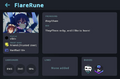 顯示在遊戲中的自我介紹上
 -
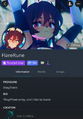 顯示在行動平台中的自我介紹上


自我介紹
自我介紹(bio,biography)是由用戶撰寫的一段文字,通常用於描述或介紹自己,但也可用於任何用途。自我介紹最多可包含 500 個字元。
目前不支援表情符號及部分特殊符號(例如分數)。以下是一些已知可使用的特殊字元:
๑ -༊ ༄․ೃ࿔ ೋ 彡ღ ͟͟͞ ೄྀ ͙༉ ¸୨୧、˒˒ ֒ ˗ˏˋ ˎˊ˗ ̤̮ ̤̥ ++ ˙· ˚ ∗ン ィ % ! ﹏ ? ? ζ ২ १ ୫ ૪ ໒ ৎ ຊ ຯ ೨ ໑ ७ ५ ୭ ˚ ·˖ ˸ જ Թ Ծ ౿ ੭ ୬ ෧ ୪ ১ ﹅﹆ ჲ ᴥ ફ ળ ਨ ৬ ৫ ২ ণ ଽ ︶ ଲ ମ 〄֍ 〧 ౾ ౽ 〨 ㆐ ︳ ㄔ ഒ * ٠ っ。̀ ́૭ ֊ ˙ ˶﹏ აପ ๑ଓ ଘ ∗ ੈ ᵕ ˘͈ ․. ༘ ̀ ́ ৻ づᴗʚïɞ૮ ˙˙ ඞ ༒ ໒ྀི ๑ ´ ˘ ` ྀི ʕω ʔ و ヮಡ ง¬༼︿༽ 亞ト丁してフ ̄_ఌ༅ ᆺ 〜 ༺ ༻ Ө Տ Ӈ ₳ เ ђ ς
操作
在用戶的個人檔案下方,你可以進行多種操作,可用的操作會依你是否已將該用戶加為好友而有所不同。


| 操作 | 詳細說明 |
|---|---|
| 加入 Join [actions 1] |
加入該用戶的房間。 |
| 申請加入 Request Invite [actions 1] |
向該用戶發送通知,申請加入對方所在的房間。通知可附上自訂訊息,訂閱 VRC+ 後還可附上照片。 |
| 發送邀請 Send Invite [actions 1] |
向該用戶發送邀請,邀請對方加入你所在的房間。邀請可附上自訂訊息,訂閱 VRC+ 後還可附上照片。 |
| 戳一下 Boop [actions 1] |
戳該用戶一下。 |
| 贈送 VRC+ Gift VRC+ |
購買並向該用戶贈送 VRC+。詳細內容請參閱贈禮。 |
| 好友邀請 Friend Request |
向該用戶發送好友邀請,對方可以接受或拒絕。 |
| 解除好友 Unfriend [actions 1] |
解除該用戶的好友。 |
| 收藏好友 Favorite Friend [actions 1] |
將該用戶加入好友收藏列表,就像收藏角色和世界一樣。 |
| 取消收藏好友 Unfavorite Friend [actions 1] |
將該用戶從你的好友收藏列表中移除。 |
| 管理用戶 Moderate User |
對該用戶進行管理操作,例如封鎖對方。詳細內容請參閱用戶管理工具。 |
| 解除封鎖 Unblock |
解除已封鎖的用戶。僅對已封鎖的用戶顯示。 |
| 新增備註 Add Note |
對該用戶新增一段僅自己可見的備註,內容可用於任何用途。例如,你可以記錄與該用戶認識的經過、對方使用的其他名稱,或在其他平台上的用戶名稱。 |
| 邀請加入群組 Invite to Group |
Opens a menu that allows you to invite the user to a group, as long as you have the permissions required to do so. See Groups for more detailed information. |
| View On Website | Opens the user's profile on the VRChat Website. |
Uploaded & favorited worlds
Below actions can be found a list of worlds uploaded by the user as well as any publicly viewable lists of favorite worlds. These can be sorted by date added, last updated, name, and recently used.
Short links
User profiles can be shared using VRChat's vrch.at short link domain combined with the user's ID, for example https://vrch.at/<userId>. This redirects to the user's profile on the VRChat website (https://vrchat.com/home/user/<userId>).

Friend Locations
Friend Locations includes a list of friends who are available on "Online" (green) status, or "Join Me" (blue) statuses, and are present in an accessible world such as Public, Friends+, Friends, Group Public, Group+ instances. Below these available users will also display a list of all Friends currently online in Private Instances.
Group Activity
Group Activity includes a list of available Group instances, for Groups that you have joined. Creating a Group, Group+, or Group Public instance, if you have the ability, will result in it appearing on the Group Activity tab for users in that group.
All Friends
All Friends shows the entire list of your friends who are currently online, including Friends on "Ask Me" (orange) or "Do Not Disturb" (red) statuses. It also shows your friends active on the website or friends that are currently offline.
In Instance
In Instance displays each user who is currently present in the instance you are in; users who have you blocked, while still inside of the instance with you may not appear on this tab, unless you are a Host or a Group Instance Moderator. The "Here" tab on the Quick Menu functions the same as this row.
Favorite Friends
Favorite Friends lists are three rows of friends who you have chosen to 'Favorite'. It can be placed in one of the three rows. Each list can be renamed to help with organization.
Recently Seen
Recently Seen users are other users you've met in instances. Up to the last 100 recently seen users can be found in this tab and are ordered from the most recent to the oldest.
Blocked
Blocked users are other users who you decided to block. They can be clicked upon in this tab, and unblocked if desired.
Friends

Friends on VRChat are other users that you trust, it acts much like how friending users on other platforms work, you can see whenever that user is online or on the website, send and receive invites from them, and add notes to them. Friends inside of your instance will have their name appear in yellow, and will also have their rank appear in yellow with a (Friend) indicator.
Mutuals
Mutuals are a feature that allows the user to view mutual friends or groups of other users.
There are two ways to see mutuals, in the Quick Menu or the Main Menu with a button "Show X Mutuals". In the Quick Menu, the button can be found on top of user actions. In the Main Menu, the button will be found on the top right, next to the report button.
If you wish to prevent other users from seeing your mutual friends and groups or appearing as so for others, you can turn off "Show Mutual Connections" in the Comfort & Safety section of your settings in the Main Menu. Doing so will change the text of the button from "Show X Mutuals" to "No Known Mutuals". Additionally, your user icon will be hidden, and your username will appear as "Hidden Mutual" when you appear in the mutuals in one of your friends.
Discord Friends
Seen in the Social tab under "All Friends", this feature allows you to see your Discord friends with their current status and to perform different actions. Friends with a Discord account linked will have a Discord icon displayed on their profile
If your friend has linked their Discord account to their VRChat account, you will be able to invite them to join your instance through Discord. Otherwise, you will be able to invite them to create a VRChat account. You or your friends may prevent your VRChat account from being shown in the Discord section by turning off the "Allow Discord Friends" setting in the Comfort & Safety section of the settings.