시작하기

이 패이지는 VRChat을 시작하는 방법을 알려줍니다. 금방 시작할 수 있습니다.
이 페이지에서는 다음 내용을 쉽게 알려드립니다.
- VRChat이 호환되는 디바이스는 무엇인가요?
- 어디에서 VRChat을 설치 할 수 있나요?
- VRChat을 처음 시작하고 몇 분간 어떤 일이 일어나나요?
- 처음 시작하는 유저에게 도움이 되는 몇 가지의 보너스 비디오
혹시 용어나 주제 중 익숙하지 않은 표현이 있다면, VRChat Wiki의 다른 페이지로 연결되는 파란색으로 강조 표시된 하이퍼링크 중 하나를 클릭해 주세요.
시스템 최소 사양 / 권장 사양
독립형 디바이스
VRChat은 다음의 독립형 해드셋에서 실행 가능합니다.
- Meta Quest 2
- Meta Quest 3
- Meta Quest 3S
- Meta Quest Pro
- Vive Focus Vision
- Vive XR Elite
- Pico 4
- Pico 4 Pro
- Pico 4 Ultra
스마트폰
VRChat을 실행하려면 최소 6GB의 시스템 RAM, Android 10 또는 iOS 17.0이상의 기기가 필요하며, Wi-Fi 또는 4G/5G의 셀룰러 네트워크에 연결되어 있어야 합니다.
최근 출시된 중급 이상의 Android 또는 iOS 기기는 모두 이 사양을 충족 할 것입니다.
Steam Deck
Valve의 테스트에 따르면 VRChat은 Steam Deck에서 검증되었습니다. 내장된 컨트롤러와 디스플레이를 사용할 때 모든 기능이 완벽하게 작동합니다.
- 기본 컨트롤러 구성을 사용했을 때, 모든 기능에 액세스 할 수 있습니다.
- VRChat에서 Steam Deck 컨트롤러의 아이콘이 표시됩니다.
- Steam Deck에서 게임 내 UI텍스트를 읽을 수 있습니다.
- VRChat의 기본 그래픽 설정은 Steam Deck에서 좋은 성능을 발휘합니다.
PC
최소 사양[1][2] SteamVR의 최소 요구 사항을 기반으로합니다.[3].
사용중인 PC가 VRChat을 실행하기에 적합한지 확인하려면, Are you ready for Valve Index? 응용프로그램을 다운로드합니다.
- CPU: Intel® i5-4590 또는 AMD FX 8350 또는 동급
- 메모리: 4GB
- GPU: NVIDIA GeForce® GTX 970 또는 AMD Radeon™ R9 290 또는 동급
- 디스크 공간: 21.5GB 저장 공간 (응용프로그램 약 1.5GB[4], 최소 캐시 크기 20GB)
- 인터넷 연결: 필수 (다운로드 속도 25Mbps 이상 권장)
- 운영체제: Windows 10, Windows 11
데스크톱 및 VR 모드에서 VRChat을 실행하기 위한 절대 최소 요구 사항입니다. 응용프로그램은 실행될 수 있지만 성능 문제가 발생할 수 있습니다. VRChat에는 유저가 직접 제작한 콘텐츠가 많이 있으며, 일부 아바타와 월드는 일반적인 게임보다 성능이 더 크게 저하될 수 있습니다! 최상의 경험을 위해 안전 설정을 조정하는 것이 권장됩니다.
VRChat은 AMD X3D CPU 시리즈에 탑재된 대용량 캐시가 큰 이점이 있습니다. GPU의 경우, 더 많은 V-RAM을 갖춘 그래픽 카드를 선택하면 성능이 우수한 경험을 얻을 수 있습니다. 그러나 일부 상황(VR 포함)에서는 일반적으로 더 우수한 성능을 갖춘 카드를 선택하는 것이 권장됩니다.
PC (Cloud)
GeForce NOW
VRChat은 GeForce NOW[5]에서 플레이 가능합니다.
VRChat 설치하기
Meta Quest
Meta Quest 2, Meta Quest 3, Meta Quest 3S, Meta Quest Pro용
Meta store에서 VRChat을 검색하거나 Meta 페이지에서 설치합니다.
Pico
Pico 4, Pico 4 Pro, Pico 4 Ultra용
Pico store에서 VRChat을 검색하거나 Pico Store 페이지에서 설치합니다.
On Vive
Vive XR Elite, Vive Focus Vision용
Viveport Store에서 VRChat을 검색하거나 여기를 클릭하여 설치합니다.
PC
Steam
Steam 상점 페이지에서 VRChat을 검색하거나 여기를 클릭하여 설치합니다.
Viveport
Viveport Store 페이지에서 VRChat을 검색하거나 여기를 클릭하여 설치합니다.
Meta Store
Meta Rift, Meta Rift S용
Meta store에서 VRChat을 검색하거나 Meta 페이지에서 설치합니다.
Android
Google Play 스토어에서 VRChat을 검색하거나 스마트폰에서 이 링크를 터치하세요.
iOS (Beta)

iOS Beta 버전에 대한 액세스가 허용되는 경우 VRChat 계정에 등록된 이메일 주소에서 "Testflight"초대 링크를 찾을 수 있습니다. 베타 테스트에 참여하신 후 앱을 설치하실 수 있습니다.
계정 만들기

When you launch VRChat, you will be presented with a log in screen. You will have options on changing languages, reading Terms of Service and the Privacy Policy, and primarily signing in with a VRChat account, or create a device account via Steam, Meta, Google, Pico, or VIVE, depending on the device being used. To log in to a VRChat account, you must first register on VRChat's website. Creating a VRChat account will grant you access to the VRChat application, a web version of your VRChat profile, friend list, browse worlds, and generate impostors. You will also be able to access VRChat's Software Development Kit, Feedback Forums, Ask Forums, enroll in the Creator Economy Program, and edit the VRChat Wiki.
Creating a device account via Steam, Meta, Google, Pico, or VIVE, will only grant instantaneous access to the VRChat application. It is also possible to merge accounts if you wish to generate a device account now, and create a VRChat account later. After merging your device account to a VRChat account, choosing to log into the device account will transfer your login to the VRChat account.
Learning how to use VRChat
When you log into VRChat, you’ll start in a private Home world! Here, you can explore at your own pace to learn the controls, adjust settings, find your first avatar, and go to your next world! The default Home world is the VRChat Home, a welcoming place to begin your session. You can choose to go back to your private Home instance at any time by opening up the Quick Menu, and choosing the Go Home tile.
When meeting another user in VRChat, you can open up your Quick Menu, and learn more information about a user. To do this in VR, point the laser in your off-hand at them. A capsule will appear, and you click the trigger button to bring open a separate menu. On desktop, you can either click the Select User tile, or hold the Shift key and hover over the capsule. Use the left mouse button to open the new menu. On mobile, simply tap on the user to bring open the menu.
In the Quick Menu there also is a tab which shows you the list of current players in the instance: the Here tab. By clicking on one of the user names in the list you can: read their biography, request to add them as a friend, change their microphone volume, mute them, hide their avatar, clone their avatar if available, or block them.
Change UI Language
If VRChat is set to a language you don't understand, you can use the following process to change it:
- The icons can be used to identify which button to click.
-
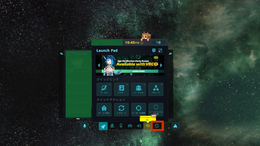 1. Open Quick Menu and Double Click on the Gear Icon.
 -
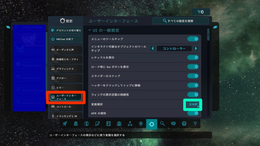 2. Select the category between the mirror and gamepad symbols to navigate to the User Interface category, and click the button highlighted by the Green Circle.
 -
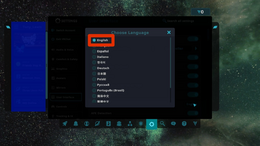 3. Select English or your preferred language.


Community resources

Our community has created many great guides on getting started in VRChat. Here are a few videos that you can check out to learn how to use VRChat, and also some additional guides and context.
Articles
- The VRChat Survival Guide, by Adam Factor - A summary of VRChat, recommended headsets, and a 'starter pack' of VRChat communities to participate in.
Videos
Thank you to PHIA and The Virtual Reality Show team for creating the videos below.
- VRCHAT BEGINNERS GUIDE [2024] - Introduction for New Players! - This guide is a great primer on how to get started in VRChat.
- Best Places to see in VRChat! Quest & PC feat. Thrillseeker- Now that you’ve learned how to use VRChat, here are some places to explore.
- How to upload a VRChat Avatar - Complete Guide! PC, Quest & VRoid - If you’re curious how to create and upload your avatar, this video is a great starting point.
- The Best VR Setup for YOU! - This guide for 2024 reviews the current VR hardware landscape and gives a good picture of what VRChat players use as they upgrade their equipment.
- Derafrog's Ultimate A to Z Guide to VRChat - Offers a comprehensive video on many parts of VRChat.
Official resources
- Getting Started on help.vrchat.com
References
- ↑ VRChat 도움말, 시스템 요구 사항, https://help.vrchat.com/hc/en-us/articles/1500002378722-System-Requirements
- ↑ Steam Store, VRChat, https://store.steampowered.com/app/438100/VRChat/
- ↑ Steam Store, SteamVR, https://store.steampowered.com/app/250820/SteamVR/
- ↑ SteamDB, VRChat, Depot https://steamdb.info/depot/438101/
- ↑ Announcement at X - https://x.com/VRChat/status/1854237896707899862


