自此開始

此頁面將以簡單的方式教導你如何加入 VRChat 這個大家庭!
在這裡你可以簡單地知道:
- 有哪些設備可以遊玩 VRChat?
- 哪裡可以下載並安裝 VRChat
- 初次體驗 VRChat 時的注意事項
- 其他可以幫助你的新手教學影片
若你對於當中任一個 Terminology 或主題有不了解的地方,請隨時點擊藍色突出顯示的超連結,這些連結可以導向在 VRChat Wiki 中的其他頁面。
系統要求 / 推薦配置
一體機設備
VRChat 能夠在下方列出的一體機設備上遊玩:
- Meta Quest 2
- Meta Quest 3
- Meta Quest 3S
- Meta Quest Pro
- Vive Focus Vision
- Vive XR Elite
- Pico 4
- Pico 4 Pro
- Pico 4 Ultra
行動裝置
VRChat 可以在任何 Android 10+ 或 iOS 17.0+ 的裝置上進行遊戲,而這些裝置的系統記憶體至少要有 6GB,並可連接至 Wi-Fi 或透過 4G/5G 行動網路。
近期任何中階或更高階 Android 或 iOS 裝置,應該都會符合這些規格。
Steam Deck
經過 Valve 的測試後,VRChat 已在 Steam Deck 上通過驗證。它完全可以遊玩,並且與其內建的控制器,以及顯示器配合使用的效果很好。
- 使用預設控制器設定時,可以使用所有功能。
- VRChat 會顯示 Steam Deck 的控制器圖示。
- 遊戲介面文字在 Steam Deck 上清晰可見。
- VRChat 的預設圖形配置,在此設備上表現良好。
電腦端(PC)
VRChat 的最低配置要求[1][2]即 SteamVR 的最低配置要求[3]。
如果你想確認自己的電腦是否可以遊玩 VRChat,那麼你可以下載並使用名為「Are you ready for Valve Index?」的應用程式執行檢驗。
- 處理器: Intel® i5-4590 或 AMD FX 8350 或 equivalent
- 記憶體: 4GB
- 顯示卡: NVIDIA GeForce® GTX 970 或 AMD Radeon™ R9 290 或 equivalent
- 磁碟空間: 21.5GB 儲存空間(遊戲本體佔用約 1.5GB[4],最低則有 20GB 用於快取)
- 網路連線: 必須(推薦下載速度大於 25Mbps)
- 作業系統: Windows 10、Windows 11
這是在 PC 模式下與 VR 模式下遊玩 VRChat 的「最低基礎」配置要求。雖然這已經可以打開遊戲本體並遊玩,但可能還會遇到其他效能問題。這是因為 VRChat 中有大量玩家社群所創造的内容,有些角色模型及世界,可能導致你在遊玩時的效能下降!這個時候會建議你調整安全設定,以獲取更好的體驗。
VRChat 可從 AMD X3D CPU 系列的大型快取記憶體中獲益。至於顯示卡的話,建議你選擇擁有更多 VRAM 的顯示卡,以帶給你更好的效能體驗。然而在某些情況下(包括 VR),還是會建議你選擇效能更高的顯示卡。
安裝 VRChat
Meta Quest
適用於 Meta Quest 2、Meta Quest 3(S)、Meta Quest 3S、Meta Quest Pro
在 Meta 商店中搜尋 VRChat,或者從這裡進行安裝。
Pico
適用於 Pico 4、Pico 4 Pro、Pico 4 Ultra
在 Pico 商店中搜尋 VRChat,或者從這裡進行安裝。
Vive
適用於 Vive XR Elite、Vive Focus Vision
在 Viveport 商店中搜尋 VRChat,或者從這裡進行安裝。
電腦端(PC)
透過 Steam
在 Steam 商店中搜尋 VRChat,或者從這裡進行安裝。
透過 Viveport
在 Viveport 商店中搜尋 VRChat,或者從這裡進行安裝。
透過 Meta Store
適用於 Meta Rift、Meta Rift S
在 Meta 商店中搜尋 VRChat,或者從這裡進行安裝。
Android 裝置
在 Google Play 商店中搜尋 VRChat,或者在你的行動裝置上從這裡進行安裝。
iOS 裝置(Beta 版)

如果你擁有 iOS 測試版的資格,你可以從使用於 VRChat 帳號的電子郵件中,找到名為「Testflight」的邀請連結。在加入 Beta 版後,即可安裝 VRChat 的應用程式。
建立帳號

When you launch VRChat, you will be presented with a log in screen. You will have options on changing languages, reading Terms of Service and the Privacy Policy, and primarily signing in with a VRChat account, or create a device account via Steam, Meta, Google, Pico, or VIVE, depending on the device being used. To log in to a VRChat account, you must first register on VRChat's website. Creating a VRChat account will grant you access to the VRChat application, a web version of your VRChat profile, friend list, browse worlds, and generate impostors. You will also be able to access VRChat's Software Development Kit, Feedback Forums, Ask Forums, enroll in the Creator Economy Program, and edit the VRChat Wiki.
Creating a device account via Steam, Meta, Google, Pico, or VIVE, will only grant instantaneous access to the VRChat application. It is also possible to merge accounts if you wish to generate a device account now, and create a VRChat account later. After merging your device account to a VRChat account, choosing to log into the device account will transfer your login to the VRChat account.
Learning how to use VRChat
When you log into VRChat, you’ll start in a private Home world! Here, you can explore at your own pace to learn the controls, adjust settings, find your first avatar, and go to your next world! The default Home world is the VRChat Home, a welcoming place to begin your session. You can choose to go back to your private Home instance at any time by opening up the Quick Menu, and choosing the Go Home tile.
When meeting another user in VRChat, you can open up your Quick Menu, and learn more information about a user. To do this in VR, point the laser in your off-hand at them. A capsule will appear, and you click the trigger button to bring open a separate menu. On desktop, you can either click the Select User tile, or hold the Shift key and hover over the capsule. Use the left mouse button to open the new menu. On mobile, simply tap on the user to bring open the menu.
In the Quick Menu there also is a tab which shows you the list of current players in the instance: the Here tab. By clicking on one of the user names in the list you can: read their biography, request to add them as a friend, change their microphone volume, mute them, hide their avatar, clone their avatar if available, or block them.
Change UI Language
If VRChat is set to a language you don't understand, you can use the following process to change it.
- The icons can be used to identify which button to click.
-
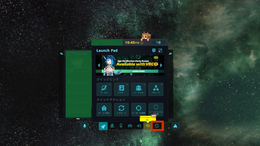 1. Open Quick Menu and Double Click on the Gear Icon.
 -
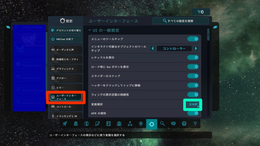 2. Select the category between the mirror and gamepad symbols to navigate to the User Interface category, and click the button highlighted by the Green Circle.
 -
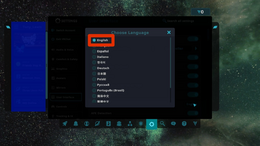 3. Select English or your preferred language.


Community resources

Our community has created many great guides on getting started in VRChat. Here are a few videos that you can check out to learn how to use VRChat, and also some additional guides and context.
Thank you to PHIA and The Virtual Reality Show team for creating the videos below.
- VRCHAT BEGINNERS GUIDE [2024] - Introduction for New Players! - This guide is a great primer on how to get started in VRChat.
- Best Places to see in VRChat! Quest & PC feat. Thrillseeker- Now that you’ve learned how to use VRChat, here are some places to explore.
- How to upload a VRChat Avatar - Complete Guide! PC, Quest & VRoid - If you’re curious how to create and upload your avatar, this video is a great starting point.
- The Best VR Setup for YOU! - This guide for 2024 reviews the current VR hardware landscape and gives a good picture of what VRChat players use as they upgrade their equipment.
- Derafrog's Ultimate A to Z Guide to VRChat - Offers a comprehensive video on many parts of VRChat.
Official resources
- Getting Started on help.vrchat.com
References
- ↑ VRChat Help, 系統要求, https://help.vrchat.com/hc/en-us/articles/1500002378722-System-Requirements
- ↑ Steam Store, VRChat, https://store.steampowered.com/app/438100/VRChat/
- ↑ Steam Store, SteamVR, https://store.steampowered.com/app/250820/SteamVR/
- ↑ SteamDB, VRChat, Depot https://steamdb.info/depot/438101/


