Social

VRChat vient avec une panoplie d'outils sociaux pour les utilisateurs, tels que les amis, invitations, notes et plus !
Profils des utilisateurs

Introduit lors de la mise à jour identité, les profils d'utilisateur sont des espaces personnalisés où sont affichées les informations à propos d'un utilisateur. Les informations incluent le statut, rang de confiance, pronoms, biographie, instance actuelle (si applicable), langues parlées, liens sociaux, badges possédés, ainsi que les groupes dont ils font parti.
Vous pouvez effectuer plusieurs actions sous le profil d'un utilisateur - tel que lui envoyer une demande d'ami ou demander une invitation.
Satuts
Les statuts peuvent être définis dans le menu rapide, menu principal ou sur le site web VRChat et sont utilisés à ces fins : pour contrôler la facilité avec laquelle les amis d’un utilisateur peuvent rejoindre leur instance, pour modifier si les amis d’un utilisateur peuvent voir l’instance dans laquelle ils se trouvent actuellement, pour désactiver les notifications et pour communiquer une activité.
Les statuts consistent en une couleur et courte phrase personnalisable (jusqu'à 32 caractères). Il y a 4 statuts différent dans VRChat :
| Statut | Description |
|---|---|
| Rejoins-moi (Bleu) | Vos amis peuvent voir l'instance dans laquelle vous êtes et rejoindre librement, identique au statut « En ligne ». Cependant, si l'instance est privée ou non visible, toutes les demandes d'invitation de vos amis seront automatiquement acceptées tant que vous avez la permission de les accepter |
| En ligne (Vert) | Vos amis peuvent voir et rejoindre l'instance dans laquelle vous êtes sans demander d'invitation. Cependant, vos amis peuvent ne pas voir ou rejoindre l'instance si celle-ci est considérée comme « privée ». Votre instance est visible et joignable par vos amis sans demander une invitation dans les cas suivants :
|
| Me demander (Orange) | Vos amis ne peuvent pas voir l'instance dans laquelle vous êtes. Ils doivent vous demander une invitation, qu'importe le type de l'instance. |
| Ne pas déranger (Rouge) | Vos amis ne peuvent pas voir l'instance dans laquelle vous êtes. Ceux-ci peuvent demander à rejoindre, mais vous ne recevrez aucune notification. Vous ne pourrez tout simplement pas envoyer ou demander des invitations à vos amis si ils sont dans ce statut.
|
Pronoms
Les Pronoms peuvent être affichés sur la biographie afin d'indiquer comment se référer à un utilisateur. Lorsque définit, les pronoms seront affichés dans votre biographie, ainsi que sous le cadre.
-
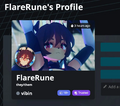 Affiché dans la bio sur le site web
 -
 Affiché dans la bio en jeu
 -
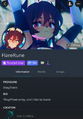 Affiché en jeu dans le client mobile


Bio
The bio (abbreviation for biography) is a paragraph of text written by the user that is generally used to describe or introduce themselves but can be used for any purpose. The bio can be up to 500 characters long.
Currently, emoji and some special symbols(e.g. fractions) are not supported. Some known special characters that are allowed are:
๑ -༊ ༄․ೃ࿔ ೋ 彡ღ ͟͟͞ ೄྀ ͙༉ ¸୨୧、˒˒ ֒ ˗ˏˋ ˎˊ˗ ̤̮ ̤̥ ++ ˙· ˚ ∗ン ィ % ! ﹏ ? ? ζ ২ १ ୫ ૪ ໒ ৎ ຊ ຯ ೨ ໑ ७ ५ ୭ ˚ ·˖ ˸ જ Թ Ծ ౿ ੭ ୬ ෧ ୪ ১ ﹅﹆ ჲ ᴥ ફ ળ ਨ ৬ ৫ ২ ণ ଽ ︶ ଲ ମ 〄֍ 〧 ౾ ౽ 〨 ㆐ ︳ ㄔ ഒ * ٠ っ。̀ ́૭ ֊ ˙ ˶﹏ აପ ๑ଓ ଘ ∗ ੈ ᵕ ˘͈ ․. ༘ ̀ ́ ৻ づᴗʚïɞ૮ ˙˙ ඞ ༒ ໒ྀི ๑ ´ ˘ ` ྀི ʕω ʔ و ヮಡ ง¬༼︿༽ 亞ト丁してフ ̄_ఌ༅ ᆺ 〜 ༺ ༻ Ө Տ Ӈ ₳ เ ђ ς
Actions
Under a user's profile, there are several actions that you can take, these will vary depending on whether you have the user added as a friend or not.


| Action | Description |
|---|---|
| Join[actions 1] | Joins the user's instance. |
| Request Invite[actions 1] | Sends the user a notification informing them that you would like to join their instance. The notification includes a customizable message and with VRC+ a photo can also be added to the notification. |
| Send Invite[actions 1] | Sends the user an invitation to join your instance. The invite includes a customizable message and with VRC+ a photo can also be added to the invitation. |
| Gift VRChat+ | Opens a menu that allows you to buy VRC+ for the user. See Gifting for more detailed information. |
| Friend Request | Sends the user a friend request they can accept or decline. |
| Unfriend[actions 1] | Removes the user as a friend. |
| Favorite Friend[actions 1] | Allows you to add the user to a list of favorite friends, like with avatars and worlds. |
| Unfavorite Friend[actions 1] | Removes the user from your Favorite Friends lists. |
| Moderate User | Opens a menu that allows you to moderate the user by, for example, blocking them. See Player Moderation tools for more detailed information. |
| Unblock | Unblocks a blocked user (Only shown for blocked users). |
| Add Note | Allows you to attach a snippet of information to the user that only you can see, this can be used for anything. An example of the kind of information you could put in is how you met a user, any names they go by, or their username on other platforms. |
| Invite to Group | Opens a menu that allows you to invite the user to a group, as long as you have the permissions required to do so. See Groups for more detailed information. |
| View On Website | Opens the user's profile on the VRChat Website. |
Uploaded & Favorited Worlds
Below actions can be found a list of worlds uploaded by the user as well as any publicly viewable lists of favorite worlds. These can be sorted by date added, last updated, name, and recently used.
Social Menu

Friend Locations
Friend Locations includes a list of friends who are available on "Online" (green) status, or "Join Me" (blue) statuses, and are present in an accessible world such as Public, Friends+, Friends, Group Public, Group+ instances. Below these available users will also display a list of all Friends currently online in Private Instances.
Group Activity
Group Activity includes a list of available Group instances, for Groups that you have joined. Creating a Group, Group+, or Group Public instance, if you have the ability, will result in it appearing on the Group Activity tab for users in that group.
Online Friends
Online Friends shows the entire list of your friends who are currently online, including Friends on "Ask Me" (orange) or "Do Not Disturb" (red) statuses. It also shows your friends active on the website or friends that are currently offline.
In Instance
In Instance displays each user who is currently present in the instance you are in; users who have you blocked, while still inside of the instance with you may not appear on this tab, unless you are a Host or a Group Instance Moderator. The "Here" tab on the Quick Menu functions the same as this row.
Favorite Friends
Favorite Friends lists are three rows of friends who you have chosen to 'Favorite'. It can be placed in one of the three rows. Each list can be renamed to help with organization.
Blocked
Blocked users are other users who you decided to block. They can be clicked upon in this tab, and unblocked if desired.
Friends

[Raison: Add quirks that have to do with friends and such.]
Friends on VRChat are other users that you trust, it acts much like how friending users on other platforms work, you can see whenever that user is online or on the website, send and receive invites from them, and add notes to them. Friends inside of your instance will have their name appear in yellow, and will also have their rank appear in yellow with a (Friend) indicator.


