Seguimiento de dedos

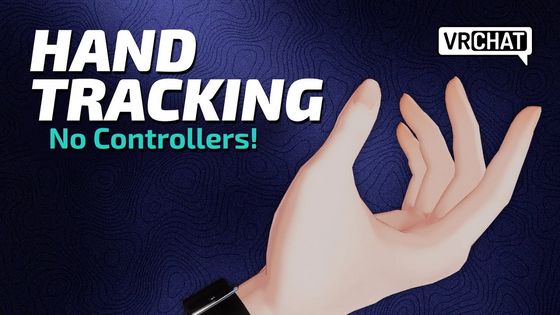
El seguimiento de dedos, también conocido como seguimiento de manos, es una función disponible en algunos visores y controladores de realidad virtual que permite rastrear con precisión las manos y los dedos de un usuario en un avatar dentro de VRChat. El seguimiento de manos ofrece otra forma de utilizar los controles gestuales en VRChat.
Descripción general
El seguimiento de dedos puede emularse con controladores como los **Index Controllers**, pero algunos visores con [[1](https://learn.microsoft.com/en-us/windows/mixed-reality/enthusiast-guide/tracking-system) seguimiento *inside-out*], como Meta Quest o Pico, también pueden utilizar el seguimiento de dedos. Actualmente, esta función es compatible con los visores Pico y con todos los modelos de Meta Quest, y puede utilizarse tanto en realidad virtual independiente (*standalone*) como mediante PCVR.
La función se lanzó originalmente en la Beta Abierta el 26 de octubre de 2022 para los sistemas Meta Quest, y se publicó oficialmente con la versión 2022.4.1[1], el 3 de noviembre de 2022.
Activar el seguimiento de dedos

En Quest independiente
Para activar el seguimiento de dedos en los sistemas Quest, ve a Configuración en el panel de Quest, luego a Seguimiento del movimiento, y asegúrate de que Seguimiento de manos y cuerpo esté activado. Tus manos deberían comenzar a ser rastreadas dentro del menú de Quest y también en VRChat cuando dejes los controladores a un lado.
En PCVR mediante Quest
Ten en cuenta que, por el momento, el seguimiento de dedos no puede utilizarse mediante una conexión por cable con Quest Link.
Para activar el seguimiento de dedos en PCVR, también es necesario tener esta función habilitada en el modo independiente de Quest, desde la configuración del panel de Quest. Al iniciar una aplicación que se conecte a tu ordenador, como Steam Link o Virtual Desktop, golpea suavemente los controladores entre sí dos veces y, una vez cargada la aplicación, déjalos sobre una superficie plana.
For the best finger tracking results, keep your hands where the cameras on your Quest can see them, and offer ample lighting.
On desktop, through Selfie Expression
On the desktop client on VRChat, users with VRC+ are able to utilize Selfie Expression with a webcam, to enable a limited variant of hand and finger tracking on their avatar. Selfie Expression uses your camera to animate your avatar! No one will see your real face. Image data is processed locally on your device, only used for animation, and never saved.
To enable Selfie Expression on desktop, open up the Main Menu's settings tab, and click on the Tracking & IK tab on the sidebar. Within the Tracking & IK menu, click Enable Selfie Expression. Enabling Selfie Expression will also enable your Face Mirror.
Selfie Expression on the desktop version, does not share the same controls as hand tracking on VR. Selfie Expression on mobile versions of VRChat currently do not have support to track hands and finger movements.
Controls

Finger tracking tutorial
To learn about hand tracking, VRChat released both a video tutorial, and a finger tracking tutorial world, designed for Quest headsets, and other VR systems utilizing Android.
To move around the world, hold your left hand up, palm facing upwards, towards your face. Touch your middle finger to your thumb in a "pinch" motion, and a small blue sphere will appear. While still pinching, move your fingers away from that sphere, and your avatar will move in that direction.
To turn left and right, pinch your middle finger to your thumb with your right hand. While still pinching, move your hand left or right from its original position. You can also turn with Comfort Turning (snap turning) on or off. If you have Comfort Turning on, you will need to move your pinched finger past the turn point each time you turn. It might be easier to use this locomotion method with Comfort Turning disabled in your Settings.
You can mute yourself by holding your thumb and ring finger together for a moment on your left hand.
Open your Quick Menu by pinching your index finger and your thumb on your left hand. This is a default gesture on Meta systems, and you will see a small menu icon floating over your hand, which fills a gauge as you long-pinch. There are three methods you can use to open your Quick Menu:
- Palm Facing Pinch
- Circle Key
- Push Button
Open your Action Menu by pinching your right thumb finger and pinky finger together. You can close the Action Menu, by facing your palm towards the menu, and clicking on the Close button.
To interact with the user interface and menus, point at it with either hand, and select things by pinching your index and thumb together.
Picking up world objects can be done by going near the object, and clenching your fist. Additionally, you can use objects by keeping your middle, ring, and little fingers clenched, but separately pinching your index and thumb together.
Finger tracking controls can be viewed in the Controls tab of the Main Menu, while finger tracking is enabled.
Official resources
- VRChat Hand/Finger Tracking Tutorial by VRChat on YouTube
- Quest 2 Finger Tracking by VRChat on YouTube
- Quest 2 - Finger Tracking Tutorial world on VRChat
- SteamVR Skeletal Hand Tracking Driver Guide on docs.vrchat.com
See also
References
- ↑ [[2](https://docs.vrchat.com/docs/vrchat-202241) VRChat 2022.4.1] en docs.vrchat.com; consultado el 3 de mayo de 2025.