Social/es: Difference between revisions
Created page with "No molestar (rojo)" |
Created page with "Tus amigos no pueden ver la estancia en la que te encuentras. Pueden solicitar unirse, pero no recibirás ninguna notificación. De hecho, no podrás enviar ni solicitar invitaciones a tus amigos dentro del juego si están en ese estado. * Las solicitudes de amistad entrantes se reciben de forma silenciosa en la bandeja de entrada de "Solicitudes de amistad". * La respuesta a una solicitud que envíes (por ejemplo, una solicitud de invitación) sí se mostrará. * Las no..." |
||
| Line 39: | Line 39: | ||
|- | |- | ||
|<div style="background-color:rgb(91, 11, 11);width:1rem;height:1rem;border-radius:9999px;display:inline-block;margin:0 0.5em -0.1em 0.5em" alt="Red"></div>No molestar (rojo) | |<div style="background-color:rgb(91, 11, 11);width:1rem;height:1rem;border-radius:9999px;display:inline-block;margin:0 0.5em -0.1em 0.5em" alt="Red"></div>No molestar (rojo) | ||
| | |Tus amigos no pueden ver la estancia en la que te encuentras. Pueden solicitar unirse, pero no recibirás ninguna notificación. De hecho, no podrás enviar ni solicitar invitaciones a tus amigos dentro del juego si están en ese estado. | ||
* Las solicitudes de amistad entrantes se reciben de forma silenciosa en la bandeja de entrada de "Solicitudes de amistad". | |||
* | * La respuesta a una solicitud que envíes (por ejemplo, una solicitud de invitación) sí se mostrará. | ||
* | * Las notificaciones de grupos están desactivadas. | ||
* | |||
|} | |} | ||
<div lang="en" dir="ltr" class="mw-content-ltr"> | <div lang="en" dir="ltr" class="mw-content-ltr"> | ||
Revision as of 20:45, 25 December 2025

VRChat viene con una gran cantidad de herramientas sociales para los usuarios. ¡Como amigos, invitaciones, notas y más!
Perfiles de usuario

Introducido en la actualización de identidad, los perfiles de usuario son un espacio personalizado donde se muestra información sobre un usuario. La información en el perfil incluye: estado, rango de confianza, pronombres, biografía, estancia actual (si aplica), idiomas que habla, enlaces sociales, insignias que posee y los grupos a los que pertenece.
En el perfil de un usuario, hay varias acciones que puedes realizar, como enviar una solicitud de amistad o una invitación a una estancia.
Estados
Los estados se pueden establecer en el menú rápido, menú principal o en la página web de VRChat y se usan para lo siguiente: controlar qué tan fácil es para los amigos de un usuario unirse a su estancia, variar si los amigos pueden ver la estancia en la que está actualmente el usuario, silenciar notificaciones y comunicar una actividad.
Los estados consisten de un color y una frase corta personalizable (hasta 32 caracteres). Hay cuatro estados diferentes en VRChat:
| Estado | Descripción |
|---|---|
| Únete a mi (azul) | Tus amigos pueden ver la estancia en la que te encuentras y pueden unirse libremente con las mismas reglas que el estado en línea.
Sin embargo, si la estancia es privada y no visible, todas las solicitudes de invitación de amigos se aceptan automáticamente, siempre que tengas permiso para aceptarlas. |
| En línea (verde) | Tus amigos pueden ver la estancia en la que te encuentras y pueden unirse a ella sin necesidad de invitación.
Sin embargo, tus amigos no podrán ver ni unirse a la estancia sin una invitación si esta se considera "privada". Tu estancia es visible y accesible para tus amigos sin solicitar una invitación en los siguientes casos:
|
| Pregúntame (naranja) | Tus amigos no pueden ver la estancia en la que te encuentras.
Deben solicitarte una invitación para poder unirse, independientemente de la privacidad de la estancia. |
| No molestar (rojo) | Tus amigos no pueden ver la estancia en la que te encuentras. Pueden solicitar unirse, pero no recibirás ninguna notificación. De hecho, no podrás enviar ni solicitar invitaciones a tus amigos dentro del juego si están en ese estado.
|
Pronouns
Pronouns can be displayed on one's bio to indicate to others how to refer to them. When set, pronouns will be displayed on your bio, and also displayed under your nameplate.
-
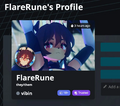 Displayed in the bio on the website
 -
 Displayed in the bio in game
 -
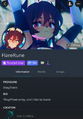 Displayed in the bio on mobile client


Bio
The bio (abbreviation for biography) is a paragraph of text written by the user that is generally used to describe or introduce themselves but can be used for any purpose. The bio can be up to 500 characters long.
Currently, emoji and some special symbols(e.g. fractions) are not supported. Some known special characters that are allowed are:
๑ -༊ ༄․ೃ࿔ ೋ 彡ღ ͟͟͞ ೄྀ ͙༉ ¸୨୧、˒˒ ֒ ˗ˏˋ ˎˊ˗ ̤̮ ̤̥ ++ ˙· ˚ ∗ン ィ % ! ﹏ ? ? ζ ২ १ ୫ ૪ ໒ ৎ ຊ ຯ ೨ ໑ ७ ५ ୭ ˚ ·˖ ˸ જ Թ Ծ ౿ ੭ ୬ ෧ ୪ ১ ﹅﹆ ჲ ᴥ ફ ળ ਨ ৬ ৫ ২ ণ ଽ ︶ ଲ ମ 〄֍ 〧 ౾ ౽ 〨 ㆐ ︳ ㄔ ഒ * ٠ っ。̀ ́૭ ֊ ˙ ˶﹏ აପ ๑ଓ ଘ ∗ ੈ ᵕ ˘͈ ․. ༘ ̀ ́ ৻ づᴗʚïɞ૮ ˙˙ ඞ ༒ ໒ྀི ๑ ´ ˘ ` ྀི ʕω ʔ و ヮಡ ง¬༼︿༽ 亞ト丁してフ ̄_ఌ༅ ᆺ 〜 ༺ ༻ Ө Տ Ӈ ₳ เ ђ ς
Actions
Under a user's profile, there are several actions that you can take, these will vary depending on whether you have the user added as a friend or not.


| Action | Description |
|---|---|
| Join[actions 1] | Joins the user's instance. |
| Request Invite[actions 1] | Sends the user a notification informing them that you would like to join their instance. The notification includes a customizable message and with VRC+ a photo can also be added to the notification. |
| Send Invite[actions 1] | Sends the user an invitation to join your instance. The invite includes a customizable message and with VRC+ a photo can also be added to the invitation. |
| Gift VRC+ | Opens a menu that allows you to buy VRC+ for the user. See Gifting for more detailed information. |
| Friend Request | Sends the user a friend request they can accept or decline. |
| Unfriend[actions 1] | Removes the user as a friend. |
| Favorite Friend[actions 1] | Allows you to add the user to a list of favorite friends, like with avatars and worlds. |
| Unfavorite Friend[actions 1] | Removes the user from your Favorite Friends list. |
| Moderate User | Opens a menu that allows you to moderate the user by, for example, blocking them. See User Moderation tools for more detailed information. |
| Unblock | Unblocks a blocked user (Only shown for blocked users). |
| Add Note | Allows you to attach a snippet of information to the user that only you can see, this can be used for anything. An example of the kind of information you could put in is how you met a user, any names they go by, or their username on other platforms. |
| Invite to Group | Opens a menu that allows you to invite the user to a group, as long as you have the permissions required to do so. See Groups for more detailed information. |
| View On Website | Opens the user's profile on the VRChat Website. |
Uploaded & Favorited Worlds
Below actions can be found a list of worlds uploaded by the user as well as any publicly viewable lists of favorite worlds. These can be sorted by date added, last updated, name, and recently used.
Social Menu

Friend Locations
Friend Locations includes a list of friends who are available on "Online" (green) status, or "Join Me" (blue) statuses, and are present in an accessible world such as Public, Friends+, Friends, Group Public, Group+ instances. Below these available users will also display a list of all Friends currently online in Private Instances.
Group Activity
Group Activity includes a list of available Group instances, for Groups that you have joined. Creating a Group, Group+, or Group Public instance, if you have the ability, will result in it appearing on the Group Activity tab for users in that group.
Online Friends
Online Friends shows the entire list of your friends who are currently online, including Friends on "Ask Me" (orange) or "Do Not Disturb" (red) statuses. It also shows your friends active on the website or friends that are currently offline.
In Instance
In Instance displays each user who is currently present in the instance you are in; users who have you blocked, while still inside of the instance with you may not appear on this tab, unless you are a Host or a Group Instance Moderator. The "Here" tab on the Quick Menu functions the same as this row.
Favorite Friends
Favorite Friends lists are three rows of friends who you have chosen to 'Favorite'. It can be placed in one of the three rows. Each list can be renamed to help with organization.
Blocked
Blocked users are other users who you decided to block. They can be clicked upon in this tab, and unblocked if desired.
Friends

[Razón: Add quirks that have to do with friends and such.]
Friends on VRChat are other users that you trust, it acts much like how friending users on other platforms work, you can see whenever that user is online or on the website, send and receive invites from them, and add notes to them. Friends inside of your instance will have their name appear in yellow, and will also have their rank appear in yellow with a (Friend) indicator.
Mutuals
[Razón: Expand on how to see, and disabling mutuals]
Mutuals are a feature that allows the user to view mutual friends or groups of other users. This feature is rolling out slowly over time.[1]
There are two ways to see mutuals, in the Quick Menu or the Main Menu with a button "Show X Mutuals". In the Quick Menu, the button can be found on top of user actions. In the Main Menu, the button will be found on the top right, next to the report button. If you wish to prevent other users from seeing your mutual friends and groups or appearing as so for others, you can turn off "Show Mutual Connections" in the Comfort & Safety section of your settings in the Main Menu. Doing so will change the text of the button from "Show X Mutuals" to "No Known Mutuals". Additionally, your user icon will be hidden and your username will appear as "Hidden Mutual" when you appear in the mutuals in one of your friends.


