Suivi des doigts

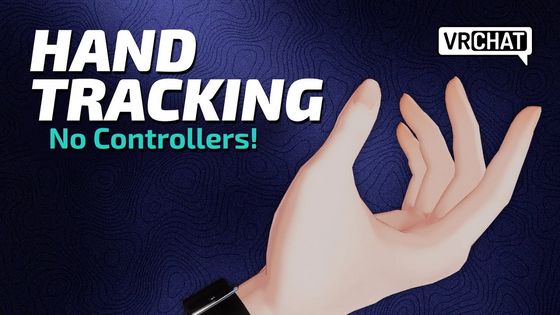
Le suivi des doigts, aussi connu comme suivi des mains, est une fonctionnalité existante sur certains casques ou manettes VR qui permet aux mains et doigts de l'avatar d'un utilisateur d'être précisément suivis dans VRChat. Le suivi des mains permet un apprentissage tactile des contrôles de VRChat.
Vue d'ensemble
Le suivi des doigts peut être émulé avec des manettes, telles que les manettes Index. Cependant, certains casques avec le 'inside-out tracking', tels que le Meta Quest ou le Pico peuvent aussi utiliser le suivi des doigts. Le suivi des doigts est actuellement pris en charge par les casques Pico et Meta Quest, et peut être utilisé avec la VR autonome ou via PCVR. La fonctionnalité est sortie en bêta ouverte le 26 octobre 2022 pour les casques Meta Quest et est devenu public dans la version 2022.4.1[1], le 3 novembre 2022.
Activer le suivi des doigts

Sur Quest autonome
Pour activer le suivi des doigts sur Quest, rendez-vous dans les paramètres du menu Quest, puis ''Suivi des mouvements', et assurez-vous que 'Suivi des mains et du corps' soit activé. Vos mains devraient être suivies dans le menu Quest et dans VRChat lorsque vous posez vos manettes.
Sur Quest via PCVR
Veuillez noter que le suivi des doigts ne peut être utilisé avec le câble link pour le moment.
Enabling finger tracking on PCVR also requires the feature to be enabled on standalone Quest, through the Quest dashboard's settings. When launching an application that connects to your computer, such as Steam Link, or Virtual Desktop, tap your controllers together twice, and then set your controllers down on a flat surface once the app is loaded.
For the best finger tracking results, keep your hands where the cameras on your Quest can see them, and offer ample lighting.
On desktop, through Selfie Expression
On the desktop client on VRChat, users with VRC+ are able to utilize Selfie Expression with a webcam, to enable a limited variant of hand and finger tracking on their avatar. Selfie Expression uses your camera to animate your avatar! No one will see your real face. Image data is processed locally on your device, only used for animation, and never saved.
To enable Selfie Expression on desktop, open up the Main Menu's settings tab, and click on the Tracking & IK tab on the sidebar. Within the Tracking & IK menu, click Enable Selfie Expression. Enabling Selfie Expression will also enable your Face Mirror.
Selfie Expression on the desktop version, does not share the same controls as hand tracking on VR. Selfie Expression on mobile versions of VRChat currently do not have support to track hands and finger movements.
Controls

Finger tracking tutorial
To learn about hand tracking, VRChat released both a video tutorial, and a finger tracking tutorial world, designed for Quest headsets, and other VR systems utilizing Android.
To move around the world, hold your left hand up, palm facing upwards, towards your face. Touch your middle finger to your thumb in a "pinch" motion, and a small blue sphere will appear. While still pinching, move your fingers away from that sphere, and your avatar will move in that direction.
To turn left and right, pinch your middle finger to your thumb with your right hand. While still pinching, move your hand left or right from its original position. You can also turn with Comfort Turning (snap turning) on or off. If you have Comfort Turning on, you will need to move your pinched finger past the turn point each time you turn. It might be easier to use this locomotion method with Comfort Turning disabled in your Settings.
You can mute yourself by holding your thumb and ring finger together for a moment on your left hand.
Open your Quick Menu by pinching your index finger and your thumb on your left hand. This is a default gesture on Meta systems, and you will see a small menu icon floating over your hand, which fills a gauge as you long-pinch. There are three methods you can use to open your Quick Menu:
- Palm Facing Pinch
- Circle Key
- Push Button
Open your Action Menu by pinching your right index finger, and little finger together. You can close the Action Menu, by facing your palm towards the menu, and clicking on the Close button.
To interact with the user interface and menus, point at it with either hand, and select things by pinching your index and thumb together.
Picking up world objects can be done by going near the object, and clenching your fist. Additionally, you can use objects by keeping your middle, ring, and little fingers clenched, but separately pinching your index and thumb together.
Finger tracking controls can be viewed in the Controls tab of the Main Menu, while finger tracking is enabled.
Official resources
- VRChat Hand/Finger Tracking Tutorial by VRChat on YouTube
- Quest 2 Finger Tracking by VRChat on YouTube
- Quest 2 - Finger Tracking Tutorial world on VRChat
- SteamVR Skeletal Hand Tracking Driver Guide on docs.vrchat.com
See also
References
- ↑ 'VRChat 2022.4.1' sur docs.vrchat.com; récupéré le 3 mai 2025


