Action Menu/pl: Difference between revisions
Created page with "==Układ==" |
Updating to match new version of source page |
||
| (11 intermediate revisions by 2 users not shown) | |||
| Line 33: | Line 33: | ||
<div lang="en" dir="ltr" class="mw-content-ltr"> | <div lang="en" dir="ltr" class="mw-content-ltr"> | ||
When first opening the Action Menu it is separated into | When first opening the Action Menu it is separated into 6 sections: Expressions, Looks, Emoji & Stickers, Items, Tools, and Options. | ||
</div> | </div> | ||
< | <span id="Expressions"></span> | ||
=== | ===Ekspresje=== | ||
<div lang="en" dir="ltr" class="mw-content-ltr"> | <div lang="en" dir="ltr" class="mw-content-ltr"> | ||
| Line 48: | Line 47: | ||
</div> | </div> | ||
< | <span id="Quick_Actions"></span> | ||
=== | <div class="mw-translate-fuzzy"> | ||
===Szybkie akcje=== | |||
</div> | </div> | ||
| Line 62: | Line 62: | ||
<div lang="en" dir="ltr" class="mw-content-ltr"> | <div lang="en" dir="ltr" class="mw-content-ltr"> | ||
=== | ===Looks=== | ||
</div> | </div> | ||
<div lang="en" dir="ltr" class="mw-content-ltr"> | <div lang="en" dir="ltr" class="mw-content-ltr"> | ||
''See also [[Special:MyLanguage/ | ''See also [[Special:MyLanguage/Accessories#Looks|Accessories]] for more detailed information.'' | ||
</div> | </div> | ||
<div lang="en" dir="ltr" class="mw-content-ltr"> | <div lang="en" dir="ltr" class="mw-content-ltr"> | ||
The | Looks are a saved combination of accessories and a specific avatar. The most recent 9 looks are shown in the Action Menu. | ||
</div> | |||
<span id="Emoji_&_Stickers"></span> | |||
<div class="mw-translate-fuzzy"> | |||
===Emoji i naklejki=== | |||
</div> | </div> | ||
<div lang="en" dir="ltr" class="mw-content-ltr"> | <div lang="en" dir="ltr" class="mw-content-ltr"> | ||
====Tools==== | ''See also [[Special:MyLanguage/Emojis|Emojis]] & [[Special:MyLanguage/Stickers|Stickers]] for more detailed information.'' | ||
</div> | |||
<div lang="en" dir="ltr" class="mw-content-ltr"> | |||
The emoji & stickers sub-menu is for emojis; which appear in the surrounding air, or stickers; which you can place within the [[Special:MyLanguage/Worlds|world]] you are in. | |||
</div> | |||
<div lang="en" dir="ltr" class="mw-content-ltr"> | |||
===Items=== | |||
''See also [[Special:MyLanguage/Items|Items]] for more detailed information.'' | |||
</div> | |||
<div lang="en" dir="ltr" class="mw-content-ltr"> | |||
The items sub-menu is for items; which can be spawned or placed within the world. | |||
</div> | |||
<span id="Tools"></span> | |||
<div class="mw-translate-fuzzy"> | |||
===Narzędzia=== | |||
</div> | </div> | ||
| Line 88: | Line 111: | ||
</div> | </div> | ||
< | <span id="Options"></span> | ||
==== | <div class="mw-translate-fuzzy"> | ||
====Opcje==== | |||
</div> | </div> | ||
<div lang="en" dir="ltr" class="mw-content-ltr"> | <div lang="en" dir="ltr" class="mw-content-ltr"> | ||
The options sub-menu hosts a plethora of options consisting of Action Menu, nameplates, avatar options and more. | The options sub-menu hosts a plethora of options consisting of Action Menu, [[Special:MyLanguage/Nameplates|nameplates]], avatar options and more. | ||
</div> | </div> | ||
< | <span id="Using_the_Action_Menu"></span> | ||
== | ==Używanie Menu Akcji== | ||
[[File:PuppetMenu.gif|thumb|<span lang="en" dir="ltr" class="mw-content-ltr">Example of the action menu in use</span>]] | [[File:PuppetMenu.gif|thumb|<span lang="en" dir="ltr" class="mw-content-ltr">Example of the action menu in use</span>]] | ||
| Line 141: | Line 164: | ||
<gallery heights="100"> | <gallery heights="100"> | ||
File:Action Menu.png|Action Menu main page | File:Action Menu.png|Action Menu main page | ||
File:Emojis-sticker-submenu.png|Sub menu of Emoji's & Stickers | |||
File:Action Menu Emojis.png|Action Menu emojis page | File:Action Menu Emojis.png|Action Menu emojis page | ||
File:Action Menu Tools.png|Action Menu tools page | File:Action Menu Tools.png|Action Menu tools page | ||
| Line 147: | Line 171: | ||
File:Action Menu Nameplates.png|Action Menu nameplates page | File:Action Menu Nameplates.png|Action Menu nameplates page | ||
File:Action Menu Personal Mirror.png|Action Menu personal mirror page | File:Action Menu Personal Mirror.png|Action Menu personal mirror page | ||
File:Action menu Actions menu.png|Action menu's settings under the action menu. | |||
</gallery> | </gallery> | ||
</div> | </div> | ||
| Line 161: | Line 186: | ||
</div> | </div> | ||
[[Category:User Interface]] | <div lang="en" dir="ltr" class="mw-content-ltr"> | ||
== Navigation == | |||
</div> | |||
{{Navbox/Menus}} | |||
[[Category:User Interface{{#translation:}}]] | |||
[[Category:Menus{{#translation:}}]] | [[Category:Menus{{#translation:}}]] | ||
Latest revision as of 22:39, 28 April 2026


The Action Menu is the primary way to access controls for your avatar and various other quick-access functions. When using an Avatars 3.0 avatar, these controls can be fully customized and can be one of many types. This menu allows you to drive various parameters, informing your avatar on how to react based on how you've set up your animators.
You can open up a max of 2 action menus to control your experience with more flexibility.*
Opening the Action Menu
Opening the Action Menu varies on which control type you are using.
- Keyboard/Mouse: Press R to open.
- VR Controller: Hold down the button that opens up your Quick Menu. Depending on which hand you open the Action Menu with, it will either open up the left or right one.
- Gamepad: Press in on the right thumbstick to open.
- Mobile: Hold down on the menu button.
*The Keyboard/Mouse, Gamepad, and Mobile control types only opens one action menu (left), using both action menus is not possible using these control types.
Układ
When first opening the Action Menu it is separated into 6 sections: Expressions, Looks, Emoji & Stickers, Items, Tools, and Options.
Ekspresje
See also Expressions for more detailed information.
This menu is used to change different features on your avatar, each avatar's expression menu is different.
Szybkie akcje
Quick Actions is a menu under the Expression menu that lets you control various parts of your avatar, the options in this menu are:
- Avatar Height: changes the height of your avatar between 0.20M - 5.00M
- Reset Height: Sets the height of your avatar back to the default set in Unity.
- Release Poses: Resets poses for Physbones
- Reset Avatar: Resets all parts of your avatar, including Physbones and saved toggles
- Legacy Fingers: Avatars fingers will be animated by SteamVR skeletal data if Disabled
Looks
See also Accessories for more detailed information.
Looks are a saved combination of accessories and a specific avatar. The most recent 9 looks are shown in the Action Menu.
Emoji i naklejki
The emoji & stickers sub-menu is for emojis; which appear in the surrounding air, or stickers; which you can place within the world you are in.
Items
See also Items for more detailed information.
The items sub-menu is for items; which can be spawned or placed within the world.
Narzędzia
The tools sub-menu is the home of commonly used features, these tools include:
Opcje
The options sub-menu hosts a plethora of options consisting of Action Menu, nameplates, avatar options and more.
Używanie Menu Akcji

Selection Methods
You can toggle on and off section methods by opening up your Action Menu > Options > Action Menu > Flick Select.
Flick Select
In Flick mode, push the joystick in the direction of the pie slice you want to trigger. Pushing part way shows an indicator of the selection. Pushing all the way triggers the selection.
Pick Select
Pick mode involves pushing the joystick towards the pie slice and confirming the selection with the trigger on the controller (or mouse click on Desktop).
Closing and Saving
To close the Action or Expression Menu or any of their folders, choose the Back option at the top of the radial menu. Doing the inverse of opening the action menu will close the menu but remember your place. Reverse this process to return to where you left off.
Gallery
-
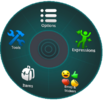 Action Menu main page
 -
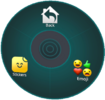 Sub menu of Emoji's & Stickers
 -
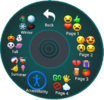 Action Menu emojis page
 -
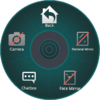 Action Menu tools page
 -
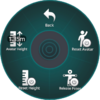 Action Menu quick actions page
 -
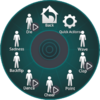 Action Menu expressions page
 -
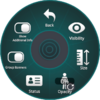 Action Menu nameplates page
 -
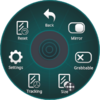 Action Menu personal mirror page
 -
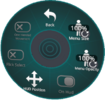 Action menu's settings under the action menu.


Resources
- Action Menu page on docs.vrchat.com
- What is the Action Menu? on YouTube
| MenusP · E |
|---|


