Action Menu/zh-hans: Difference between revisions
No edit summary |
Created page with "在“点击选择”模式开启后,将摇杆推向你想要选择的选项,再扣下扳机键来触发这一选项(PC模式则是按下鼠标左键)。" |
||
| Line 103: | Line 103: | ||
====点击选择==== | ====点击选择==== | ||
在“点击选择”模式开启后,将摇杆推向你想要选择的选项,再扣下扳机键来触发这一选项(PC模式则是按下鼠标左键)。 | |||
<span id="Closing_and_Saving"></span> | <span id="Closing_and_Saving"></span> | ||
Revision as of 03:00, 31 July 2025


圆盘菜单是访问你的虚拟形象控制以及其他各种快速功能的主要方式。当你使用 Avatars 3.0 模型时,这些控制项可以被完全自定义,并且可以是多种不同的类型。这个菜单允许你驱动各种参数,让你的虚拟形象根据你设定的动画控制器做出反应。
你最多可以打开 2 个圆盘菜单,以更灵活地控制你的体验。*
开启圆盘菜单
打开圆盘菜单的方式取决于你所使用的控制类型。
- 键盘/鼠标: 按下 R 键打开。
- VR 控制器: 按住你设置的打开快速菜单的按钮。根据你使用的手不同,将会分别打开左侧或右侧的菜单。
- 手柄: 按下右摇杆以打开。
- 移动端: 长按菜单按钮。
*当使用键盘/鼠标、手柄和移动端控制时,无法同时打开两个菜单,只能打开一个圆盘菜单(左侧)。
布局
当你第一次打开圆盘菜单时,它会显示四个部分:模型功能、表情符号、实用工具和选项。
模型菜单
See also Expressions for more detailed information.
这一菜单可以控制模型的各种功能,每一个模型的模型菜单都是不同的。
Quick Actions
Quick Actions is a menu under the Expression menu that lets you control various parts of your avatar, the options in this menu are:
- Avatar Height: changes the height of your avatar between 0.20M - 5.00M
- Reset Height: Sets the height of your avatar back to the default set in Unity.
- Release Poses: Resets poses for Physbones
- Reset Avatar: Resets all parts of your avatar, including Physbones and saved toggles
- Legacy Fingers: Avatars fingers will be animated by SteamVR skeletal data if Disabled
表情 & 贴纸
表情 & 贴纸 菜单可以用于施放悬浮在空中的表情动画,或是将贴纸放置在当前世界的任意位置。
Items
See also Items for more detailed information.
道具菜单用于在当前世界生成和放置道具
实用工具
实用工具菜单包括以下这些常用工具和功能:
选项菜单
The options sub-menu hosts a plethora of options consisting of Action Menu, nameplates, avatar options and more.
Using the Action Menu

选择方式
You can toggle on and off section methods by opening up your Action Menu > Options > Action Menu > Flick Select.
滑动选择
In Flick mode, push the joystick in the direction of the pie slice you want to trigger. Pushing part way shows an indicator of the selection. Pushing all the way triggers the selection.
点击选择
在“点击选择”模式开启后,将摇杆推向你想要选择的选项,再扣下扳机键来触发这一选项(PC模式则是按下鼠标左键)。
关闭菜单与状态保存
To close the Action or Expression Menu or any of their folders, choose the Back option at the top of the radial menu. Doing the inverse of opening the action menu will close the menu but remember your place. Reverse this process to return to where you left off.
Gallery
-
 Action Menu main page
 -
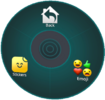 Sub menu of Emoji's & Stickers
 -
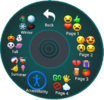 Action Menu emojis page
 -
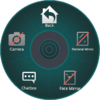 Action Menu tools page
 -
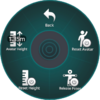 Action Menu quick actions page
 -
 Action Menu expressions page
 -
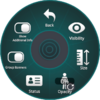 Action Menu nameplates page
 -
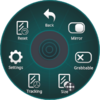 Action Menu personal mirror page
 -
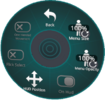 Action menu's settings under the action menu.


Resources
- Action Menu page on docs.vrchat.com
- What is the Action Menu? on YouTube
| Menus查看 · 编辑 |
|---|


