The following was created by the community. It may contain material not directly endorsed by the VRChat team. To learn more, consider reading Contributing to the VRChat Wiki.
This page is actively being worked on, information may be incomplete or out of date. You can help the VRChat Wiki by editing it. [Reason: Still creating sections & tutorials]
SteamVR input is a universal keybind system for all controllers usable in SteamVR. Instead of binding keys like "space" to jump, VR game developers provide actions we can directly bind to inputs on SteamVR controllers. The UI also provides a way for users to find or share community bindings. [1]
A complete set of bindings between inputs and actions that can be saved and shared in the Steam Workshop.
Action
Behavior that can be bound to inputs or chords, like movement, selection, or bringing up the camera or personal mirror.
Action set
A group of actions that corresponds to a specific context, like using the menu or action menu, or global actions that are available in any context.
Control source
A specific physical actuator on a controller, like a joystick, trigger, button, or trackpad.
Control source mode
(Use control as)
A mapping that defines how a control source's movements or sensors are interpreted as inputs.
For example, a trackpad can be mapped as dpad or a button, and a joystick can be mapped as joystick or scroll wheel.
Input
A specific movement or sensor reading from a control, interpreted through a control source mode.
For example, a button's control source mode might provide touch, press, hold, or double-press inputs.
Chords
Bindings that combine two or more inputs to execute one action
Mostly from the official docs but with some edits for clarity.
Control Source Modes
Control Source Mode
Provided Inputs
Button
Touches, Clicks, Holds, Double clicks, and Long presses
Trigger
Touch (or any press), Click if there is a physical click at the end of the trigger, and the ammount (0-1) the trigger is depressed)
Joystick
XY Positioning, touches, and presses
Trackpad
XY Positioning, touches, and presses
DPAD
Splits the the XY control source into North, East, South, and West quadrants. Can be used in touch or click mode.
Grab
Combines capacitive sensors and force sensors to report a more reliable grab
Force Sensor
Gives analog actions a 0-1 value indicating how much force the user is applying to the control
Set analog Action
Allows you to use a digital (on/off) control to a set an analog (0-1) value
Toggle Button
One press for on, one press for off
Radial Menu
(?)
Input Methods
Input
Usage
Types
Control Source
Click
Pressing the control
boolean
Any
Touch
Touching the assigned control (If it has a touch sensor)
boolean
Any
Single
Pressing the control once
boolean
Button
Double
A quick double press of the control
boolean
Button
Long
Hold the control for 0.5 seconds (?)
boolean
Button
Held
Sets the action to true while the button is held after the long duration.
boolean
Button
Pull
Value 0-1 representing what percentage the trigger is depressed
vector1
Trigger
Position
The position you are touching on a touchpad or the position you've pushed a joystick to.
vector2
Trackpad / Joystick
Actions
Every bindable Action for SteamVR controllers in VRChat. Found in VRChat\VRChat_Data\StreamingAssets\SteamVR\actions.json (Descriptions are community created)
Action
Action Set
Description
Type
Requirement
Menu
Global, 1H
Dual purpose. One activation opens quick menu. Holding it opens the action menu. Double press opens the main menu (If enabled)
To reset your bindings to default, navigate to the VRChat SteamVR Bindings page and select Activate on the official Default Bindings available for your controller.
Almost all inputs can be configured. Find the input you'd like to configure and hover over it, you'll see a pencil icon you can click. After clicking the pencil you'll find a cogwheel on the right side of the input which will bring up dialogue box with input settings.
Additional input methods
To use additional input methods such as double click, find the input you'd like to configure and hover over it to click the pencil icon for editing. Next click More Options and then you'll have access to additional input methods besides click.
Creating new inputs / Control sources
On any of a controller's existing control sources, you can create new inputs with a specific control source modes. To do this, click the plus button to the right of any of the control sources and select a control source mode from the available list.
Creating Chords
TODO
Deadzones
To change the deadzones on control sources like Trackpads & Joysticks, open their input settings and adjust the values to your liking. DeadZone is what you'd expect and Max Zone Percentage determines how far from the center of the control source is 100% value.
Curve Exponent
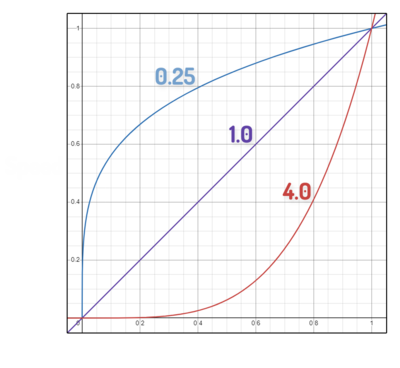
This exponent value is applied to change how speed scales on the final relative position between the Deadzone and Max Zone. Speed = Value^Exponent
Trigger thresholds
TODO
Changing haptics
Most control sources on the default bindings have an input setting for Haptic Amplitude. To turn haptics off, you'll need to go through every control source input setting on the controller and set Haptic Amplitude to 0. Make sure to also check the control sources in other action sets besides global. If you want to remove the haptics upon hovering over menu items in VRChat, select the Haptics button in the center of the Global action set & change Left/Right Hand Haptics to Unused.
DPAD overlap percentage
TODO
Manual Binding export/import
Due to how Community Bindings sort by usage time, it can be difficult to share a newly created binding with others. Manual methods use a .json file for sharing.
Navigate to (Your Documents)\steamvr\input\exports to find the .json file.
Share as needed!
Import
Place the binding .json file in (Your Documents)\steamvr\input\imports (create folder if it doesn't exist)
Navigate to the Bindings config for the app the Binding is for. (VRChat likely in this case)
Select the binding from the list of "Bindings in the documents directory" (You do not need to close SteamVR)
Don'ts
There's certain things you can do to bindings that can cause issues. Try to avoid them when possible
Multiple actions per control source
When you bind multiple actions like this, it stops them from functioning instantaneously and can make them unpredictable. [1]
A functional use case would be setting action menu to Single and quick menu to Double; this will introduces a small delay after the single press input which can be interrupted by a double click to open the quick menu without accidentally opening the action menu.
Controller info & fixes
All controllers
Various fixes that are potentially globally applicable.
Can't do gestures at all
By default coming into the Input 2.0 update, gestures were set to disabled. You can enable them in them in the Action Menu.
Path: Action Menu ➜ Options ➜ Avatar ➜ Gestures
TODO: GIF navigating to toggle in action menu
Double tap is opening the Main Menu
This feature was introduced with Input 2.0. You can disable it in the Controls section of the Main Menu
Disabling finger tracking
Skeletal based finger tracking is enabled by default for all controller types. You can disable it in the Controls section of the Main Menu
Reverting to old finger tracking
If you prefer the old finger tracking method, navigate to the Quick Actions section of the Action Menu and enabling Legacy fingers. (per-avatar basis)
On controllers with Gesture Activators, such as Index, Open hand is triggered by a lack of input. If you want to only do Explicit gesture inputs on these controllers, you'll need to add the Disable Gesture Tracked Action anywhere to your binds. It doesn't matter where.
Tracking breaking in SteamVR Dashboard
This is due to SteamVR Keyboard privacy introduced in version 2.7 which stops applications from seeing device positions while the Steam keyboard is visible. In SteamVR settings, navigate to Dashboard and set Keyboard Privacy to Disabled.
Hard Bindings reset
In rare cases, a full hard reset of your Bindings for VRChat may help solve unknown issues. Navigating to (username)/Documents/steamvr/input and delete the steam.app.438100_controlType.json of the affected controller type. Restart VRChat to generate new files.
Vive Wands
Advanced Controls
Under the Official Bindings for Vive Controllers you can choose between Default Bindings & Default Advanced Bindings.
Default Vive & Default Advanced Vive vary in gesture control & movement. In Advanced mode, you can click the trackpad to move then release click but continue touching the trackpad to continue moving. Advanced Vive also has a different way of handling gestures with support for soft gesture select behavior.
No touch to move / Emotes are "sticky"
It's likely that you previously used Vive Advanced controls before Input 2.0. Try switching.
Difficulty moving
The default thresholds for movement on Vive controllers require you to hit the edges of the touchpad. You can adjust the trackpad Deadzones to change this.
Accidental jumping
With a mix of adjustments to Overlap percentage & Deadzones on the Trackpad DPADs, you can restore the pre-Input 2.0 zone for jumping.
Restore posing with grip / Can't pickup Physbones
At time of writing (8/30/24) Physbone posing is part to the interact action and there's is no way to restore pre-input 2.0 functionality of pose via Grip without sacrificing other functionalities. You may be dropping Physbones at the moment because fully pulling the trigger activates the interact action, posing the physbone (or dropping it if posing is disabled)
This is because the Action Menu action set is a copy of the Global action set. If you wish to keep Fist/Open hand functional but prevent the trackpad from firing emotes, you can migrate the actions of Gesture Wheel - Disable Move And Gesture Wheel - Disable Rotate to Touch on their respective Buttons instead of Click. If you want to disable ALL gestures (including fist/open hand) while the action menu is open, you can delete all Gesture Wheel actions from the Action menu action set all together.
Grip isn't doing hand open / Isn't clearing gestures
You're likely missing the Gesture Wheel Cancel Open (Left/Right) actions on your grips as a Button clicks.
Index
Easier object holding
To make it easier to grab and or harder to drop, find the `Grip` Control Source then look for `Grab` & adjust the input settings. Increasing the Grab Threshold will increase the amount of force you must apply to initially pick up the object and the Release Threshold will change the amount of force it must be less than to drop.
Explicit object dropping
To only drop objects with a specific button add the `Drop` action as an input.
Disabling pose gestures
Add the Disable Gesture Tracked action anywhere controller to disable all skeletal hand pose gestures.
Viveified gestures
Using the Touchpad of Index Controllers for gestures like Vive is possible with SteamVR bindings.
You'll need to migrate over all of the actions and buttons from Vive's setup to Index and add the Disable Gesture Tracked function. Binding File via Github. (See install guide)
Stick drift mitigations
To help mitigate joystick drift when playing VRChat, open the VRChat bindings in SteamVR and fine‑tune these three joystick‑setting sliders.