Controls: Difference between revisions
m →VR: As of 16 September Steam Link supports more than Meta headsets. |
Add face mirror bind & "net tools" debug bind |
||
| (11 intermediate revisions by 7 users not shown) | |||
| Line 3: | Line 3: | ||
<translate> | <translate> | ||
<!--T:1--> | <!--T:1--> | ||
'''Controls''' are arrays of inputs on controllers and devices to navigate [[Special:MyLanguage/VRChat|VRChat]], across different [[Special:MyLanguage/ | '''Controls''' are arrays of inputs on controllers and devices to navigate [[Special:MyLanguage/VRChat|VRChat]], across different [[Special:MyLanguage/Platforms|platforms]]. VRChat supports several operating systems, with multiple combinations of devices and controllers. Some of these controls can be configured in the [[Special:MyLanguage/Settings#Controls|Settings]] Menu. Depending on the platform you are using VRChat on, you may be able to customize controls further by using the Settings menu in VRChat, or your device's dashboard. | ||
<!--T:2--> | <!--T:2--> | ||
The Settings Menu within VRChat details the button mappings for the device you’re currently using. Below are the default configurations: | The Settings Menu within VRChat details the button mappings for the device you’re currently using. Below are the default configurations: | ||
==Primary controls== <!--T:3--> | == Primary controls == <!--T:3--> | ||
<!--T:4--> | <!--T:4--> | ||
| Line 27: | Line 27: | ||
|Mouse Move | |Mouse Move | ||
| colspan="2" | Right Thumbstick | | colspan="2" | Right Thumbstick | ||
|Hold and drag screen | |Hold and drag screen | ||
|- | |- | ||
! scope="row" style="text-align:center;" |Jump | ! scope="row" style="text-align:center;" |Jump | ||
| Line 77: | Line 77: | ||
|} | |} | ||
==Additional controls== <!--T:5--> | == Additional controls == <!--T:5--> | ||
===VR=== <!--T:6--> | === VR === <!--T:6--> | ||
<!--T:7--> | <!--T:7--> | ||
| Line 108: | Line 108: | ||
On PC, we also support gamepad input via Steam’s Input Manager. | On PC, we also support gamepad input via Steam’s Input Manager. | ||
====Controller buttons==== <!--T:12--> | ==== Controller buttons ==== <!--T:12--> | ||
<!--T:13--> | <!--T:13--> | ||
| Line 120: | Line 120: | ||
|- | |- | ||
|B - right hand, top button | |B - right hand, top button | ||
| Press: Quick Menu Hold: Action Menu | | Press: Quick Menu Hold: Action Menu | ||
|- | |- | ||
|X - left hand, button button | |X - left hand, button button | ||
| Line 126: | Line 126: | ||
|- | |- | ||
|Y - left hand, top button | |Y - left hand, top button | ||
| Press: Quick Menu Hold: Action Menu | | Press: Quick Menu Hold: Action Menu | ||
|- | |- | ||
|Grip - Middle finger pull | |Grip - Middle finger pull | ||
| Line 133: | Line 133: | ||
|Pick up | |Pick up | ||
|- | |- | ||
|Trigger - Index finger pull | |Trigger - Index finger pull | ||
|Use | |Use | ||
|- | |- | ||
| Line 150: | Line 150: | ||
<!--T:15--> | <!--T:15--> | ||
====Hand tracking==== | ==== Hand tracking ==== | ||
''See also [[Special:MyLanguage/Finger | ''See also [[Special:MyLanguage/Finger Tracking|Finger Tracking]] for more detailed information.'' | ||
{{Thumb|{{YouTube|oopovk3BPaw}}}} | {{Thumb|{{YouTube|oopovk3BPaw|title=VRChat Hand/Finger Tracking Tutorial|thumb=File:Vrc handtrackingthumbnail.webp}}}} | ||
[[File:Handtracking controls vrcmenu.webp|thumb|250px|Controls for finger tracking, within the [[Special:MyLanguage/Main Menu|main menu]] settings.]] | [[File:Handtracking controls vrcmenu.webp|thumb|250px|Controls for finger tracking, within the [[Special:MyLanguage/Main Menu|main menu]] settings.]] | ||
| Line 179: | Line 179: | ||
<!--T:22--> | <!--T:22--> | ||
'''To interact with the user interface and [[Special:MyLanguage/ | '''To interact with the user interface and [[Special:MyLanguage/Menus|menus]]''', point at it with either hand, and select things by pinching your index and thumb together. | ||
<!--T:42--> | <!--T:42--> | ||
| Line 191: | Line 191: | ||
Finger tracking controls can be viewed in the Controls tab of the [[Special:MyLanguage/Main Menu|main menu]], while finger tracking is enabled. | Finger tracking controls can be viewed in the Controls tab of the [[Special:MyLanguage/Main Menu|main menu]], while finger tracking is enabled. | ||
===Desktop=== <!--T:23--> | === Desktop === <!--T:23--> | ||
<!--T:24--> | <!--T:24--> | ||
| Line 200: | Line 200: | ||
{| class="wikitable" | {| class="wikitable" | ||
! Key | ! Key | ||
! | ! Function | ||
<!--T:49--> | |||
|- | |||
! colspan="2" |Movement | |||
|- | |- | ||
|W | |W | ||
| Line 215: | Line 219: | ||
|- | |- | ||
|Space | |Space | ||
|Makes user jump | |Makes user jump | ||
|- | |- | ||
| | |Shift | ||
| | |Sprint | ||
|- | |- | ||
|C | |C | ||
|Crouch | |Crouch | ||
|- | |- | ||
| | |Z | ||
| | |Crawl/Go Prone | ||
|- | |||
|< and > | |||
|Rotate the user left and right in. | |||
<!--T:50--> | |||
|- | |- | ||
| | ! colspan="2" |Third Person View | ||
|- | |- | ||
| | |F5 | ||
| | |Toggles [[Special:MyLanguage/Third Person View|Third Person View]] | ||
|- | |- | ||
| | |Tab | ||
| | |Free rotate camera around the viewpoint of the avatar | ||
|- | |- | ||
| | |Scroll Wheel | ||
| | |Adjust camera view distance | ||
<!--T:51--> | |||
|- | |- | ||
| | ! colspan="2" |Communication | ||
|- | |- | ||
| | |V (If using toggle talk) | ||
| | |Enables / Disables microphone | ||
|- | |- | ||
| V (Hold) (If using push to talk) | |V (Hold) (If using push to talk) | ||
|Enables microphone as long as it’s held | |Enables microphone as long as it’s held | ||
|- | |- | ||
|Y | |Y | ||
|Opens chatbox text input | |Opens chatbox text input | ||
<!--T:52--> | |||
|- | |- | ||
| | ! colspan="2" | Interaction | ||
|- | |- | ||
| | |Left Click | ||
| | |Interact / Pickup | ||
|- | |- | ||
| | |Right Click | ||
| | |Drop pickup | ||
|- | |- | ||
| | |Right Click (Hold) (Pickups) | ||
| | |Allows you to throw held pickups. The longer you hold, the further the object goes. | ||
|- | |- | ||
| | |Tab (Hold) | ||
| | |Allows you to move your mouse around the screen without moving your avatar. (Useful for clicking UI elements) | ||
|- | |- | ||
| | |I / K | ||
| | |Adjusts pitch of the held object (rotate along X axis) | ||
|- | |- | ||
| | | J / L | ||
| | |Adjusts yaw of the held object (rotate along Y axis) | ||
|- | |- | ||
| | |U / O | ||
| | |Adjusts roll of the held object (rotate along Z axis) | ||
|- | |- | ||
| | |Scroll Wheel | ||
| | |Moves the held object forward/back (translate along Z axis) | ||
|- | |- | ||
| | |Middle Mouse Button (Hold) | ||
| | |Adjusts object rotation by moving the mouse | ||
<!--T:53--> | |||
|- | |- | ||
| | ! colspan="2" |Expressions | ||
|- | |- | ||
|Shift + F1* | |Shift + F1* | ||
| Line 307: | Line 303: | ||
|Hand gesture - Open Hand | |Hand gesture - Open Hand | ||
|- | |- | ||
|Shift + F4* | |Shift + F4* | ||
|Hand gesture - Point | |Hand gesture - Point | ||
|- | |- | ||
| Line 321: | Line 317: | ||
|Shift + F8* | |Shift + F8* | ||
|Hand gesture - Thumbs up | |Hand gesture - Thumbs up | ||
<!--T:54--> | |||
|- | |||
! colspan="2" |User Interface | |||
|- | |||
|Escape | |||
|Opens Quick Menu | |||
|- | |||
|R | |||
|Opens Action Menu | |||
|- | |||
|F4 | |||
|Toggles Face Mirror positions | |||
|- | |||
|Right Click (Hold) | |||
|Shows interaction mouse (If "Show Reticle" setting is off) | |||
|- | |||
|Control + N | |||
|Cycles through visibility options of [[Special:MyLanguage/Nameplates|nameplates]] | |||
|- | |||
|Control + H | |||
|Toggles visibility of the [[Special:MyLanguage/HUD|HUD]] (microphone and notification icons) | |||
<!--T:55--> | |||
|- | |||
! colspan="2" |Screenshots | |||
|- | |||
|F12 | |||
|Takes screenshot, saved to the folder VRChat is installed | |||
|- | |||
|Control + F12 | |||
|Takes screenshot at double the normal resolution, by default 4K (3840 × 2160), saved to the User’s Pictures/VRChat folder | |||
<!--T:56--> | |||
|- | |||
! colspan="2" |Safety and miscellaneous | |||
|- | |- | ||
|Shift + Escape | |Shift + Escape | ||
|Enables Safe Mode. | |Enables Safe Mode. | ||
|- | |- | ||
|Hold | |Control + \ | ||
|Local switch to default [[Special:MyLanguage/Robot|Robot]] [[Special:MyLanguage/Avatars|avatar]] (Useful when your avatar causes crashes or prevents you from using your menu) | |||
|- | |||
|Escape (Hold during world load) | |||
|Locally change avatar to error robot (Useful when your avatar causes crashes or prevents you from using your menu) | |Locally change avatar to error robot (Useful when your avatar causes crashes or prevents you from using your menu) | ||
|- | |- | ||
|< | |End | ||
| | |Toggles AFK mode | ||
<!--T:57--> | |||
|- | |||
! colspan="2" |Debug | |||
|- | |||
|RShift + Backtick + 1<sup>†</sup> | |||
|Toggles visibility of "AssetBundle / Memory" debug menu | |||
|- | |||
|RShift + Backtick + 2<sup>†</sup> | |||
|Toggles visibility of "Version & Info" debug menu | |||
|- | |||
|RShift + Backtick + 3<sup>†</sup> | |||
|Toggles visibility of "Log Viewer" debug menu | |||
|- | |||
|RShift + Backtick + 4<sup>†</sup> | |||
|Toggles visibility of "Players" debug menu | |||
|- | |||
|RShift + Backtick + 5<sup>†</sup> | |||
|Toggles visibility of "Net Tools" debug menu | |||
|- | |- | ||
| | |RShift + Backtick + 6<sup>†</sup> | ||
| | |Toggles visibility of "Net Objects" debug menu | ||
|- | |- | ||
| | |RShift + Backtick + 7<sup>†</sup> | ||
| | |Toggles visibility of "PhysBone & Contact" overlay | ||
|- | |- | ||
| | |RShift + Backtick + 8<sup>†</sup> | ||
| | |Toggles visibility of "Network Object Info" overlay | ||
|- | |- | ||
| | |RShift + Backtick + 9<sup>†</sup> | ||
| | |Toggles visibility of "Player Info" overlay | ||
|- | |- | ||
| | |RShift + Backtick + 0<sup>†</sup> | ||
| | |Toggles visibility of "VRC_UIShapes" overlay | ||
|} | |} | ||
| Line 355: | Line 407: | ||
<sup>†</sup> On a standard English US QWERTY layout keyboard, “backtick” is the key in the top left, next to the <code>1</code> key. It shares a key with the tilde (<code>~</code>) character. | <sup>†</sup> On a standard English US QWERTY layout keyboard, “backtick” is the key in the top left, next to the <code>1</code> key. It shares a key with the tilde (<code>~</code>) character. | ||
=== Mobile === <!--T:30--> | |||
===Mobile=== <!--T:30--> | |||
<!--T:31--> | <!--T:31--> | ||
| Line 367: | Line 416: | ||
<!--T:33--> | <!--T:33--> | ||
Tapping on another user or a [[Special:MyLanguage/ | Tapping on another user or a [[Special:MyLanguage/Portals|portal]] will instantly bring up a secondary [[Special:MyLanguage/Menus|menu]]. | ||
===Gamepad === <!--T:34--> | === Gamepad === <!--T:34--> | ||
<!--T:35--> | <!--T:35--> | ||
| Line 377: | Line 426: | ||
Typical controllers supported include Xbox controllers, PlayStation controllers, and Nintendo Switch controllers. The below table uses the "Xbox" controller layout for reference. | Typical controllers supported include Xbox controllers, PlayStation controllers, and Nintendo Switch controllers. The below table uses the "Xbox" controller layout for reference. | ||
{| class="wikitable" | {| class="wikitable" | ||
!Buttons (Based on Xbox Controller) | !Buttons (Based on Xbox Controller) | ||
!Assignment | !Assignment | ||
|- | |- | ||
| Line 407: | Line 456: | ||
<!--T:37--> | <!--T:37--> | ||
|Select left hand gesture (Only Available on Steam) | |Select left hand gesture (Only Available on Steam) | ||
|- | |- | ||
|RB (Hold) + Right Joystick | |RB (Hold) + Right Joystick | ||
| Line 440: | Line 489: | ||
|- | |- | ||
|B (In Menu) | |B (In Menu) | ||
|Closes Menu | |Closes Menu | ||
|} | |} | ||
==Resources== <!--T:40--> | == Resources == <!--T:40--> | ||
<!--T:41--> | <!--T:41--> | ||
| Line 449: | Line 498: | ||
*[https://docs.vrchat.com/docs/vrchat-202241 "VRChat 2022.4.1"] on Hand Tracking | *[https://docs.vrchat.com/docs/vrchat-202241 "VRChat 2022.4.1"] on Hand Tracking | ||
*[https://www.youtube.com/watch?v=oopovk3BPaw "Beginner's Guide to VRChat Hand/Finger Tracking"] by VRChat on ''YouTube'' | *[https://www.youtube.com/watch?v=oopovk3BPaw "Beginner's Guide to VRChat Hand/Finger Tracking"] by VRChat on ''YouTube'' | ||
== Navigation == <!--T:58--> | |||
<!--T:59--> | |||
{{Start-navbox}} | |||
</translate> | </translate> | ||
[[Category:Needs images{{#translation:}}]] | [[Category:Needs images{{#translation:}}]] | ||
Latest revision as of 21:00, 3 October 2026

Controls are arrays of inputs on controllers and devices to navigate VRChat, across different platforms. VRChat supports several operating systems, with multiple combinations of devices and controllers. Some of these controls can be configured in the Settings Menu. Depending on the platform you are using VRChat on, you may be able to customize controls further by using the Settings menu in VRChat, or your device's dashboard.
The Settings Menu within VRChat details the button mappings for the device you’re currently using. Below are the default configurations:
Primary controls
These are the basic controls for navigating and interacting within VRChat that apply to the different input types:
| Action | Keyboard/Mouse | VR Controller | Gamepad (Xbox) | Mobile |
|---|---|---|---|---|
| Move | WASD | Left Thumbstick | Virtual Thumbstick | |
| Turn | Mouse Move | Right Thumbstick | Hold and drag screen | |
| Jump | Space | A (right hand, bottom button) | A | Jump Button |
| Crouch | C | −− | Left Thumbstick (Click) | Jump Button (Hold) |
| Prone / Crawl | Z | Left Thumbstick (Hold) | ||
| Sprint | Left Shift | −− | ||
| Use / Interact | E | Trigger / Index finger pull | Trigger | Tap |
| Grab / Pick Up | Left Mouse Button | Grip / Middle finger pull | ||
| Quick Menu | Escape | B / Y (either hand, top button) | Menu Button | |
| Action Menu | R | B / Y (Hold) (either hand, top button) | Right Thumbstick (Press) | Menu Button (Hold) |
| Mute/Unmute | V | X (left hand, bottom button) | Y | Microphone Button |
Additional controls
VR
VRChat officially supports the following headsets and their corresponding control schemes.
- Meta Quest headsets
- Meta Quest 2
- Meta Quest 3(S)
- Meta Quest Pro
- HTC Vive XR Elite
- Pico 4
In addition, VRChat supports these headsets in PCVR mode, where your headset is connected to a Windows gaming PC.
- All SteamVR-compatible headsets, including (but not limited to)
- Valve Index
- HTC Vive series
- Bigscreen Beyond
- Tethered Pimax HMDs
- Any Steam Link-compatible HMD
- Any Virtual Desktop-compatible HMD
- Most ALVR-compatible HMDs
On PC, we also support gamepad input via Steam’s Input Manager.
Controller buttons
Most VR controllers are laid out similarly. Each controller has a joystick and two main buttons, a system button, a trigger, and a grip button.
| Button | Assignment |
|---|---|
| A - right hand, bottom button | Jump |
| B - right hand, top button | Press: Quick Menu Hold: Action Menu |
| X - left hand, button button | Press: Mute/Unmute |
| Y - left hand, top button | Press: Quick Menu Hold: Action Menu |
| Grip - Middle finger pull | Pick up |
| Trigger - Index finger pull | Use |
| Right Thumbstick | Turn |
| Left Thumbstick | Move / Locomote |
| Both Triggers + Both Menu Buttons | Enable Safe Mode |
| Hold Both Menu Buttons During World Load | Locally change avatar to error robot (Useful when your avatar causes crashes or prevents you from using your menu) |
Hand tracking
See also Finger Tracking for more detailed information.
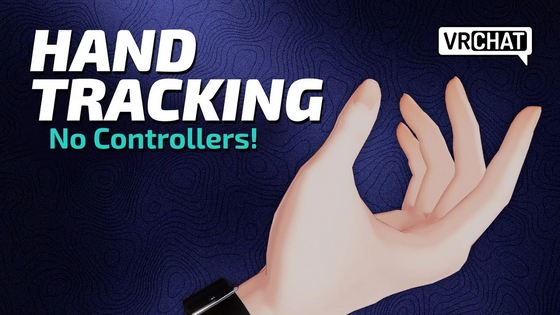

VRChat also offers a tutorial world, and tutorial video on setting up hand tracking on Meta Quest systems, and to learn hand tracking gestures within VRChat.
Enable hand tracking on the Quest settings dashboard. To use hand tracking, place your controllers down on a flat surface, and hold your hands out so the Quest hand tracking system can detect them. Make sure there is ample lighting in the room, for the Quest cameras to see your hands. Please note that hand tracking cannot be utilized over wired Quest Link methods at this time.
To move around the world, hold your left hand up, palm facing upwards, towards your face. Touch your middle finger to your thumb in a "pinch" motion, and a small blue sphere will appear. While still pinching, move your fingers away from that sphere, and your avatar will move in that direction.
To turn left and right, pinch your middle finger to your thumb with your right hand. While still pinching, move your hand left or right from its original position.
You can also turn with Comfort Turning (snap turning) on or off. If you have Comfort Turning on, you will need to move your pinched finger past the turn point each time you turn. It might be easier to use this locomotion method with Comfort Turning disabled in your settings.
Open your quick menu by pinching your index finger and your thumb on your left hand. This is a default gesture on Meta systems, and you will see a small menu icon floating over your hand, which fills a gauge as you long-pinch. There are three methods you can use to open your Quick Menu:
- Palm Facing Pinch
- Circle Key
- Push Button
To interact with the user interface and menus, point at it with either hand, and select things by pinching your index and thumb together.
You can mute yourself by holding your thumb and ring finger together for a moment on your left hand.
Picking up world objects can be done by going near the object, and clenching your fist. Additionally, you can use objects by keeping your middle, ring, and little fingers clenched, but separately pinching your index and thumb together.
Note: Hand tracking does not work with Quest Link. Finger tracking controls can be viewed in the Controls tab of the main menu, while finger tracking is enabled.
Desktop
You can play VRChat using a keyboard and mouse.
Movement is handled via the standard FPS “WASD” setup. Your mouse adjusts your view position. Your head points in the direction you’re looking.
| Key | Function |
|---|---|
| Movement | |
| W | Moves user forward |
| A | Moves user left |
| S | Moves user back |
| D | Moves user right |
| Space | Makes user jump |
| Shift | Sprint |
| C | Crouch |
| Z | Crawl/Go Prone |
| < and > | Rotate the user left and right in. |
| Third Person View | |
| F5 | Toggles Third Person View |
| Tab | Free rotate camera around the viewpoint of the avatar |
| Scroll Wheel | Adjust camera view distance |
| Communication | |
| V (If using toggle talk) | Enables / Disables microphone |
| V (Hold) (If using push to talk) | Enables microphone as long as it’s held |
| Y | Opens chatbox text input |
| Interaction | |
| Left Click | Interact / Pickup |
| Right Click | Drop pickup |
| Right Click (Hold) (Pickups) | Allows you to throw held pickups. The longer you hold, the further the object goes. |
| Tab (Hold) | Allows you to move your mouse around the screen without moving your avatar. (Useful for clicking UI elements) |
| I / K | Adjusts pitch of the held object (rotate along X axis) |
| J / L | Adjusts yaw of the held object (rotate along Y axis) |
| U / O | Adjusts roll of the held object (rotate along Z axis) |
| Scroll Wheel | Moves the held object forward/back (translate along Z axis) |
| Middle Mouse Button (Hold) | Adjusts object rotation by moving the mouse |
| Expressions | |
| Shift + F1* | Hand gesture - Idle |
| Shift + F2* | Hand gesture - Fist |
| Shift + F3* | Hand gesture - Open Hand |
| Shift + F4* | Hand gesture - Point |
| Shift + F5* | Hand gesture - Victory (Peace) |
| Shift + F6* | Hand gesture - Rock ’n Roll |
| Shift + F7* | Hand gesture - Finger-gun |
| Shift + F8* | Hand gesture - Thumbs up |
| User Interface | |
| Escape | Opens Quick Menu |
| R | Opens Action Menu |
| F4 | Toggles Face Mirror positions |
| Right Click (Hold) | Shows interaction mouse (If "Show Reticle" setting is off) |
| Control + N | Cycles through visibility options of nameplates |
| Control + H | Toggles visibility of the HUD (microphone and notification icons) |
| Screenshots | |
| F12 | Takes screenshot, saved to the folder VRChat is installed |
| Control + F12 | Takes screenshot at double the normal resolution, by default 4K (3840 × 2160), saved to the User’s Pictures/VRChat folder |
| Safety and miscellaneous | |
| Shift + Escape | Enables Safe Mode. |
| Control + \ | Local switch to default Robot avatar (Useful when your avatar causes crashes or prevents you from using your menu) |
| Escape (Hold during world load) | Locally change avatar to error robot (Useful when your avatar causes crashes or prevents you from using your menu) |
| End | Toggles AFK mode |
| Debug | |
| RShift + Backtick + 1† | Toggles visibility of "AssetBundle / Memory" debug menu |
| RShift + Backtick + 2† | Toggles visibility of "Version & Info" debug menu |
| RShift + Backtick + 3† | Toggles visibility of "Log Viewer" debug menu |
| RShift + Backtick + 4† | Toggles visibility of "Players" debug menu |
| RShift + Backtick + 5† | Toggles visibility of "Net Tools" debug menu |
| RShift + Backtick + 6† | Toggles visibility of "Net Objects" debug menu |
| RShift + Backtick + 7† | Toggles visibility of "PhysBone & Contact" overlay |
| RShift + Backtick + 8† | Toggles visibility of "Network Object Info" overlay |
| RShift + Backtick + 9† | Toggles visibility of "Player Info" overlay |
| RShift + Backtick + 0† | Toggles visibility of "VRC_UIShapes" overlay |
* Use left shift to control your left hand, use right shift to control your right hand.
† On a standard English US QWERTY layout keyboard, “backtick” is the key in the top left, next to the 1 key. It shares a key with the tilde (~) character.
Mobile
On the left side of the screen is a virtual joystick, which will move your avatar around. Tapping and dragging on the screen will move your point of view. Double tapping and holding anywhere on the screen will let you walk around and move your viewpoint simultaneously.
The right side of the screen has buttons for jumping, picking up items, and interacting with the world. Holding down the button will allow for further options, such as an action menu, or crouching.
Tapping on another user or a portal will instantly bring up a secondary menu.
Gamepad
You can play VRChat using a gamepad on PC and Mobile.
Typical controllers supported include Xbox controllers, PlayStation controllers, and Nintendo Switch controllers. The below table uses the "Xbox" controller layout for reference.
| Buttons (Based on Xbox Controller) | Assignment |
|---|---|
| A | Makes user jump (if it is enabled in the room) |
| B / X | Drop pickup |
| Y (Hold) (If using push to talk) | Enables microphone as long as it’s held |
| Y (If using toggle talk) | Enables / Disables microphone |
| D-pad Up | Toggles visibility of user nametags |
| D-pad Down | Toggles visibility of the HUD (microphone and notification icons) |
| LB (Hold) + Left Joystick | Moves the held object forward/back (translate along Z axis) |
| LB (Hold) + Right Joystick | Rotates the held object |
| RB (Hold) + Left Joystick | Select left hand gesture (Only Available on Steam) |
| RB (Hold) + Right Joystick | Select right hand gesture (Only Available on Steam) |
| LT/RT | Interact / Pickup |
| Left Joystick | Moves user |
| Left Joystick Click | Crouch |
| Left Joystick Hold | Crawl/Go Prone |
| Right Joystick | Looks around |
| Right Joystick Click | Opens Action Menu |
| View | Takes screenshot, saved to the folder VRChat is installed |
| Menu | Opens Quick Menu |
| A / RT (In Menu) | Click in Menu |
| B (In Menu) | Closes Menu |
Resources
- "Quest 2 Finger Tracking" by VRChat on YouTube
- "VRChat 2022.4.1" on Hand Tracking
- "Beginner's Guide to VRChat Hand/Finger Tracking" by VRChat on YouTube


